The best screen recording software depends on your operating system and on whether viewers get a raw link or an edited video. Loom is my pick to share a link, and Camtasia to edit training video. OBS Studio fits free capture and streaming, and Screen Studio fits Mac product demos.
The 12 picks cover Windows, Mac, Linux and the browser, free and paid. I built the ranking from each vendor’s pricing, download and help pages, read in October 2026, and priced five seats for a year.
Quick verdict
Share-first teams: Loom, or Zight when customers must send recordings back.
Edit-first creators: Camtasia for courses with SCORM export, Descript for narrated videos edited as text, ScreenPal for teachers on a budget.
Free: OBS Studio on Windows, Mac and Linux, ShareX on Windows, Clipchamp in the browser. Mac demos: Screen Studio.
The trade-off: free tiers cap length (5 minutes on Loom and Zight) or watermark exports (Camtasia’s free Editor).

Loom
Best for: quick record-and-share async video
Comments and viewer insights ride on every link, free plan included.
Limit: free recordings stop at 5 minutes

Camtasia
Best for: record-then-edit training videos
A multitrack editor with quizzes and SCORM export on Essentials.
Limit: the cheapest plan’s Editor is watermarked

OBS Studio
Best for: free advanced capture and live streaming
Free and open source, with unlimited scenes on Windows, Mac and Linux.
Limit: no editor or share links listed

Screen Studio
Best for: polished product demos on Mac
Automatic zooms and a smoothed cursor are added after you record.
Limit: macOS only
| Software | Best for | Starting price | Free option | Recommended plan | Key limitation |
|---|---|---|---|---|---|
| Loom | Record-and-share async video | $18 per user/ | 25 videos, 5 min, 720p | Business | 5-minute free cap |
| Camtasia | Record-then-edit training | $39.00 per year | Watermarked Editor | Essentials, $179.88 per year | Starter’s Editor is watermarked |
| OBS Studio | Free capture and streaming | Free | Free, open source | None needed | No editor listed |
| Screen Studio | Mac product demos | $9/mo. on the Yearly plan | No trial published | Yearly | macOS only |
| Zight | Support teams | $9.95 per user/ | 5 min, 720p, 1 GB | Collaborate, $12 per user/ | Help-desk integrations are add-ons |
| Snagit | Screenshots and docs | $39 per year ($20 for students) | 14-day trial | Snagit, $39 per year | 25 Screencast videos |
| Descript | Editing by transcript | $16 per person/ | 60 media minutes a month | Creator, $24 per person/ | Media-hour caps |
| Tella | Presentation-style lessons | $13 per user/ | No free plan | Pro | AI edits use credits |
| ScreenPal | Teachers on a budget | $4.00/ | 15 min, 10 hosted videos | Deluxe | 720p playback below Max |
| ShareX | Free Windows capture | Free | Free, open source | None needed | Windows only |
| Bandicam | Gameplay on a per-PC license | $33.26 per year (Personal) | Watermark and limit | Business Annual 1-PC, $49.46 per year | Personal License is non-commercial |
| Clipchamp | Free browser recorder and editor | Free | 1080p, no watermark | Free | 30-minute sessions; 4K needs Premium |
Sources: Loom, Camtasia store, archived September 29, 2026, OBS Studio, Screen Studio, Zight, Snagit, Descript, Tella, ScreenPal, ShareX, Bandicam, Clipchamp, checked October 2026.
In This Article (19 sections)
Which Screen Recorder Fits Your OS, Budget and Workflow?
Pick the operating system first, then the workflow (share a link or edit first), then free versus paid: that order removes most of the list before price comes up.
| Where you record | Free | Paid, share first | Paid, edit first |
|---|---|---|---|
| Windows only | ShareX | No pick | No pick |
| Mac only | No pick | No pick | Screen Studio |
| Windows and Mac | Loom, Zight, ScreenPal, Descript free plans; Bandicam free versions | Loom, Zight | Camtasia, Snagit, Descript, Tella, ScreenPal, Bandicam |
| Windows, Mac and Linux | OBS Studio | No pick | No pick |
| Browser | Clipchamp | Loom and Zight extensions | Tella extension |
On Windows 10, Loom and OBS Studio run as is, Camtasia needs 64-bit version 20H2 or later, and ShareX needs 64-bit.
How I Chose These Screen Recorders
I considered the picks below and the tools under Also Considered. Each had to record the screen with microphone audio and show a live pricing or download page in 2026.
I ranked the rest on seven criteria, in order: operating system, workflow fit, free tier limits, price and billing model, sharing, output quality by plan, and captions by plan.
The ranking rests on official documentation and pricing pages, checked October 2026. Camtasia’s US-dollar prices come from the Internet Archive’s copy of TechSmith’s store dated September 29, 2026.
Record the same short clip on the free tier or trial of your top two and compare.
1. Loom: Best for Quick Record-and-Share Async Video
- Platforms: Windows 10 or above, macOS 12.3 or above, Chrome extension
- Free plan: Starter, 25 videos per person, 5 minutes per recording
- Trial: 14 days of Business + AI
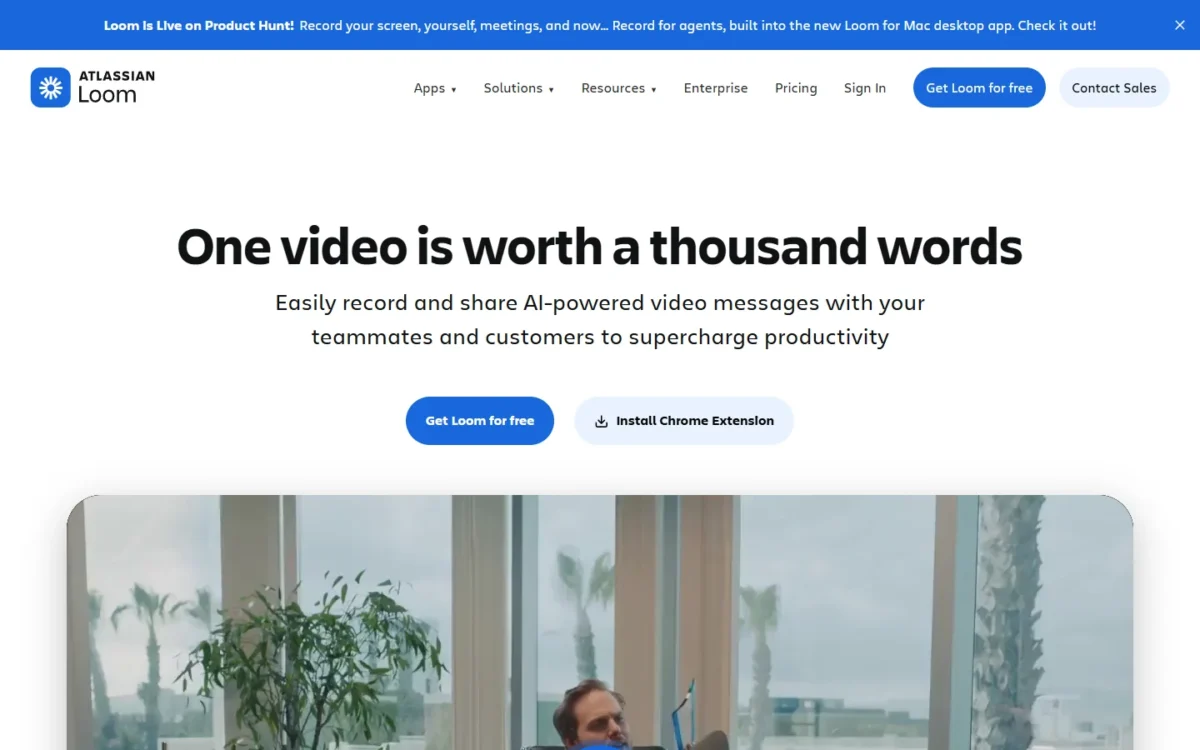
Loom turns a recording into a link a colleague can watch and answer, with comments on every plan, which makes it my pick for async updates and bug reports. The catch is the free plan: Starter caps each person at 25 videos of 5 minutes, so anyone recording weekly moves to Business.
Editing stays thin: Business adds trim and stitch, and edit by transcript sits on Business + AI. The desktop app records up to 4K, while the Chrome extension stops at 720p.
Loom lists Slack, Jira, GitHub and Gmail on every plan, and its support page rules out Linux. Against Zight, Loom’s edge is a free workspace of up to 50 members.
One person on Business pays $18 x 12 months = $216 a year on monthly billing; Loom says paying annually saves 17%.

- Starter: $0, 25 videos of 5 minutes, 720p
- Business: $18 per user / month, monthly billing
- Business + AI: $24 per user / month, monthly billing
Sources: Loom pricing, Monthly view, checked October 2026.
Pros
- Comments and viewer insights on the free plan
- Free workspace of up to 50 members
- Unlimited recording time on Business
Cons
- 5-minute, 25-video cap on Starter
- Chrome extension stops at 720p
- No Linux or ChromeOS app
- Skip it if:
- your videos need cuts, callouts and captions before anyone sees them; Camtasia or Descript fit that work.
My full Loom review goes through the plans in more depth before you pay.
2. Camtasia: Best for Record-then-Edit Training Videos
- Platforms: Windows 10 64-bit 20H2 or later, macOS 14.0 or later
- Free option: the full Camtasia Editor, with watermarked exports
- Standout feature: quizzes and SCORM export
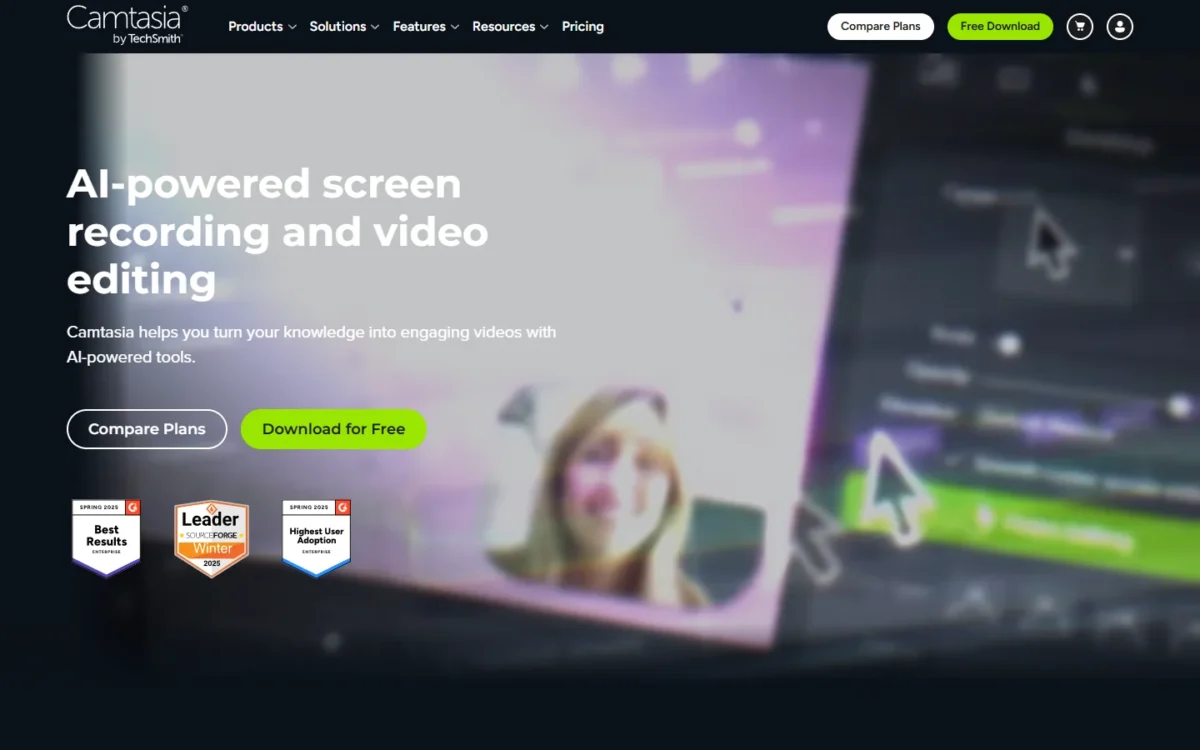
Camtasia turns a raw capture into a finished lesson: a multitrack timeline, cursor effects, captions and quizzes with SCORM export for a learning management system. Course builders get the most from it. The cost of that depth is the entry point, because the cheapest plan exports with a watermark.
Quizzes and SCORM export arrive on Essentials, so the quiz travels with the course into an LMS; ScreenPal sells quizzes for less, without SCORM in its plan list. Every plan includes Camtasia Snagit, and Screencast hosting stops at 25 videos below Pro.
Starter’s Editor is watermarked, so Essentials at $179.88 per year, billed yearly, is the real entry for anyone publishing video.
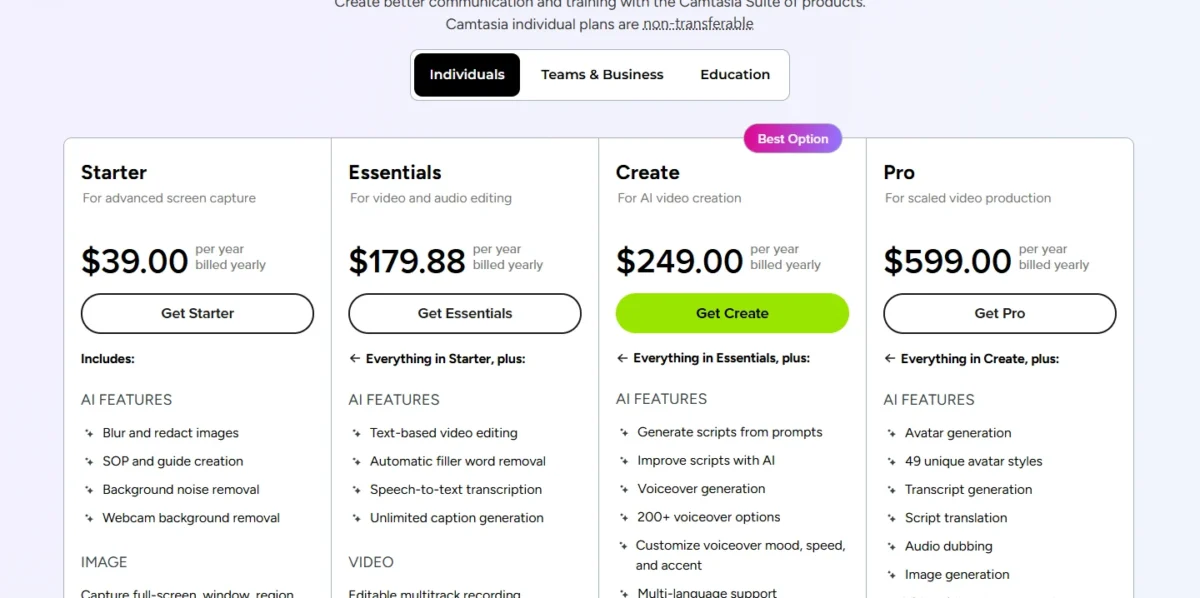
| Plan | Price | Billing | Key limit |
|---|---|---|---|
| Starter | $39.00 per year | Billed yearly | Editor watermarked |
| Essentials | $179.88 per year | Billed yearly | Quizzes, SCORM export |
| Create | $249.00 per year | Billed yearly | Adds AI voiceovers |
| Pro | $599.00 per year | Billed yearly | Unlimited Screencast sharing |
Sources: Camtasia store, archived September 29, 2026; Camtasia, checked October 2026.
Pros
- SCORM export for LMS courses on Essentials
- Multitrack editing with cursor effects
- Snagit included in every plan
Cons
- Starter’s Editor exports carry a watermark
- Screencast hosting stops at 25 videos below Pro
- Individual plans are non-transferable
- Skip it if:
- you send quick updates rather than lessons; Loom instantly creates a link for sharing, with comments, and Screen Studio adds zooms to a Mac demo automatically.
3. OBS Studio: Best Free Recorder for Advanced Capture and Live Streaming

- Platforms: Windows 10 and 11, macOS 13.0 or newer, Linux
- Latest release: 32.2.2, August 14
- Standout feature: unlimited scenes with custom transitions
OBS Studio shows how far a free recorder goes: unlimited scenes, an audio mixer with per-source filters and live streaming on three operating systems. It is a capture and broadcast tool rather than a finishing tool, and its site lists no editor or share links.
Each scene combines window captures, browser windows, webcams and capture cards, so a tutorial can switch from slides to a face cam during the take. The trade-off is setup: you build scenes before pressing record, where Loom asks for one click.
OBS Studio is free and open source software for video recording and live streaming, funded by sponsors and backers.
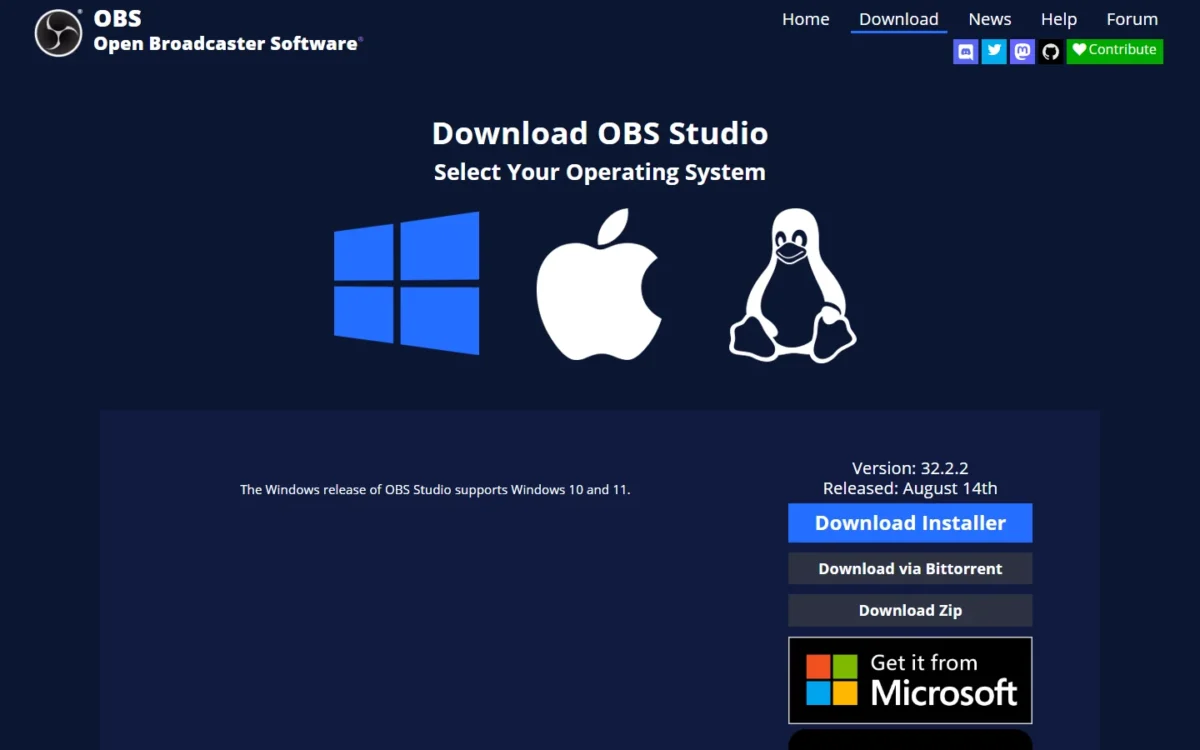
- Price: free, open source
- Builds: Windows, macOS (Intel and Apple Silicon), Linux
Sources: OBS Studio, checked October 2026.
Pros
- Free, with no recording cap listed
- Runs on Windows, Mac and Linux
- Records and streams from the same scenes
Cons
- Scenes need setting up before the first take
- No editor listed
- No share links listed
- Skip it if:
- you want a link the moment you stop; Loom or ShareX get there with less setup.
OBS only records, so my roundup of video editing software covers the edit that follows.
4. Screen Studio: Best for Polished Product Demos on Mac
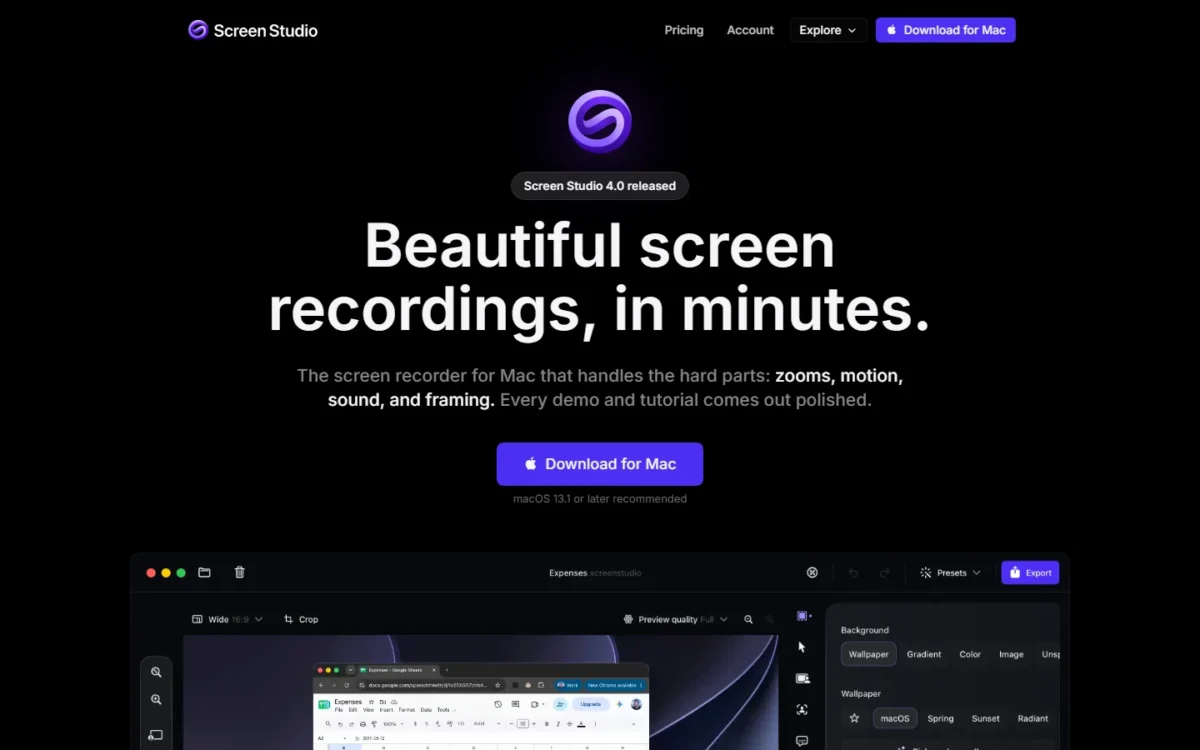
- Platform: macOS only; macOS 13.1 or later recommended
- Free plan or trial: no trial published
- Standout feature: automatic zooms and a smoothed cursor
Screen Studio makes a Mac demo look edited by handling zooms, motion and framing for you. It records the screen without the cursor and adds the cursor back, so it can smooth movement and zoom on clicks after the take. Founders and product marketers shipping frequent demos gain the most; the vendor has no near-future plans for Windows.
Camtasia puts zooms a few clicks away in its editor; Screen Studio sets them from where you clicked. Share links play at 1080p for videos up to 30 minutes, which fits demos rather than hour-long lessons.
Every feature is in both plans, and a year on the Yearly plan is $9 x 12 months = $108.
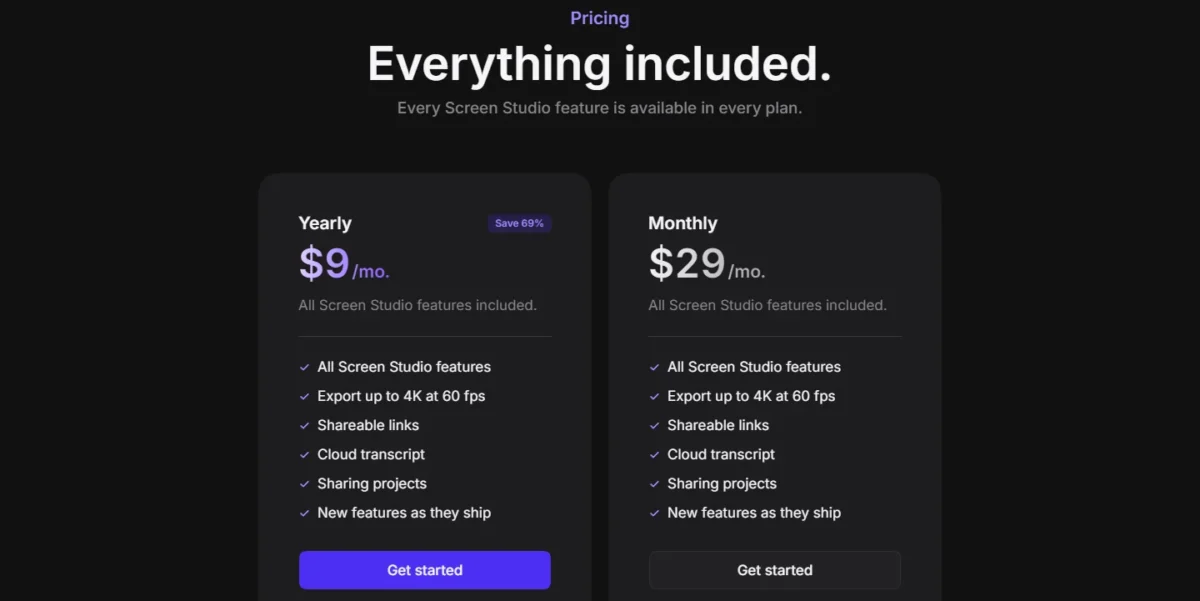
- Yearly: $9/mo.
- Monthly: $29/mo.
- Students and educators: 40% off
Sources: Screen Studio pricing, checked October 2026.
Pros
- Automatic zooms without keyframes
- MP4 export up to 4K at 60 fps
- Transcripts processed on the Mac
Cons
- macOS only
- Share links stop at 30 minutes
- No trial published
- Skip it if:
- your team uses Windows (Camtasia or Tella) or needs recordings sent back by customers (Zight).
5. Zight: Best for Support and Customer Success Teams
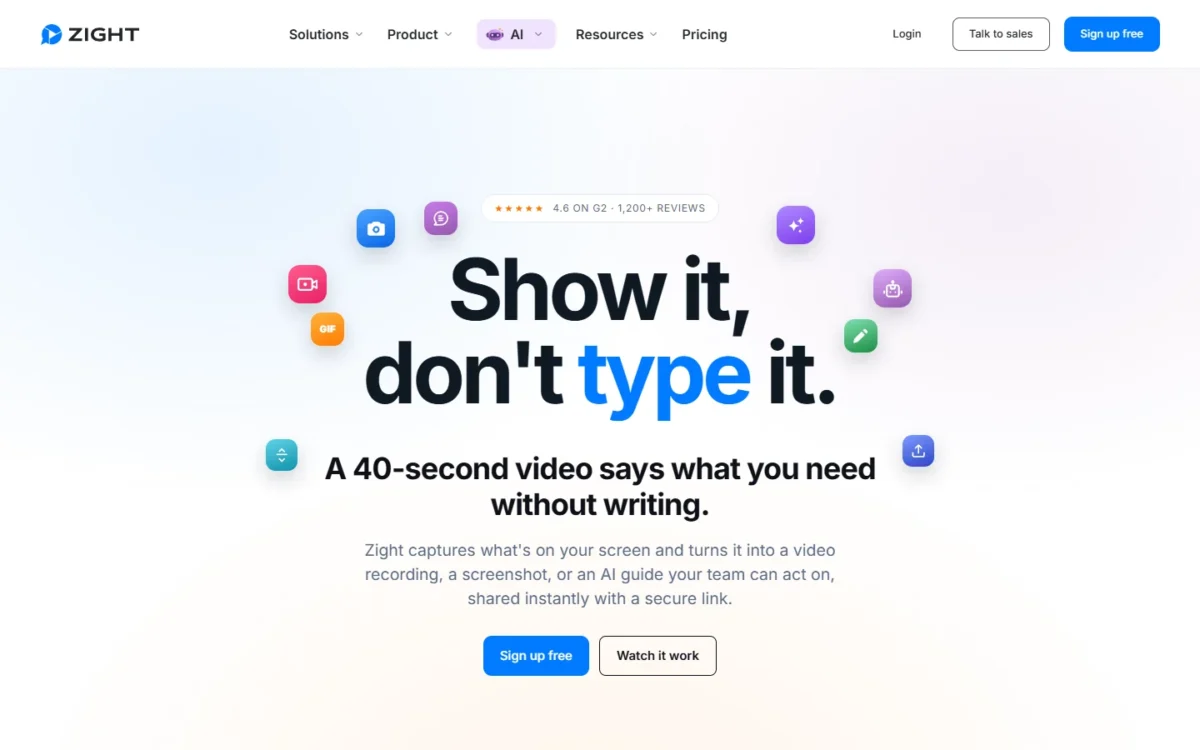
- Platforms: Mac, Windows, Chrome, iOS
- Free plan: Share, 5-minute recordings, 720p, 1 GB storage
- Standout feature: Video Requests that collect a recording from anyone
Zight earns its place with one feature a support desk needs: a Video Request link that lets a customer record their screen and send it back with no account or install. Recordings, screenshots and GIFs share one library for answering tickets.
Requests scale by plan: 5 a month on Share, 10 on Create and 50 on Collaborate. Slack and Microsoft Teams come with Create, while Zendesk, Intercom and Salesforce Service Cloud are add-ons below Scale.
Against Loom Business at $18 on monthly billing, Collaborate is cheaper per seat, though the billing bases differ; Zight says annual billing saves 20%.

- Share: $0
- Create: $9.95 per user / month, billed annually
- Collaborate: $12 per user / month, billed annually
Sources: Zight pricing, checked October 2026.
Pros
- Customers record back with no account
- Unlimited AI Smart Actions on Collaborate
- Desktop, Chrome and iOS apps on every plan
Cons
- 5-minute, 720p free plan
- Help-desk integrations are add-ons below Scale
- SSO and SCIM wait for Scale
- Skip it if:
- you never ask customers for a video; Loom’s free workspace holds up to 50 members.
6. Snagit: Best for Screenshots and Short Recordings in Documentation
- Platforms: Windows 10 and 11, macOS 14 or later
- Free trial: 14 days, no credit card
- Standout feature: Step Capture turns clicks into a written guide
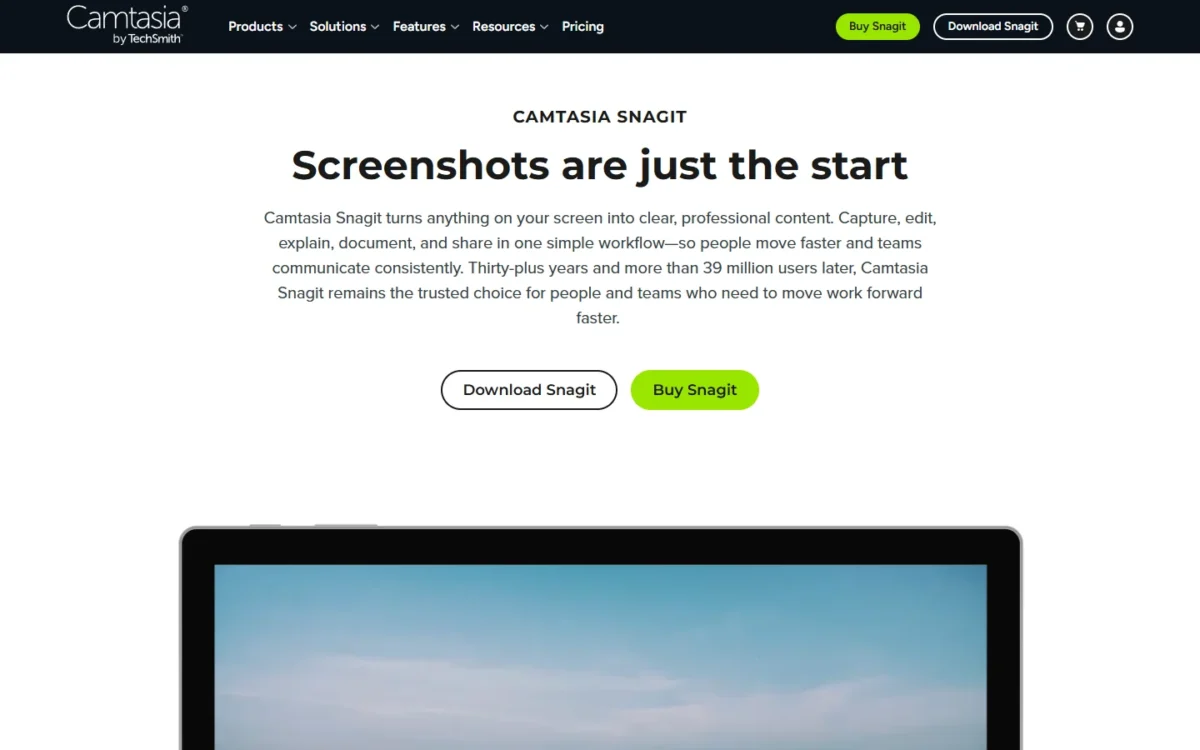
Snagit is the pick when the output is a document rather than a video: Step Capture turns a walkthrough into a numbered guide, and short recordings sit beside annotated screenshots. TechSmith’s page calls it Camtasia Snagit and includes it in every Camtasia plan.
A support or IT team writes a help article from one walkthrough without numbering images by hand. If those guides end up in a help center, my ranking of knowledge base software covers where to publish them. Against ShareX, Snagit adds Mac support and step guides.
TechSmith sells Snagit Individual per user per year, billed yearly; its student page puts Snagit’s value at $39 USD per year and the student price at $20.

- Snagit: $39 per year
- Students: $20 per year
- Camtasia Starter: $39.00 per year, Snagit included
Sources: Snagit student page, Snagit store, checked October 2026.
Pros
- Step Capture builds a written guide
- Smart redact hides sensitive details
- 14-day free trial, no credit card
Cons
- Video editing limited to trimming and combining clips
- Screencast hosting stops at 25 videos
- Sold per user per year
- Skip it if:
- you need edited video lessons (Camtasia) or free capture on Windows (ShareX).
7. Descript: Best for Editing a Recording by Its Transcript

- Platforms: macOS 14 (Sonoma) or Windows 11 and newer
- Free plan: 60 media minutes a month, 720p export
- Standout feature: edit video by editing its transcript
Descript suits people who talk through their recordings: it transcribes the take, and you cut the video by deleting words. Narrated tutorials fit that model; a click-heavy demo gains more from Screen Studio’s zooms. Media hours rather than video counts cap every plan.
Media hours count recordings and uploads alike, and the free plan holds 60 media minutes a month.
Take an illustrative creator who records one 20-minute tutorial a week: 20 x 4 = 80 minutes a month, past the free allowance above.
For AI editing of finished footage, my comparison of AI video editors goes further.
A solo creator on Creator pays $24 x 12 months = $288 a year on annual billing instead of $35 x 12 months = $420 on monthly billing.
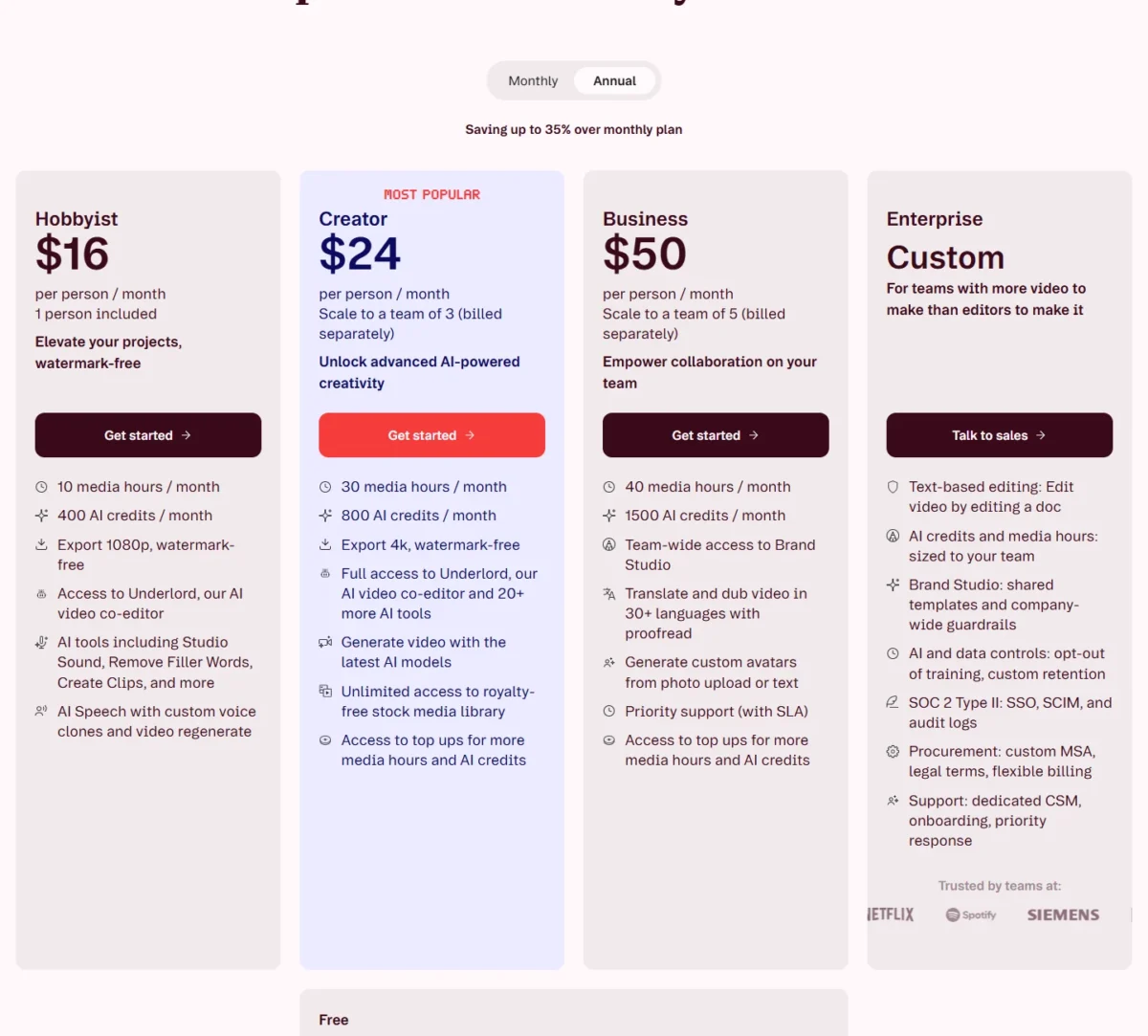
| Plan | Annual billing | Monthly billing | Key limit |
|---|---|---|---|
| Hobbyist | $16 per person / month | $24 per person / month | 10 media hours, 1080p |
| Creator | $24 per person / month | $35 per person / month | 30 media hours, 4K |
| Business | $50 per person / month | $65 per person / month | 40 media hours |
Sources: Descript pricing, Annual and Monthly views, checked October 2026.
Pros
- Cut video by deleting words
- Free plan with no credit card
- 4K watermark-free export on Creator
Cons
- Media hours cap every plan
- Free exports stop at 720p
- Needs macOS 14 or Windows 11
- Skip it if:
- you record silent, click-heavy demos on a Mac (Screen Studio) or still run Windows 10 (Camtasia supports Windows 10 64-bit 20H2 or later and edits on a multitrack timeline).
8. Tella: Best for Presentation-Style Lessons and Demos in the Browser
- Platforms: native macOS and Windows recorders, Chrome extension
- Free plan or trial: no free plan; free trials include no credits
- Recording length: 6 hours, up to 4K
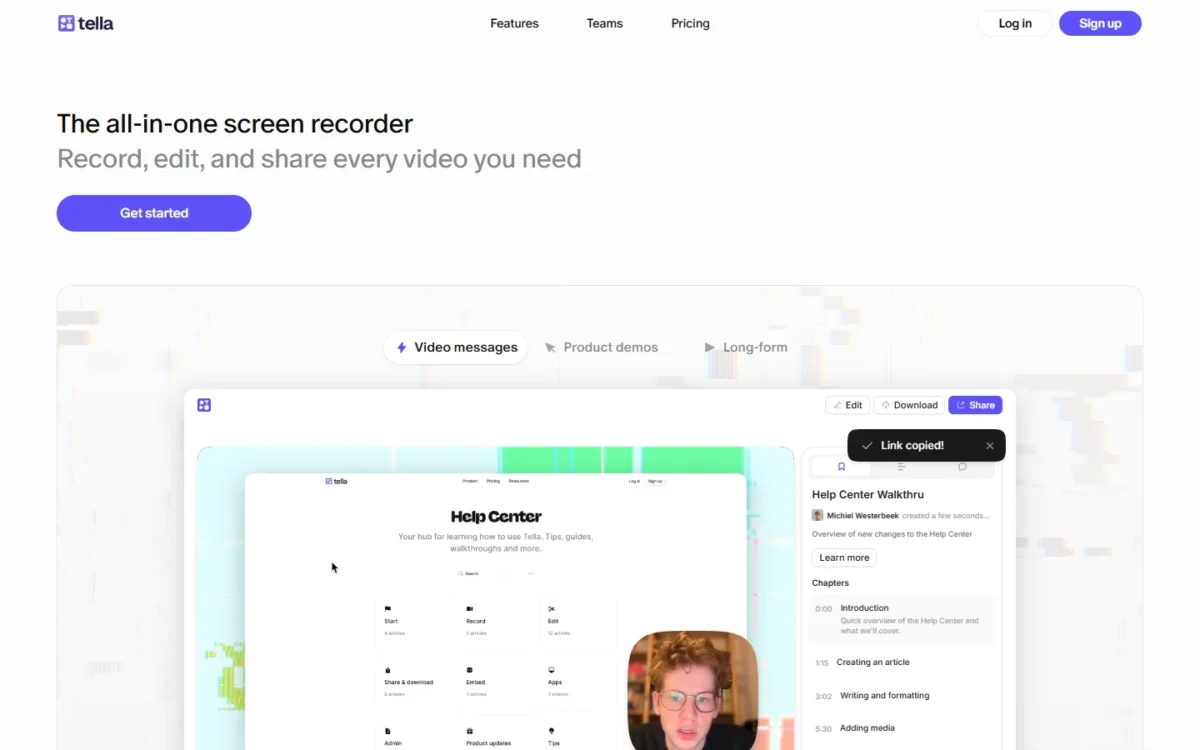
Tella is for lessons and demos that should look produced without a separate editor: layouts, auto zoom and transcript editing sit in one tool, and a recording can run 6 hours. Like Screen Studio, it lists no free plan.
The Tella Agent edits from a chat and spends credits, 3,000 per user a month on Pro, so heavy AI editing means top-ups. Against Screen Studio, Tella runs on Windows and Chrome as well as Mac, and a Loom migration tool helps teams moving across.
One person on Pro pays $13 x 12 months = $156 a year; Premium removes Tella branding.

- Pro: $13 per user / month, billed annually
- Premium: $19 per user / month, billed annually
- Enterprise: custom
Sources: Tella pricing, checked October 2026.
Pros
- 6-hour recordings up to 4K on every plan
- Auto Layouts and Auto Zoom built in
- Loom migration tool
Cons
- No free plan
- AI edits draw on a monthly credit pool
- Branding removal needs Premium
- Skip it if:
- you want to stay free (Loom Starter or Clipchamp) or need discounted education pricing (ScreenPal).
9. ScreenPal: Best Budget Pick for Teachers

- Platforms: Windows and Mac, plus mobile
- Free plan: 15-minute recordings, 10 hosted videos, 5 quizzes
- Standout feature: quizzes and polls on hosted videos
ScreenPal fits a teacher’s budget and workflow: it records, edits and hosts lessons and adds quizzes and polls to them. Deluxe removes the 15-minute cap for a few dollars a month. A course that must ship as SCORM still belongs in Camtasia.
Quizzes run at 5 on Free and Deluxe and unlimited on Max, and ScreenPal lists LMS integration. Unlimited quizzes on Max cost $10 x 12 months = $120 a year, against Camtasia Essentials at $179.88 a year.
Max also lifts playback from 720p to 4K, which matters when students read code or small text.

- Deluxe: $4.00/mo., paid annually
- Max: $10.00/mo., paid annually
- Team Business: $8.00/mo. per user, paid annually, 3+ users (shown with 20% off)
Sources: ScreenPal plans, ScreenPal recorder, checked October 2026.
Pros
- Deluxe lifts the 15-minute cap
- Quizzes, polls and LMS integration
- Free plan with 10 hosted videos
Cons
- 720p playback below Max
- Unlimited quizzes need Max
- Team Business needs 3 or more users
- Skip it if:
- your course must load into an LMS as SCORM (Camtasia) or your videos are product demos (Screen Studio or Tella).
10. ShareX: Best Free Capture Tool for Windows Power Users
- Platform: Windows 10 64-bit or higher
- Latest release: ShareX 22.0.0, October 20, 2026
- Standout feature: after-capture tasks that upload a file and copy its link
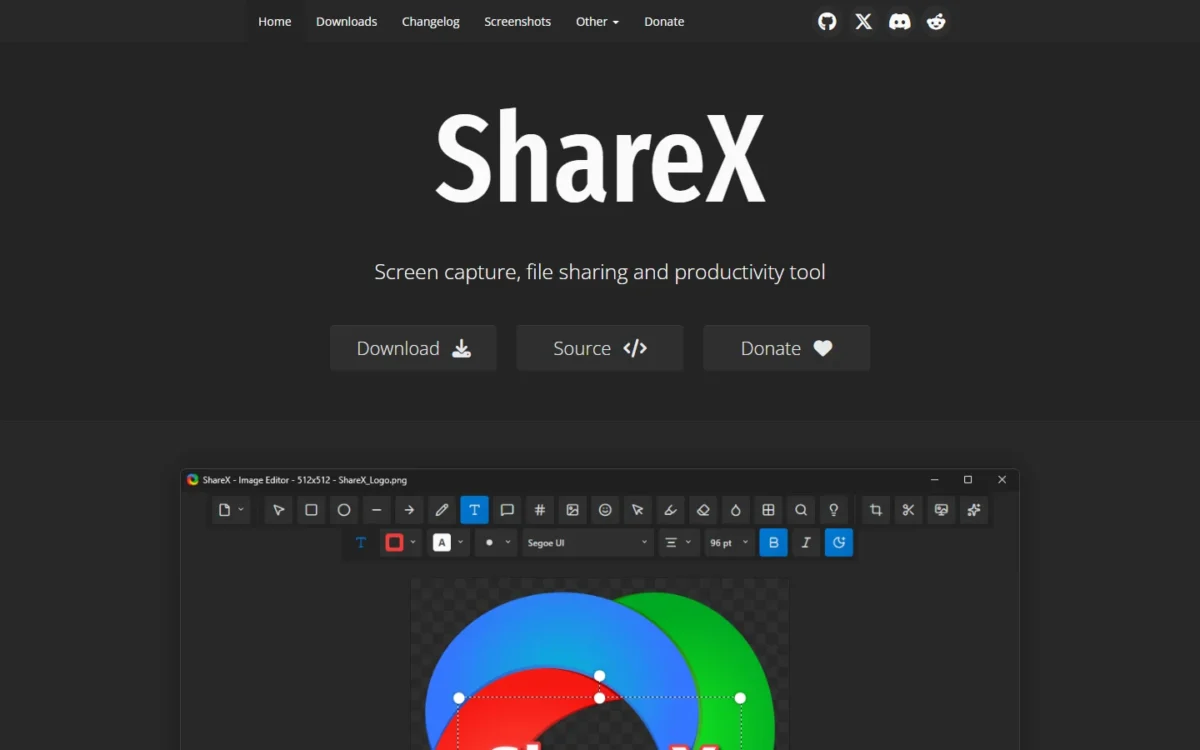
ShareX is the free Windows tool for quick clips: record a region or a GIF, and after-capture tasks upload the file and copy the link. It needs no account, but it is a capture utility, not a video editor.
ShareX 22.0.0, released October 20, 2026, added native screen recording, system and microphone audio, camera overlays and a 120 FPS limit. Its developers expect this release to be less stable than usual. Against OBS Studio, ShareX is quicker for a region clip; OBS wins once you need scenes.
ShareX costs nothing: its site says “Free forever. Open source. No account required.”

- Price: free, open source
- Installs: setup file, portable build, Microsoft Store, Steam
Sources: ShareX, checked October 2026.
Pros
- Free, open source, no account
- Uploads and copies a link automatically
- 120 FPS recording since 22.0.0
Cons
- Windows only
- Video tools stop at trimming and converting
- Version 22.0.0 is expected to be less stable
- Skip it if:
- you use a Mac (Screen Studio, or OBS Studio for free) or want comments on shared videos (Loom).
11. Bandicam: Best for Gameplay and Long Recordings on a Per-PC License
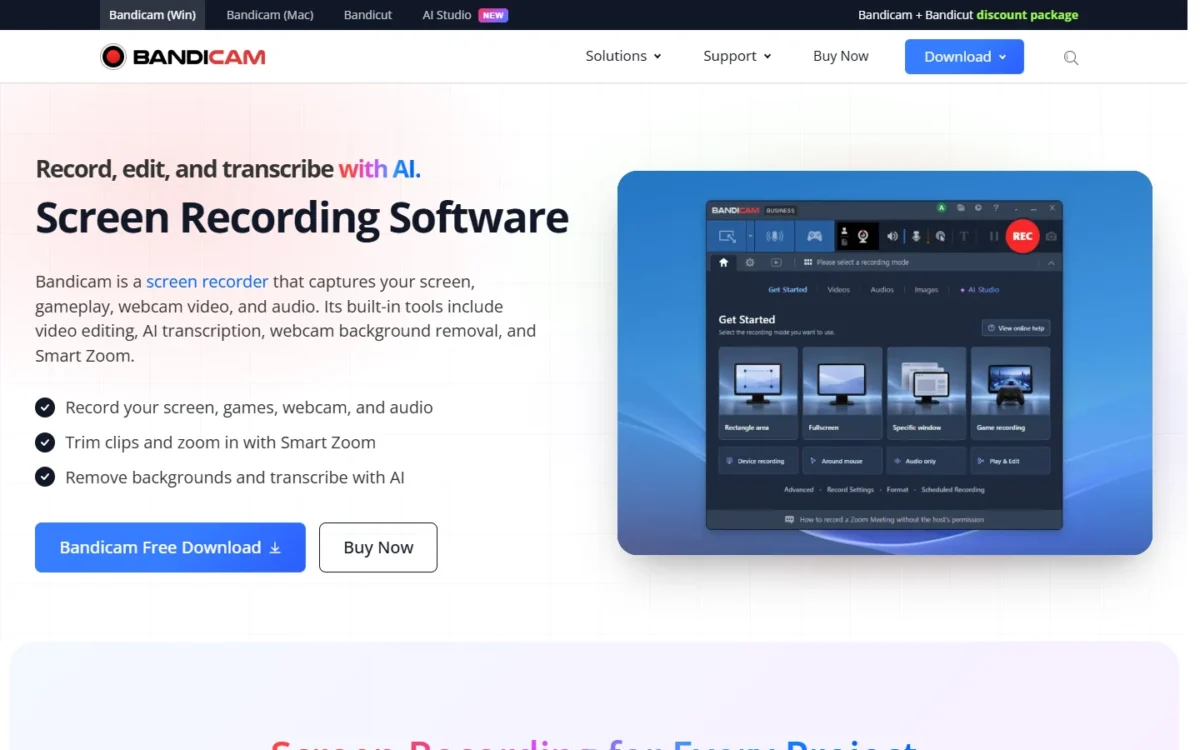
- Platforms: Windows PC; macOS via the Mac App Store
- Free version: on PC, watermark and recording limit until registered; on Mac, a 5-minute limit until Bandicam Pro
- Standout feature: game recording mode for DirectX, OpenGL and Vulkan
Bandicam suits buyers who want a license rather than a subscription, with a game recording mode that detects the running game. The licensing is the trap: the Personal License is non-commercial, so a company needs the Business License.
OBS Studio records window captures for free and streams too; Bandicam’s case is a dedicated game mode without building scenes.
Bandicam for Mac downloads from the Mac App Store. Its page lists 5K recording at 60FPS, a webcam overlay, AI video-to-text and a built-in trimmer, with a 5-minute limit that Bandicam Pro lifts.
The game mode and the licenses below come from Bandicam’s PC pages, so read the Mac page’s Pro plan guide before you buy for a Mac.
These are the store’s special-offer prices, shown beside higher regular ones; registering removes the watermark and the recording limit.
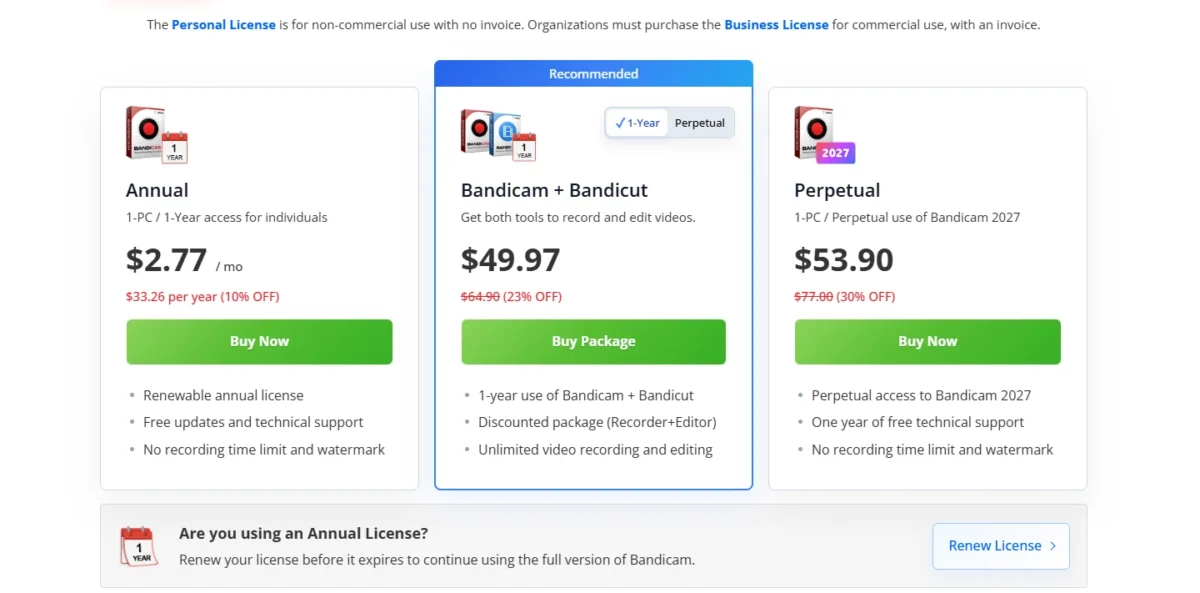
- Personal Annual 1-PC: $33.26 per year, non-commercial
- Personal Perpetual 1-PC: $53.90 (regular $77.00), non-commercial
- Business Annual 1-PC: $49.46 per year (regular $65.95)
Sources: Bandicam store, checked October 2026.
Pros
- Game mode for DirectX, OpenGL and Vulkan
- Perpetual Personal License
- Scheduled recording for long sessions
Cons
- Personal licenses are non-commercial
- Licensed per PC
- Free version adds a watermark and a limit
- Skip it if:
- you need live streaming or Linux (OBS Studio), or you want automatic zooms on a Mac demo (Screen Studio).
12. Clipchamp: Best Free Browser Recorder with a Built-In Editor
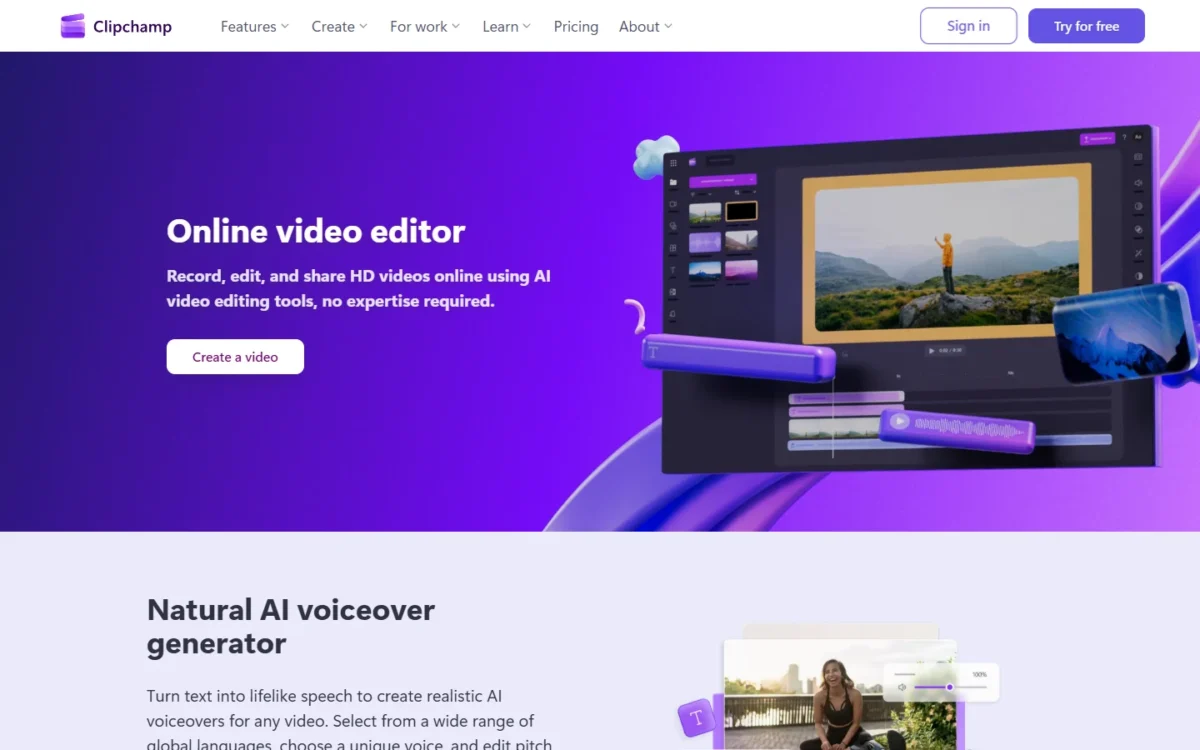
- Where it runs: the browser, on Windows 11 and Mac
- Free plan: personal Microsoft account; exports up to 1080p, no watermark
- Recording limit: 30-minute sessions, unlimited recordings
Clipchamp is the free route to record and edit without installing anything. It records screen and camera in the browser and exports up to 1080p without a watermark. The catch is the 30-minute session, which splits a long lesson into parts.
AI subtitles and silence removal are on the free plan. Against Loom’s Starter, Clipchamp gives 30-minute sessions and no cap on recordings, while Loom adds comments and viewer insights on its links.
The free plan needs only a personal Microsoft account; 4K exports need Premium.

- Free: $0, exports up to 1080p
- Premium: with Microsoft 365 Personal or Family
- Work version: in some Microsoft 365 business and education licenses
Sources: Clipchamp pricing, checked October 2026.
Pros
- Free 1080p exports with no watermark
- Record and edit in one browser tab
- No limit on the number of recordings
Cons
- 30-minute recording sessions
- Needs a Microsoft account
- 4K needs Microsoft 365 Personal or Family
- Skip it if:
- you need team review on links (Loom) or one take longer than 30 minutes (Tella records up to 6 hours).
What Screen Recording Costs a 5-Person Team per Year
Five people pay $0 a year on OBS Studio or ShareX and $3,000 on Descript Business, with the per-user team plans in between.
| Tool and plan | Billing basis | Annual cost for 5 users | Not included |
|---|---|---|---|
| Bandicam Business Annual 1-PC | Per PC, yearly | $49.46 x 5 PCs = $247.30 | Special-offer price; the store also sells an Annual 2-PC license at $95.92 |
| ScreenPal Team Business | Per user, paid annually | $8 x 5 users x 12 months = $480 | Shown with 20% off |
| Zight Collaborate | Per user, billed annually | $12 x 5 users x 12 months = $720 | Help-desk add-ons |
| Tella Pro | Per user, billed annually | $13 x 5 users x 12 months = $780 | Credit top-ups |
| Camtasia Essentials | Per license, billed yearly | $179.88 x 5 licenses = $899.40 | Team packages via sales |
| Loom Business | Per user, billed monthly | $18 x 5 users x 12 months = $1,080 | Loom’s 17% annual saving |
| Descript Business | Per person, billed annually | $50 x 5 people x 12 months = $3,000 | Media-hour top-ups |
Sources: Bandicam, ScreenPal, Zight, Tella, Camtasia, archived, Loom, Descript, checked October 2026.
The totals exclude tax. Screen Studio publishes no per-seat terms, Snagit comes inside every Camtasia plan, and Clipchamp Premium comes with Microsoft 365, so none has a row.
How to Choose the Best Screen Recording Software for You
Three questions settle most choices, in this order: which OS you record on, whether viewers get a raw link or an edited video, and whether the free tier’s cap blocks your typical video.
| Software | Editor | Share links | Captions |
|---|---|---|---|
| Loom | Business | Yes | Yes |
| Camtasia | Yes | 25 videos | Essentials |
| OBS Studio | Not listed | Not listed | Not listed |
| Screen Studio | Yes | Up to 30 min | Yes |
| Zight | Yes | Yes | Create |
| Snagit | Trim | 25 videos | Not listed |
| Descript | Yes | Yes | Yes |
| Tella | Yes | Yes | Yes |
| ScreenPal | Deluxe | Yes | Deluxe |
| ShareX | Trimmer | Upload link | Not listed |
| Bandicam | Trim | Not listed | Yes |
| Clipchamp | Yes | Not listed | Yes |
Sources: the vendor pages linked in each product section, checked October 2026.
Ease of use comes down to setup: Loom, Zight and Clipchamp record from a browser extension or tab, while OBS Studio asks you to build scenes first. If the recording is a meeting, my Zoom Workplace review covers recording it inside the meeting tool.
Free tiers: recording caps, watermarks and resolution
Loom and Zight stop free recordings at 5 minutes, ScreenPal at 15, Clipchamp at 30-minute sessions and Descript at 60 media minutes a month; OBS Studio and ShareX list no cap. Bandicam’s Mac version stops at 5 minutes until Bandicam Pro.
Camtasia’s free Editor and unregistered Bandicam on PC watermark the result, and free Loom, Zight and Descript stop at 720p.
Do you need webcam, system audio or 4K capture?
4K needs a paid plan on Loom (Business), Zight (Create), Descript (Creator) and Clipchamp, while Tella records up to 4K on every plan. System audio is listed on every Loom and Zight plan and in ShareX since 22.0.0; webcam overlays come in Loom, Screen Studio, Tella, ShareX, Bandicam and Clipchamp.
Is OBS or Bandicam better?
OBS Studio is better for free capture, Linux or live streaming; Bandicam is better for a per-PC license and a game mode without building scenes. A streamer starts with OBS, while a company recording on a few PCs pays $49.46 per PC per year for Bandicam Business.
Also Considered
- Movavi: its recorder’s trial runs 7 days and watermarks output videos, and the product page shows $19.95 including VAT with no license term. Bandicam’s store names an annual or perpetual term for each license.
- CleanShot X: a Mac capture app at $35 for CleanShot Basic, with no trial; Screen Studio covers Mac demo video more fully.
- ScreenRec: free for Windows, Mac and Linux, but its latest version, 5.0.13, dates from 20 July 2025, while ShareX released 22.0.0 on October 20, 2026.
- Vimeo Record: a browser recorder that shares inside Vimeo; Loom and Zight cover that job as dedicated recorders.
FAQ
What is the best screen recording software overall?
None wins every job, so pick by task: Loom for shared updates, Camtasia for training video, OBS Studio for free capture and streaming, Screen Studio for Mac demos. For one free Windows tool, ShareX copies a link after each capture.
What do most YouTubers use to screen record?
It depends on the channel. Gameplay and streaming channels fit OBS Studio, which records and streams from the same scenes for free. Tutorial channels that edit heavily fit Camtasia or Descript, and Mac app channels fit Screen Studio’s 4K, 60 fps export.
Is there a better screen recorder than OBS?
For free capture and streaming, OBS Studio stays my pick in this list. Others win narrower jobs: Loom for a link with comments, Screen Studio for automatic zooms, ShareX for instant region clips.
Is there a free screen recorder with no watermark?
Yes. OBS Studio and ShareX list no watermark, and Clipchamp exports up to 1080p with no watermark from a free Microsoft account. Camtasia’s free Editor and Bandicam’s unregistered PC version both watermark.
Final Verdict
For async updates, Loom is the pick, with the 5-minute free cap as its trade-off; Zight replaces it when customers must send recordings back. For training video, Camtasia Essentials buys a multitrack editor and SCORM export, Descript suits narrators who edit by text, and Tella suits polished lessons with Auto Layouts and Auto Zoom.
By OS, Mac demo makers should start with Screen Studio, Windows users wanting free clips with ShareX, and Linux users with OBS Studio. By budget, OBS Studio, ShareX and Clipchamp cost nothing, ScreenPal Deluxe suits teachers, and Bandicam suits a per-PC license.