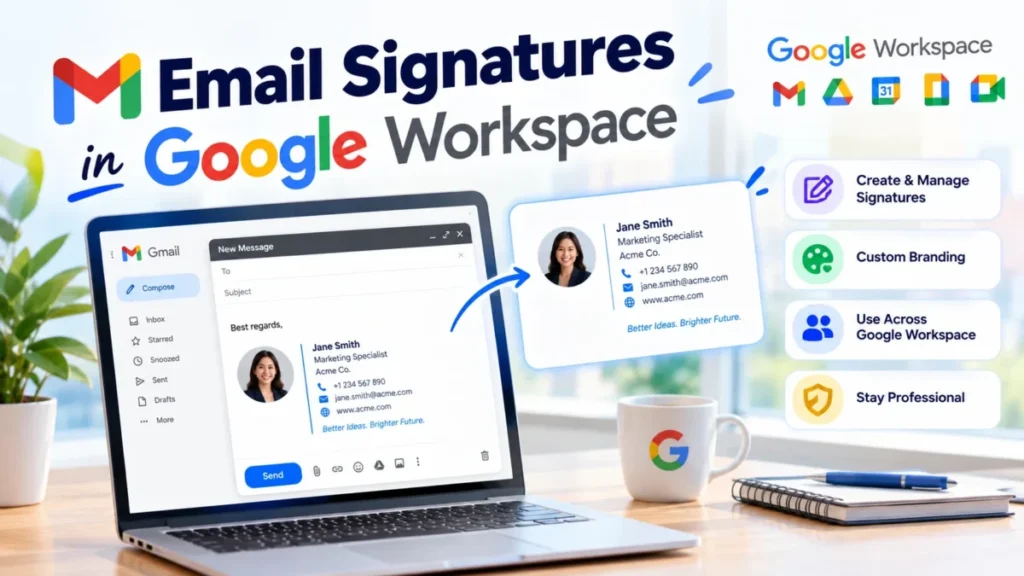
A Google Workspace email signature is a block of contact details, links and images that Gmail adds to the end of a user’s messages. In Workspace it can come from four places: each user’s Gmail settings, the Admin console’s Append footer, the Gmail API, or a signature add-on.
Out of the box, Gmail leaves each user to write and maintain their own signature. That works for a small team sharing one template, and it starts to unravel as headcount grows and nobody updates the old logo.
My short answer: put legal text in the Append footer. Then choose user signatures, an API script or an add-on for contact details, by team size and by who will maintain them.

In This Article (7 sections)
Four Ways to Handle Google Workspace Email Signatures
Google Workspace gives an admin three native routes and one third-party route, and they can be combined:
- User-created signatures in each person’s Gmail settings.
- The Append footer, an Admin console setting that adds the same text to outbound mail.
- The Gmail API, which lets a developer write each user’s signature by script.
- A signature management add-on that builds signatures centrally from directory data.
The pairing I would start from is the footer for legal text plus one of the other three for each person’s contact details. For the fourth route, Exclaimer is one such tool: Exclaimer synchronizes user details from Google Directory and assigns signatures by user, role, department or recipient.
| Route | Who sets it | Personalized per user | Can the user edit or remove it? | Where it appears | What it needs |
|---|---|---|---|---|---|
| Gmail signature | Each user | Yes, each writes their own | Yes | Gmail; the Gmail app too, unless a mobile signature is set | Nothing beyond Gmail |
| Append footer | An admin with the Gmail Settings administrator privilege | No per-user fields listed | No, and users don’t see it while writing | External mail by default; internal mail if the admin checks that box | Admin console access |
| Gmail API | A developer’s script | Yes, per send-as alias | Yes | New emails composed in the Gmail web UI | Developer time to build and maintain it |
| Add-on (Exclaimer as the example) | Admins, with delegated access | Yes, from Google Directory data | Locked elements possible | Device mode: in Gmail while writing; Cloud mode: after send, across devices | A third-party service; Exclaimer offers a free trial |
Sources: Gmail signature help, Google Workspace admin guide to user signatures, Gmail API sendAs reference, Exclaimer’s Google Workspace product page, checked October 2026.
The fourth column decides most setups: only the footer and a locked add-on stop users from changing what goes out under the company name.
Start with the route every user already has and see where it falls short.
User-Created Gmail Signatures
Every Gmail user can write a signature of up to 10,000 characters in Settings, and an image counts toward that limit. This route needs no admin work: each user writes and edits their own signature.
Set it up on a computer
The signature lives on the General tab of Gmail’s full settings:
- Open Gmail.
- At the top right, click Settings, then See all settings.
- On the General tab, scroll to the “Signature” section and add your text; format it or add an image if you want.
- At the bottom of the page, click Save Changes.
Gmail keeps several signatures per account: one default for new emails, another for replies, and Insert signature in the compose window to switch for one message.
A user who sends from a second address with “Send mail as” picks that address in the drop-down above the signature box to give it its own signature. No drop-down means the address is missing from Accounts and Import > “Send mail as”.
Take an illustrative layout for a fictional company, Acme Corp:
Jane Doe
Office Manager, Acme Corp
555-0100
acme.example.com
Those four lines come to under 100 characters, so the 10,000-character cap only starts to matter once an image goes in.
For a small team that shares one template like that, user signatures are enough. A growing business with a brand to protect needs more, because nobody updates hand-made signatures when the logo or someone’s role changes.
Signatures in the Gmail mobile app
The Gmail app uses your computer signature unless you create a mobile signature, which applies only to mail sent from the app.
- Open the Gmail app and tap Menu at the top left.
- Scroll to the bottom and tap Settings.
- Choose the Google Account, then tap Mobile signature.
- Enter the text and tap OK.
- Open the Gmail app and tap Menu, then Settings.
- Under “Compose and Reply,” tap Signature settings.
- Turn on “Mobile Signature,” add or edit it, and tap Back to save.
The iPhone setting is per account, so a user with two accounts in the app sets it twice.
Google’s steps for both phones ask only for text. If the logo matters on phone mail, leave Mobile signature off and send yourself a message from the app to check it.
Add a logo or image
A logo goes in through Insert image in the signature editor, from My Drive, Upload or Web Address (URL). It counts toward the 10,000-character limit; on an error, resize it.
A Drive image has two conditions before it shows up for recipients:
- the user shares the image publicly;
- an admin with the Drive & Docs administrator privilege opens Admin console > Apps > Google Workspace > Drive and Docs > Sharing settings. There the admin sets Sharing outside of your organization to On and checks the box that lets users make files visible to anyone with the link.
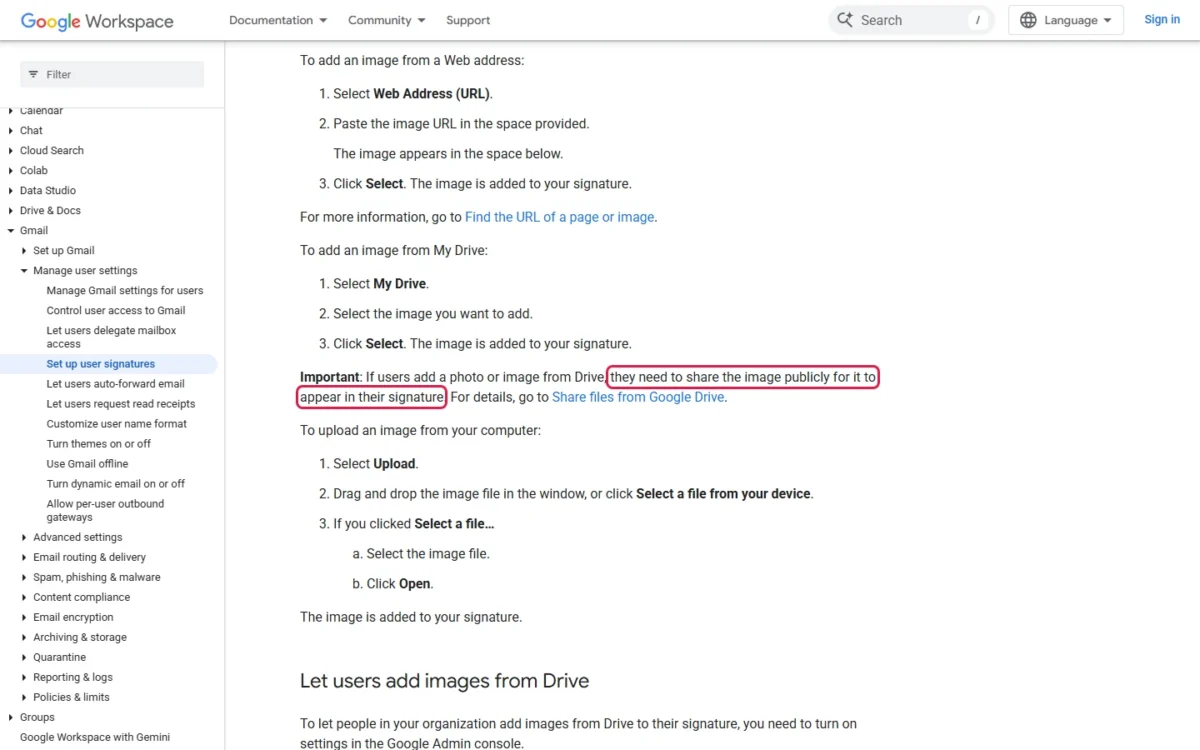
If your security policy keeps external sharing off, use Upload or a Web Address, which skip the Drive sharing setting.
The next route is the one an admin controls without asking users.
The Admin Console Append Footer
The Append footer adds text to outbound messages that users don’t see while writing and can’t change or remove. It requires the Gmail Settings administrator privilege.
Google’s admin guide to user signatures gives this path:
- In the Google Admin console, go to Menu > Apps > Google Workspace > Gmail > Compliance.
- Scroll to the Append footer setting and click Configure, or Add another rule.
- Enter a name for the setting, then the footer text, and format it with the editing tools.
- To cover internal mail too, check “Append the footer to messages being sent within your organization.”
- Click Save and check that the rule appears in the Append footer table.
Step 4 matters more than it looks. By default the footer goes only to recipients outside your organization, so colleagues never see it on each other’s mail.
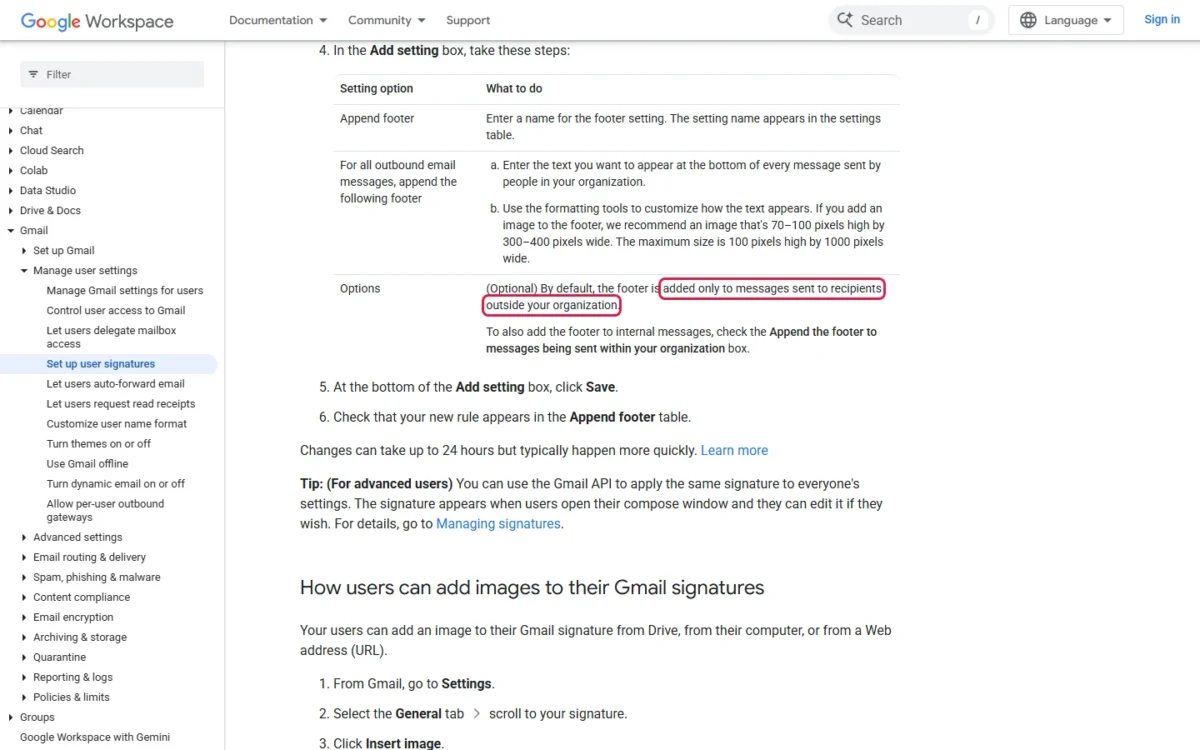
Changes can take up to 24 hours, though Google says they typically happen more quickly, so make them a day before a client mailing.
The footer can carry a logo. Google recommends an image 70–100 pixels high by 300–400 pixels wide, with a maximum of 100 pixels high by 1,000 pixels wide.
Google suggests the footer for legal compliance text, company promotions or a standard signature, but its setup page lists no per-user fields such as name, title or direct line.
That makes the footer a good home for confidentiality notices and company registration details, and a poor stand-in for a personal signature. Giving each person their own name and title centrally takes a script or an add-on.
Setting Signatures With the Gmail API
A developer can push signatures without buying a tool: the Gmail API’s sendAs resource has a signature field. It holds an optional HTML signature for messages composed with that alias in the Gmail web UI, added to new emails only.
Signatures are set per send-as alias, the API’s name for each “Send mail as” address. Google’s sample lists a user’s aliases and patches the primary one; a team script repeats that per account with each person’s details.
That gives central control without a third-party license. Two facts from Google’s own pages limit it:
- Users can still change it. Google’s admin guide says the signature appears when users open the compose window, and they can edit it if they wish.
- It is tied to the web UI. The sendAs page names only messages composed in the Gmail web UI and does not mention other mail clients. Send one test message from the Gmail app before you count on the signature there.
The harder part is keeping the script working. Someone has to own the script, handle errors, update the template and rerun it whenever a title or phone number changes.
For the code itself, Google’s guide to managing aliases and signatures with the Gmail API has Java and Python samples.
If nobody wants to own that script, an add-on takes the job over.
When a Signature Management Add-on Makes Sense
An add-on earns its place when manual updates fall behind, signatures must differ by team or region, and nobody in-house wants to own a script.
Google points the same way: its admin guide says Workspace Marketplace offers apps for a large organization with lots of signatures to manage.
Exclaimer is one such tool. Its Google Workspace product page lists:
- directory sync: Exclaimer synchronizes user details from Google Directory and lists HRIS tools as an integration;
- signatures assigned by user, role, department or recipient;
- Device deployment, which shows signatures in Gmail while the user writes;
- Cloud deployment, which applies them after send across devices and shows them in Gmail Sent Items as recipients received them;
- locked disclaimers, logos and brand elements, with chosen user fields left editable;
- signature banners that Exclaimer says marketing teams can update without IT intervention, with campaigns tracked via UTM links.
Its FAQ also offers a hybrid of server-side and client-side deployment. The cloud mode closes the API route’s two gaps: Exclaimer says post-send application leaves no risk of signature editing, and it works across devices.
The product page offers a free trial and a demo, so ask Exclaimer for a quote for your seat count before weighing it against a developer’s time.
For a 10-person consultancy, the footer plus a shared template is usually enough. For a 200-person company with a marketing team and several offices, the hours saved on manual updates are far more likely to justify an add-on.
Security questions to ask before installing an add-on
Ask three questions before an add-on touches your directory or your mail flow:
- Which directory data does it read? Exclaimer synchronizes user details from Google Directory.
- Does mail pass through its service? Cloud deployment applies signatures after send, and Exclaimer’s FAQ says server-side signatures are processed on Microsoft Azure infrastructure.
- Which certifications does it list? Exclaimer says it adheres to SOC 2 Type II, ISO 27001, ISO 27018, HIPAA and Cyber Essentials, verified by regular independent audits; ask for the current reports.
With the four routes laid out, the choice comes down to your team.
Which Route Fits Your Team
Pick by team size and by who will maintain the signatures:
| Your situation | Route | Why | Main trade-off |
|---|---|---|---|
| Small team, simple needs | User signatures from a shared template, plus the Append footer for legal text | No admin work beyond one footer rule | Layouts drift, and nobody enforces updates |
| Legal wording only | The Append footer on its own | Users can’t change or remove it | One text for everyone, external mail only unless you check the internal box |
| In-house developer, no add-on budget | The Gmail API with a maintained script | A personal signature for each user without a third-party license | Users can edit it, and it covers new emails in the Gmail web UI |
| Growing team with brand and marketing needs across offices | A signature management add-on | Directory sync, rules by department or recipient, locked elements | Another vendor in your mail flow |
Decide early: moving from hand-made signatures to a central route later means cleaning up every user’s settings.
If you are still deciding whether Workspace suits the team at all, my Google Workspace review weighs its plan gates before you build on it.
Frequently Asked Questions
Does a Google Workspace email signature cost extra?
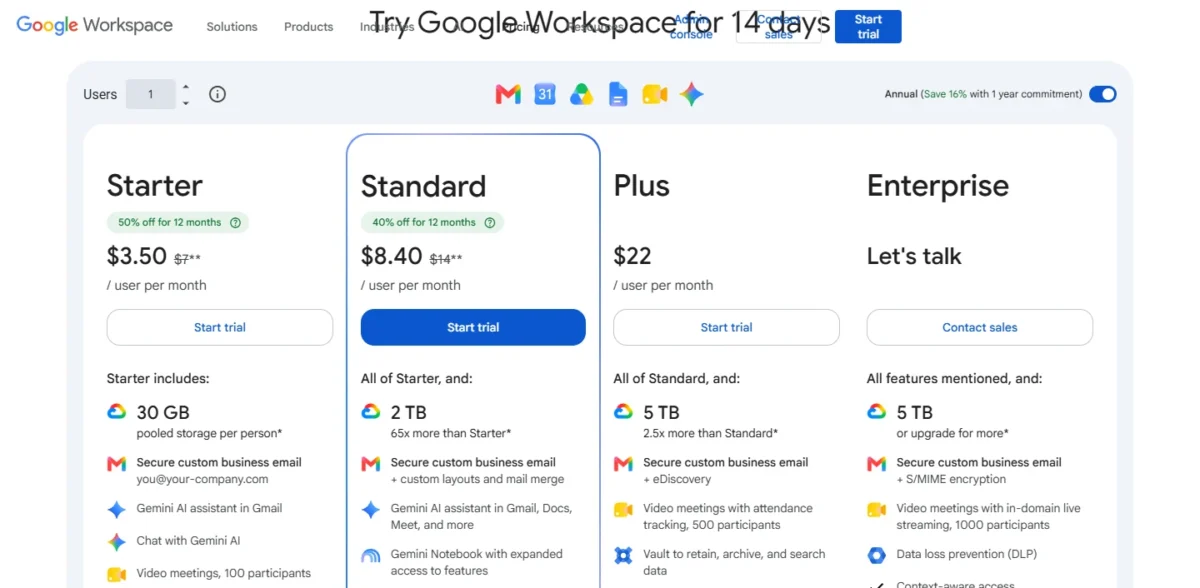
The first three routes are built into Workspace: each user writes a signature in Gmail settings, the Append footer is an Admin console setting, and the Gmail API can apply the same signature to everyone’s settings.
An add-on is a separate third-party service, so its cost is a question for its vendor: Exclaimer’s product page offers a free trial and a demo. For the subscription itself, see the plans and prices guide.
Can an admin set one signature for all users?
Yes, in two ways. The Append footer adds one text users cannot remove, and the Gmail API can apply the same signature to everyone’s settings, where users can still edit it.
Why doesn’t my logo show in my signature?
A Drive logo stays hidden until the image is shared publicly and the admin allows sharing outside the organization. Uploading the file from the computer avoids both conditions.
How long do admin changes take?
Up to 24 hours. Send a message to an outside address the next day before you tell the team the new footer is live.