Dropbox Review — is the original cloud storage pioneer still worth your money in 2026? After two decades in the market, Dropbox has evolved from a simple sync folder into an AI-powered collaboration platform. This Dropbox review breaks down exactly what you get, what you don’t, and whether it fits your workflow.
If you’re comparing cloud storage options in 2026, you’ll find Dropbox priced higher than most competitors—but also offering capabilities (Dropbox Transfer, Sign, Dash AI) that go beyond basic file hosting. The question isn’t whether Dropbox is good—it is—but whether it’s good for you.
In This Article (18 sections)
Answer Box: Quick Decisions
- Yes, Dropbox is worth it if you need reliable cross-platform sync, work with large media files, or want integrated e-signature and transfer tools.
- No, skip Dropbox if privacy is paramount (standard storage is not zero-knowledge), you need maximum free storage, or you already pay for Google One/Microsoft 365.
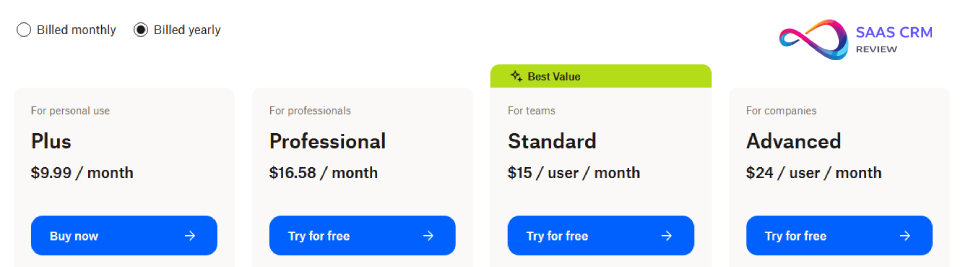
- Choose Plus (approx. $9.99/mo yearly) if you’re an individual needing 2 TB and basic sync features.
- Choose Professional (approx. $16.58/mo yearly) if you’re a freelancer needing e-signatures, watermarking, and 100 GB file transfers.
- Choose Standard ($15/user/mo) if you’re a small team wanting shared storage and admin controls.
- Choose Advanced ($24/user/mo) if your business requires SSO, compliance tracking, or 1-year version history.
- Best for freelancers: Professional (100 GB Transfer, 3 signature requests/month included).
- Best for teams: Standard or Advanced depending on compliance needs.
- Best for privacy-first users: Consider Sync.com or Tresorit instead (zero-knowledge by default).
Methodology: How We Evaluated
This Dropbox review follows a structured evaluation framework:
Data Sources:
- Official Dropbox documentation and pricing pages
- Third-party benchmarks from Cloudwards and TechRadar
- User reviews aggregated from G2 (30,816 ratings), Capterra (21,671 ratings), and Trustpilot
- Hands-on verification checklist (feature confirmation, UI review, plan comparison)
Evaluation Criteria:
| Category | Weight | What We Assessed |
|---|---|---|
| Features & Functionality | 25% | Core sync, collaboration tools, integrations |
| Pricing & Value | 20% | Cost per GB, feature-to-price ratio, hidden fees |
| Security & Privacy | 20% | Encryption, 2FA, compliance, zero-knowledge status |
| Ease of Use | 15% | Onboarding, UI/UX across platforms |
| Performance | 10% | Sync speed, reliability, conflict handling |
| Support & Documentation | 10% | Help center quality, response time |
What We Don’t Do:
- We don’t fabricate test results or invent personal claims
- We don’t accept payment for favorable reviews
- We disclose affiliate relationships where applicable
For our full approach, see our Review Methodology.
Who Should NOT Choose Dropbox
Before diving into features, here’s a quick filter to save you time:
- Privacy-first users: Dropbox is not zero-knowledge by default. If you need account-wide encryption where even Dropbox cannot access your files, choose Sync.com or Tresorit instead.
- Budget-conscious storage seekers: At approx. $9.99/mo for 2 TB, Dropbox costs more per GB than Google Drive (15 GB free) or pCloud (lifetime deals available). No affordable entry-level plan exists—minimum storage is 2 TB.
- Google/Microsoft ecosystem loyalists: If you already pay for Google Workspace or Microsoft 365, you have bundled storage included—adding Dropbox creates redundancy.
If none of these apply, continue reading.
Dropbox at a Glance
| Category | Details |
|---|---|
| Best For | Freelancers, creative teams, cross-platform power users |
| Not Ideal For | Privacy-first users, budget shoppers, Google/ |
| Starting Price | Approx. $9.99/mo (Plus, billed yearly) |
| Free Storage | 2 GB (Dropbox Basic)—among the smallest in the industry |
| Standout Feature | Block-level sync + Dropbox Transfer for large file delivery |
| Platforms | Windows, Mac, Linux, iOS, Android, Web |
30-Second Decision Guide
Pick Dropbox if…
- You sync large files (video, design, CAD) across Windows, Mac, Linux, iOS, and Android
- You need built-in e-signatures (3 requests/month included on paid plans)
- You send large files (up to 100 GB on Professional) to clients without Dropbox accounts
- Your workflow depends on integrations with Slack, Zoom, or Adobe
Avoid Dropbox if…
- You store highly sensitive files and need account-wide zero-knowledge encryption
- You only need basic cloud backup and want the cheapest $/GB option
- You’re already paying for Google Workspace or Microsoft 365 (storage is bundled)
- You need flexibility—Dropbox has no 100 GB or 500 GB option; minimum is 2 TB
Best alternative if…
- Privacy is critical: Sync.com (zero-knowledge by default)
- You want lifetime pricing: pCloud (lifetime deals available)
- You’re in the Google ecosystem: Google Drive (15 GB free, tight Workspace integration)
- You want E2E on personal plans: MEGA or Proton Drive
Dropbox Review 2026: Pricing & Plans (USD)
All prices below are in USD, billed yearly. Monthly billing costs 15–20% more. US pricing shown; rates may vary by region.
Personal Plans
| Plan | Storage | Yearly Price | Per Month (Yearly) | Version History | Transfer Limit |
|---|---|---|---|---|---|
| Basic | 2 GB | Free | $0 | 30 days | Limited |
| Plus | 2 TB | Approx. $119.88/yr | Approx. $9.99/mo | 30 days | 50 GB |
| Family | 2 TB shared (up to 6) | Approx. $203.88/yr | Approx. $16.99/mo | 30 days | 50 GB |
| Professional | 3 TB | Approx. $198.96/yr | Approx. $16.58/mo | 180 days | 100 GB |
Team Plans (minimum 3 users)
| Plan | Storage | Price/ | Version History | Key Features |
|---|---|---|---|---|
| Standard | 5 TB pooled | $15 | 180 days | Admin console, team folders, 100 GB transfers |
| Advanced | 15 TB+ pooled | $24 | 1 year | SSO, tiered admin, compliance tracking, E2EE option |
| Enterprise | Custom | Contact sales | Custom | Dedicated support, API access |
Note: Verify current pricing on Dropbox.com/plans.
Plan Picker: Who Should Choose What?
| Your Situation | Recommended Plan |
|---|---|
| Individual with basic backup/ | Plus |
| Freelancer needing larger transfers + e-signatures | Professional |
| Family sharing photos/ | Family |
| Small team (3–10), standard security | Standard |
| Larger team, SSO/ | Advanced |
Price Flexibility Problem
Unlike many competitors, Dropbox offers no entry-level plan between 2 GB (free) and 2 TB (paid). If you only need 100–500 GB, you’re forced to overpay for storage you won’t use.
Cost comparison for 100 GB storage:
- Google Drive: ~$1.99/mo
- pCloud: ~$3.99/mo (or lifetime option)
- Dropbox: No 100 GB option—minimum is $9.99/mo for 2 TB
This inflexibility hurts Dropbox competitively for light-usage scenarios.
Interface & Ease of Use
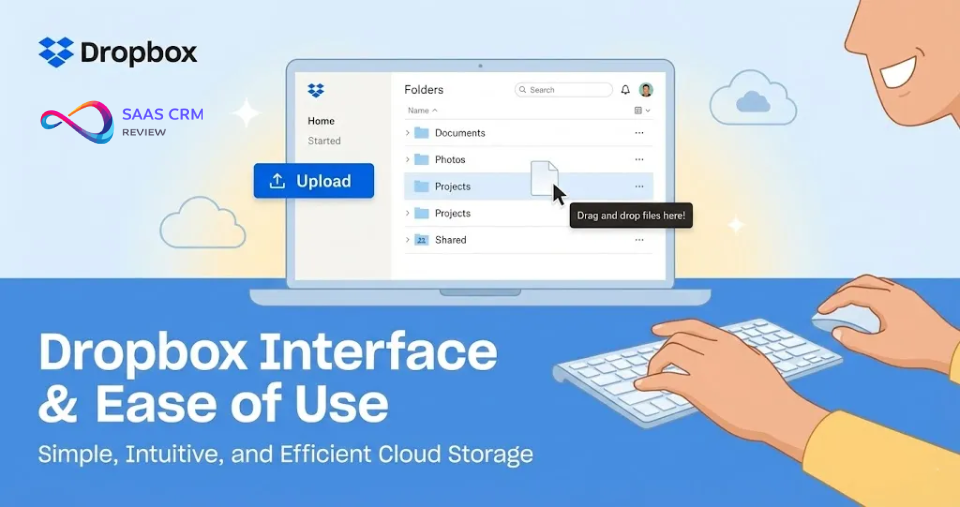
Dropbox offers access via three main channels: web interface, desktop app, and mobile apps. Each serves different workflows.
Web Interface
The web interface lets you access files directly in your browser without installing software. It’s divided into four main areas:
- Left sidebar: Navigation bar for quick access to cloud files and folders
- Navigation bar: Switch between views—photos, shared files, deleted files, signatures, file requests, and favorites
- Top menu bar: Search bar (searches file titles, not contents), member invitations, app switching, account settings
- Main area: File browser with upload/create buttons, folder structure, and file previews
The interface stays organized despite numerous features. You can open photos and videos directly without downloading, and edit documents in the cloud using Dropbox Paper or connected Office/Google Workspace apps.
Key limitation: Unlike Google Drive, Dropbox’s search only matches file titles—not document contents.
Desktop App
Available for Windows, Mac, and Linux. Dropbox creates a “master folder” on your computer—a dedicated local directory where all synced files reside.
Unlike some competitors (MEGA, pCloud), you can’t sync arbitrary folders from anywhere on your system. You must either:
- Move/copy files into the Dropbox folder, or
- Use the backup feature for specific system folders (Desktop, Documents, Downloads)
The desktop app provides:
- Status indicators (synced, syncing, error) on files
- Right-click menu for sharing, version history, and Dropbox-specific actions
- System tray/menu bar quick access
Mobile Apps (iOS, Android)
Full-featured mobile apps support:
- Browse, upload, download files
- Camera uploads for automatic photo backup
- Offline access for pinned files
- Document scanning via camera
- Basic editing through connected apps
Ease of Use Verdict: Dropbox excels at polish and cross-platform consistency. The learning curve is minimal for basic use, though advanced features (admin controls, E2EE folders) require team plans.
Key Features: What You Actually Get
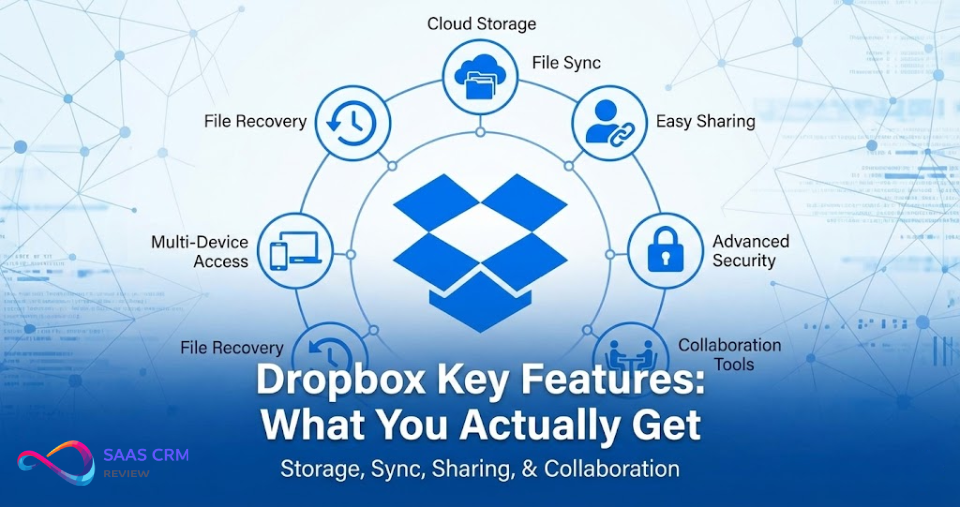
Core Feature Overview
| Feature | Basic | Plus | Professional | Team Plans |
|---|---|---|---|---|
| Block-level sync | ✓ | ✓ | ✓ | ✓ |
| Smart Sync | — | ✓ | ✓ | ✓ |
| Dropbox Transfer | 100 MB | 50 GB | 100 GB | 100 GB+ |
| Dropbox Sign | — | 3 req/mo | 3 req/mo | 3 req/mo |
| Dropbox Paper | ✓ | ✓ | ✓ | ✓ |
| Replay (video review) | — | — | ✓ | ✓ |
| Watermarking | — | — | ✓ | ✓ |
Productivity Tools
Dropbox Paper: Collaborative documents with real-time editing, task lists, embeds (videos, images, code), and comments. Paper positions Dropbox closer to project management platforms than pure storage, though it doesn’t match the depth of dedicated tools like Asana or Trello.
Dropbox Transfer: Send large files via download links—recipients don’t need a Dropbox account. Limits vary by plan (50–100 GB). Includes optional password protection, expiration dates, and download tracking.
Dropbox Sign: E-signature functionality integrated into your workflow. Paid plans include 3 signature requests/month. For heavier usage, upgrade to dedicated Dropbox Sign plans.
Dropbox Replay: Frame-accurate video review with timestamped comments. Useful for creative teams reviewing footage with clients.
Integrations
| Category | Integrations |
|---|---|
| Communication | Slack, Zoom Workplace, Microsoft Teams |
| Productivity | Google Workspace, Microsoft Office |
| Creative | Adobe Creative Cloud, Figma, Canva |
| Project Management | ClickUp, Todoist, Basecamp |
For teams needing robust task tracking alongside file storage, pairing Dropbox with a dedicated collaboration tool often works better than relying solely on Paper.
What’s New in 2026
- Dropbox Dash: AI-powered universal search spanning Dropbox and connected apps (Gmail, Slack, Notion). Currently rolling out; availability varies by region and plan.
- Passwords discontinued: Dropbox shut down its Passwords manager on October 28, 2025. Migrate to a dedicated password manager.
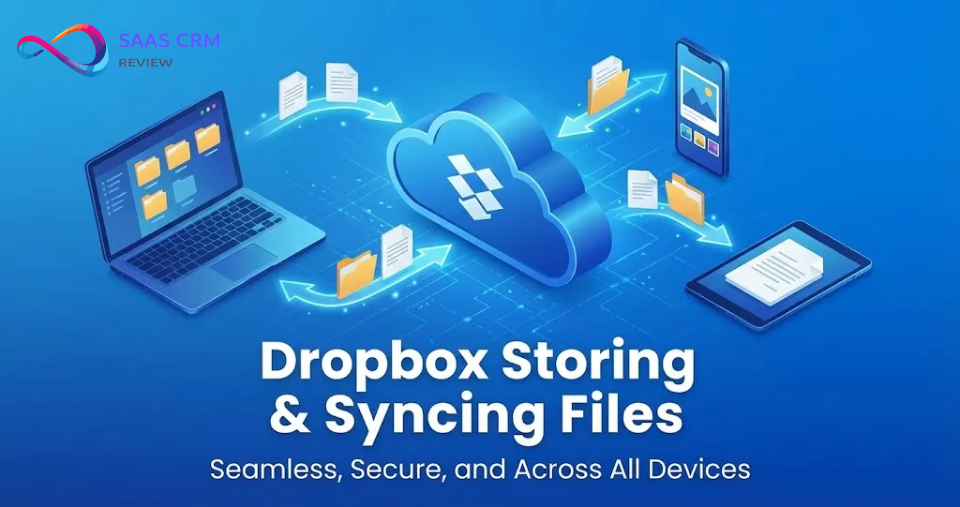
Storing & Syncing Files
Block-Level Sync: Dropbox’s Core Advantage
Dropbox uses block-level sync: only modified portions of files are re-uploaded. When you edit a small section of a 500 MB video file, Dropbox syncs just the changed blocks—not the entire file.
This matters most for:
- Video editors working with large project files
- Designers using PSD, AI, or other layered formats
- Developers with large repositories
- Anyone editing CAD, 3D models, or other large binary files
Comparison: Google Drive and OneDrive generally use full-file sync, uploading entire files after modification. For large files with small changes, Dropbox can be significantly faster.
Sync Modes Explained
| Mode | What It Does | Storage Impact |
|---|---|---|
| Smart Sync (Online-only) | Files appear in your file system but download only when opened | No local storage used |
| Available Offline | Files download to your device and sync bidirectionally | Uses local storage |
| Selective Sync | Choose which folders appear in your local Dropbox folder | Reduces clutter |
Smart Sync is particularly valuable for laptops with limited storage. You see all your cloud files in Finder/Explorer but only download what you actually open.
The “Master Folder” Approach
Unlike some competitors, Dropbox requires a dedicated local folder. To sync files, you must:
- Move/copy them into your Dropbox folder, OR
- Use the backup feature for system folders (Desktop, Documents, Downloads)
This design keeps sync simple and predictable but lacks the flexibility of tools like pCloud or MEGA, which let you sync any arbitrary folder on your system.
Backup Feature
Dropbox includes automatic backup for selected folders:
- Default interval: every 15 minutes
- Configurable: daily, weekly, or custom schedule
- Version retention: 30–365 days depending on plan
Limitation: Dropbox backup is not a replacement for dedicated cloud backup solutions. It lacks incremental image backups, system restore points, or the retention depth of backup-first products like Backblaze or Carbonite.
LAN Sync
When multiple Dropbox users work on the same local network, Dropbox can sync files directly between devices without routing through the cloud. This accelerates team sync speeds—particularly useful in offices with fast internal networks but slower internet connections.
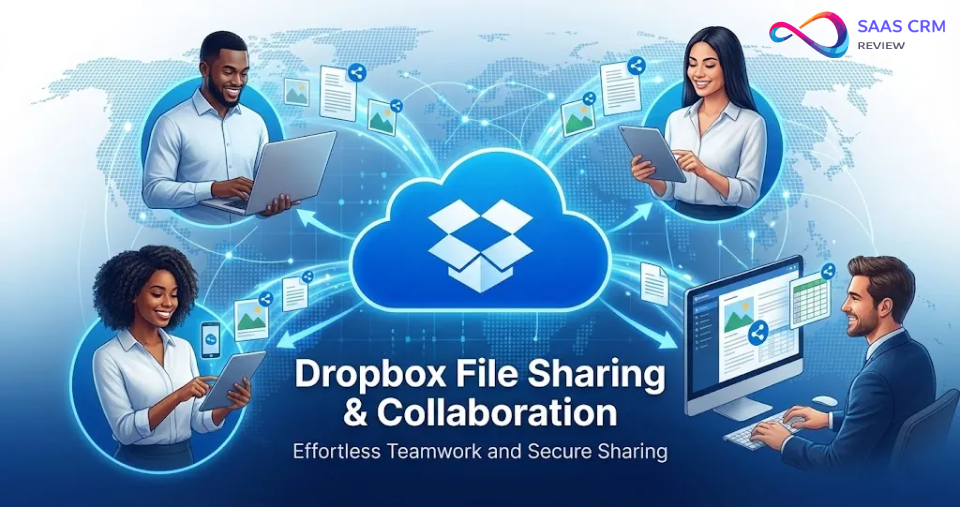
File Sharing & Collaboration
Share Link vs. Share Folder
| Method | Recipient Needs Account? | Permissions |
|---|---|---|
| Share Link | No | View only (or edit if enabled) |
| Share Folder | Yes (Dropbox account) | Owner, Editor, Viewer roles |
Share Link is fastest for one-off file delivery. Create a link, send it, done.
Share Folder works better for ongoing collaboration—team members with Dropbox accounts get synced access with granular permissions.
Advanced Link Settings
Link-level controls vary significantly by plan:
| Feature | Basic | Plus | Professional | Team Plans |
|---|---|---|---|---|
| Create shared links | ✓ | ✓ | ✓ | ✓ |
| Password-protect files | — | ✓ | ✓ | ✓ |
| Password-protect shared links | — | — | — | ✓ (Standard+) |
| Custom link expiration | — | — | — | ✓ (Standard+) |
| Disable downloads on links | — | — | — | ✓ (Standard+) |
| Link tracking/ | — | — | — | — |
Key point: Advanced link controls (password protection on links, expiration, download disable) require team plans, not personal plans. Sync.com offers these on personal plans for comparison.
Collaboration Roles
| Role | Capabilities |
|---|---|
| Owner | Full control, manage access, invite/ |
| Editor | Add, edit, delete files; changes sync for everyone |
| Viewer | Read, view, download only; no changes |
Team plans add 8 admin role types for granular organization-level control.
Dropbox Paper for Real-Time Collaboration
Paper provides a shared workspace for:
- Collaborative document editing
- Task lists and assignments
- Embedded media (images, videos, code blocks)
- Comments and @mentions
Paper positions Dropbox as a lightweight alternative to Google Docs or Notion for internal documentation. However, for structured project management, dedicated tools like Teamwork (for agencies) or Linear (for dev teams) offer deeper workflows.
Security & Privacy
Encryption Overview
| Layer | Protection | Dropbox Status |
|---|---|---|
| In Transit | Data encrypted while moving | TLS 1.2+ ✓ |
| At Rest | Data encrypted on servers | AES-256 ✓ |
| End-to-End (E2EE) | Only you can decrypt | Team plans only (Advanced/ |
Understanding E2EE on Dropbox
End-to-end encryption is available, but with significant limitations:
- Availability: Team plans only (Advanced, Enterprise). Not available on personal plans (Plus, Professional).
- Scope: Folder-level, not account-wide. You designate specific folders for E2EE.
- Key control: You manage the encryption keys; Dropbox cannot decrypt E2EE content.
- Trade-offs: E2EE folders have limited sharing options, no web preview, and restricted third-party app access.
If you need E2EE on a personal plan: Consider MEGA, Proton Drive, or Sync.com—all offer zero-knowledge encryption on all plans.
Historical Security Incidents
Dropbox has experienced notable security incidents:
2012 Data Breach: Hackers stole credentials for over 68 million Dropbox accounts. While passwords were hashed, the hashing method (bcrypt for some, SHA-1 for others) left older accounts more vulnerable. This remains one of the largest cloud storage breaches in history.
As one of the most popular cloud services, Dropbox remains a frequent target for phishing attacks. Don’t rely solely on encryption—use a strong, unique password and enable 2FA.
Compliance & Certifications
| Certification | Status |
|---|---|
| SOC 2 Type II | ✓ |
| SOC 3 | Report available |
| ISO 27001 | ✓ |
| ISO 27018 | ✓ |
| HIPAA (with BAA) | ✓ (Team plans) |
| FedRAMP | ❌ (Box offers this) |
GDPR & Data Location
- Dropbox claims GDPR compliance, but organizations are responsible for their own compliance.
- Default data storage: US servers.
- Team plans: Option to specify EU data centers for storage.
- Transparency reports: Published semi-annually since 2012.
Security Features
- Two-factor authentication: SMS, authenticator app, or hardware security key
- Remote device wipe: Remove synced data from lost/stolen devices
- Session management: View and revoke active sessions
- SSO integration: Advanced/Enterprise plans
Performance & Reliability
Sync Speed Benchmarks
| Metric | Observation |
|---|---|
| Initial upload | Comparable to major competitors |
| Delta sync (block-level) | Faster than full-file sync competitors for large edited files |
| Download speed | Generally fast; limited by your connection |
Block-level advantage: When editing a 500 MB file and changing only 1 MB of content, Dropbox syncs approximately 1 MB—not the full 500 MB. This creates significant time savings for large-file workflows.
Resource Usage
Third-party reviewers (including EXPERTE.com) have noted higher CPU usage during sync compared to some competitors. If you work on an older machine or run many background processes, this may be noticeable during large sync operations.
Conflict Handling
When the same file is edited on two devices while offline:
- Dropbox creates “conflicted copy” files rather than silently overwriting
- You manually resolve which version to keep
- Version history helps recover if needed
Reliability
- Generally high uptime; Dropbox operates at significant scale
- Status page available at status.dropbox.com
- Historical incidents include temporary sync delays during major updates
What Real Users Say
We aggregated feedback from major review platforms:
User Ratings
| Platform | Rating | Reviews |
|---|---|---|
| G2 | 4.4/5 | 30,816 ratings |
| Capterra | 4.5/5 | 21,671 ratings |
| Trustpilot | 1.6/5 | 1,466 ratings |
| Apple App Store | 4.7/5 | 958 ratings |
Note the Trustpilot discrepancy: Trustpilot skews negative because dissatisfied users are more likely to post reviews there. G2 and Capterra, used more by business users in evaluation mode, show higher scores.
Common Praise
- File sharing simplicity: Quick link sharing for clients and collaborators
- Cross-platform reliability: Consistent experience across devices
- Interface polish: Clean design despite feature depth
Common Complaints
- Customer support quality: Slow responses, chatbot-heavy, generic resolutions
- Pricing inflexibility: No mid-tier storage options; expensive for light users
- Security concerns: Historical breaches, no personal E2EE
- Data loss reports: Some users report sync issues leading to deleted files
Should User Reviews Concern You?
All major cloud services have negative reviews about data loss and support. Dropbox’s scale (700+ million users) means a small percentage of issues generates substantial volume of complaints. That said, the support complaints are consistent enough to warrant expectations of self-service resolution for most issues.
Setup Checklist: First 7 Days
Security (Day 1)
- Enable 2FA with an authenticator app (Settings → Security → Two-step verification)
- Review linked devices; remove any you don’t recognize
- Set a strong, unique password (use a password manager)
Recovery & Backup (Day 2–3)
- Understand your version history window (30/180/365 days depending on plan)
- Test file recovery: delete a test file, then restore from “Deleted files”
- Enable backup for key folders if desired (Desktop, Documents, Downloads)
Sharing Settings (Day 4–5)
- Set default sharing permissions (view-only vs. edit)
- Review who has access to shared folders
- Test shared link creation and understand your plan’s limitations
Workflow Integration (Day 6–7)
- Connect frequently used apps (Slack, Zoom, Adobe, Office)
- Set up Smart Sync if local storage is limited
- Review third-party app access in Settings → Connected apps
Dropbox Pros and Cons
Pros
✅ Block-level sync—efficient for large-file edits
✅ Cross-platform polish—reliable apps on Windows, Mac, Linux, iOS, Android
✅ Built-in e-signatures (3 requests/month on paid plans)
✅ Dropbox Transfer—send files up to 50–100 GB without recipient signup
✅ Strong third-party integrations
✅ AI-powered search (Dash) rolling out
✅ Mature, feature-rich product with 17+ years of development
Cons
❌ Expensive per-GB; no entry-level storage options
❌ Not zero-knowledge by default—Dropbox manages encryption keys
❌ Small free tier (2 GB vs. 15 GB on Google Drive)
❌ Passwords manager discontinued October 2025
❌ E2EE only on team plans, folder-level only
❌ Advanced link controls require team plans
❌ Higher CPU usage during sync vs. some competitors
❌ Customer support receives consistent criticism
Is Dropbox Worth It in 2026?
This Dropbox review comes down to what you value most.
Yes, Dropbox is worth it if:
- You regularly sync large files across multiple platforms
- You need integrated e-signatures and large-file transfer tools
- You value polish and reliability over raw $/GB value
- You work with creative teams needing video review (Replay)
No, Dropbox is not worth it if:
- You need account-wide zero-knowledge privacy
- You’re price-sensitive and only need 100–500 GB
- You already pay for Google Workspace or Microsoft 365
- You need E2EE on a personal plan
Bottom line: Dropbox remains a capable product for power users and creative professionals. For everyone else, the competition often offers more storage per dollar, better default privacy, or ecosystem integration you’re already paying for.
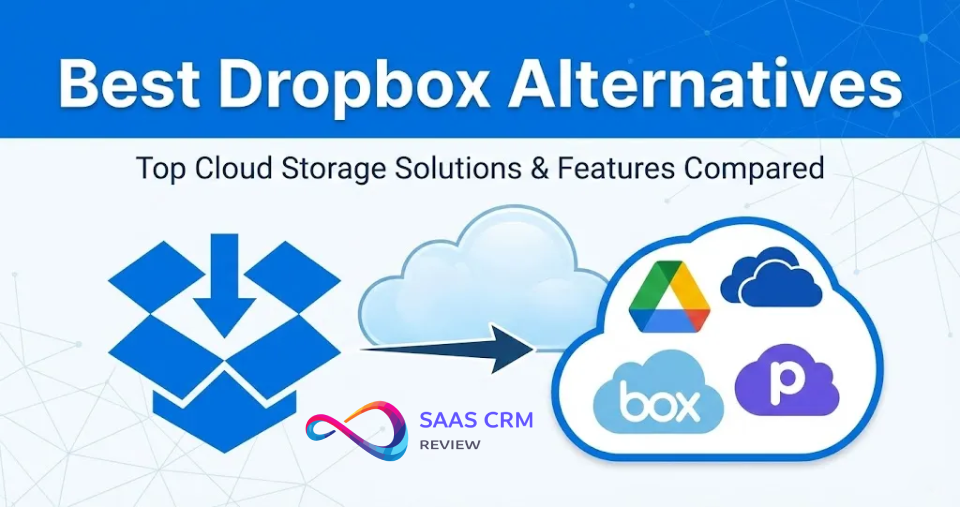
Best Dropbox Alternatives
The Big Three: Dropbox vs Google Drive vs OneDrive
| Factor | Dropbox | Google Drive | OneDrive |
|---|---|---|---|
| Free storage | 2 GB | 15 GB | 5 GB |
| Approx. 2 TB tier | $9.99/mo | $9.99/mo | Bundled w/ M365 |
| Sync approach | Block-level | Standard | Standard |
| Ecosystem | Neutral | Google-centric | Microsoft-centric |
| Zero-knowledge | No (by default) | No | No |
| Best for | Cross-platform power users | Google Workspace users | Microsoft 365 users |
Compliance & Privacy Comparison
| Factor | Dropbox | Box | Sync.com |
|---|---|---|---|
| Zero-knowledge by default | ❌ | ❌ | ✓ |
| E2EE available | Team plans only | Enterprise add-on | ✓ All plans |
| HIPAA/ | ✓ (Team plans) | ✓ | ✓ |
| FedRAMP | ❌ | ✓ | ❌ |
| SOC 2 / ISO 27001 | ✓ | ✓ | ✓ |
| Best for | General business | Enterprise compliance | Privacy-first |
Privacy-First Alternatives
| Service | Zero-Knowledge | Free Tier | Paid Tier | Notes |
|---|---|---|---|---|
| Sync.com | ✓ All plans | 5 GB | 2 TB ~$8/mo | Best privacy value |
| Tresorit | ✓ All plans | — | 1 TB ~$10/mo | Enterprise-grade |
| MEGA | ✓ All plans | 20 GB | 2 TB ~$10/mo | Generous free tier |
| Proton Drive | ✓ All plans | 5 GB | 200 GB ~$4/mo | Privacy ecosystem (mail, VPN) |
| pCloud | Add-on | 10 GB | 2 TB ~$5/mo or lifetime | Lifetime pricing available |
E2EE on Personal Plans (What Dropbox Lacks)
If E2E encryption on a personal plan is essential:
- MEGA: 20 GB free, E2EE by default
- Proton Drive: 5 GB free, Swiss privacy laws, E2EE by default
- Sync.com: 5 GB free, zero-knowledge by default
Alternatives by Use Case
| If You Need… | Consider |
|---|---|
| Visual collaboration & whiteboarding | Miro |
| Robust task management | ClickUp |
| Agency/ | Teamwork |
| Engineering issue tracking | Linear |
| Simple Kanban task boards | Trello |
Dropbox Review 2026 – FAQs
How much does Dropbox cost in 2026?
Plus: approx. $9.99/mo (billed yearly). Professional: approx. $16.58/mo (billed yearly). Team plans: $15–$24/user/mo. US pricing shown; verify on Dropbox.com/plans.
Is the Dropbox free plan enough?
For light document storage only. 2 GB is inadequate for photos, videos, or device backups. Most competitors offer 5–20 GB free.
What’s the difference between Dropbox Plus and Professional?
Plus: 2 TB, 30-day version history, 50 GB transfers. Professional: 3 TB, 180-day history, 100 GB transfers, 3 signature requests/month, watermarking.
What’s the difference between Standard and Advanced?
Standard: 5 TB pooled, 180-day history, basic admin. Advanced: 15 TB+, 1-year history, SSO, compliance tracking, E2EE option.
Which plans include password-protected links and advanced link settings?
Password-protected shared links, custom expiration, and download disable require team plans (Standard, Advanced, Enterprise). Personal plans (Plus, Professional) can password-protect files but not the shared links themselves.
Does Dropbox have end-to-end encryption?
Yes, but only on team plans (Advanced/Enterprise), and only for designated folders—not account-wide. Personal plans use server-side encryption where Dropbox holds the keys.
What’s the difference between E2EE and zero-knowledge?
E2EE means data is encrypted/decrypted only on your devices. Zero-knowledge means the provider can never access any of your data. Dropbox offers limited E2EE (team plans, folder-level) but is not zero-knowledge by default.
Is Dropbox secure after the 2012 breach?
Dropbox has significantly improved security since 2012 and holds current SOC 2, ISO 27001, and other certifications. However, enable 2FA and use a strong password—Dropbox remains a high-profile target for attackers.
How does Dropbox compare to Google Drive?
Google Drive offers more free storage (15 GB), full-text document search, and tight Workspace integration. Dropbox counters with block-level sync and platform neutrality.
How does Dropbox compare to OneDrive?
OneDrive is bundled (1 TB) with Microsoft 365 and integrates deeply with Windows. Dropbox offers broader third-party integrations and better cross-platform consistency.
What happened to Dropbox Passwords?
Discontinued on October 28, 2025. Migrate to 1Password, Bitwarden, or another dedicated password manager.
What is Dropbox Dash?
AI-powered universal search spanning Dropbox and connected apps. Currently rolling out; availability varies by region and plan.
Is there a Dropbox lifetime plan?
No. Dropbox is subscription-only. For lifetime pricing, pCloud offers such deals.
Why does Dropbox use so many system resources?
Block-level sync requires computing file checksums and comparing blocks, which uses more CPU during active syncing than simpler full-file sync approaches. The trade-off is faster sync for large, frequently-edited files.
Last updated: February 2026. US pricing shown; rates may vary by region. Verify current pricing and features on Dropbox.com/plans.