The decision behind “Slack Review” is rarely about whether Slack works. It works.
The harder question is whether it is worth its per-active-user cost once you add history, external partners, identity controls, and export obligations, and which plan removes the first blocker your team will actually hit.
My short answer, based on Slack’s official pricing and documentation checked August 19, 2026: Slack is still the strongest channel-based communication layer for integration-heavy teams, and Pro at $7.25 per user/month on annual billing is the rational starting point for most paid buyers. Business+ and Enterprise+ are gate purchases, not size purchases.
Slack is a weak fit for large, low-engagement communities and a poor sole system of record. If you are still mapping the wider category, my business messaging apps shortlist frames where Slack sits against the field.
This review treats pricing, plan gates, billing mechanics, and migration limits as the decision facts, because those are what change after you commit.
Quick Verdict
| Question | Answer |
|---|---|
| Best for | Communication-heavy, integration-rich teams of roughly 10 to 50 that keep execution records in connected systems |
| Not ideal for | Large open communities with many occasional members, and teams wanting one tool to replace project management |
| Starting price | $0 Free, then $7.25 per user/ |
| Practical plan | Pro for most paid teams; Business+ only on a hard gate |
| Free plan | Yes, but 90-day history and deletion of data older than one year |
| Setup difficulty | Low to start, higher once governance and identity are in scope |
| Main strength | Channel model plus 2,600+ app integrations and external collaboration |
| Main limitation | Per-active-user cost and notification or search friction at scale |
| Best alternative | Microsoft Teams for Microsoft 365 shops |
In This Article (17 sections)
Methodology: How This Slack Review Was Built
This analysis draws on Slack’s public US pricing pages, current help-center documentation, developer rate-limit references, trust and compliance resources, and recurring themes from G2, Capterra, and TrustRadius. Pricing and plan limits were checked on August 19, 2026, and the headline prices were confirmed directly against Slack’s live pricing page.
Each plan was assessed against the same buyer-focused criteria: usable history, external collaboration, identity and admin controls, automation, export and migration scope, AI behavior, cost at real team sizes, and documented limits.
Greater weight was given to factors that decide a purchase or a renewal: the plan that removes a real blocker, the point where advertised price stops being the practical budget, and the constraints that survive an upgrade. Brand popularity and promotional presentation did not affect the assessment.
The workflow descriptions here are reconstructed from Slack’s official documentation. Claims that could not be verified from Slack’s own sources or clearly labeled third-party evidence were excluded, and temporary promotions are separated from standard pricing.
What Is Slack?
Slack is a channel-based business communication platform from Slack Technologies, LLC, a Salesforce company. Work is organized into channels and direct messages, with searchable history, audio and video huddles, external collaboration through Slack Connect, no-code automation in Workflow Builder, and a large app marketplace.
Slack sells four public plans: Free, Pro, Business+, and Enterprise+. The differences that matter are not the feature names.
They are the thresholds where a plan stops covering your workflow.
Slack pricing and plans in 2026
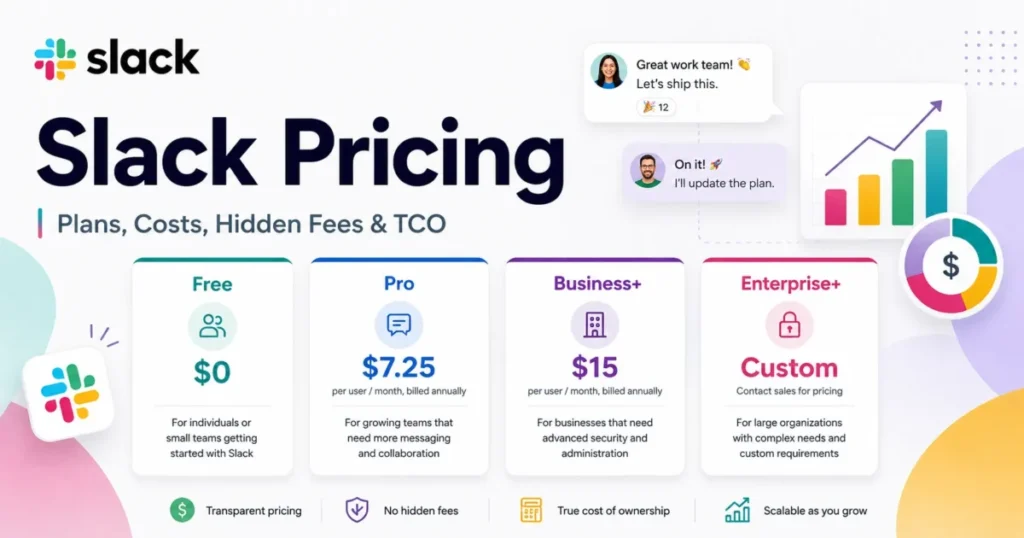
Slack charges per active user, per month, and bills the whole workspace rather than individual accounts. Free is $0, Pro is $8.75 per user/month billed monthly or $7.25 billed annually, and Business+ is $18 per user/month billed monthly or $15 billed annually.
Enterprise+ is custom and requires a sales conversation.
| Plan | Monthly billing | Annual billing (per month) | Practical role |
|---|---|---|---|
| Free | $0 | $0 | Short-lived or disposable collaboration only |
| Pro | $8.75 per user | $7.25 per user | Default for most paid teams |
| Business+ | $18 per user | $15 per user | Identity, advanced AI, compliance export, branching |
| Enterprise+ | Custom | Custom | Multi-workspace governance and regulated controls |
Those list prices were confirmed on Slack’s Pro and Business+ pricing pages on August 19, 2026. A 10-person team on Pro pays $870 per year on annual billing, or $87 per active user per year.
The same team on Business+ pays $1,800 per year. For a full plan-by-plan cost breakdown across team sizes, the dedicated Slack pricing guide goes deeper than this section.
One freshness note: several older reviews still show a lower Business+ price or the retired Enterprise Grid name. Slack moved basic AI into paid plans and bundled advanced AI into the current Business+ and Enterprise+ lineup in 2025, so treat pre-2025 pricing rows as stale.
The promotion is acquisition pricing, not your budget. Slack advertises 50% off for three months, which drops Pro to $4.38 and Business+ to $9.
That offer applies only to online monthly purchases made within seven days of creating the team, excludes annual plans and Enterprise+, and cannot be combined. Promotion re-verified on the publish date: 2026-08-19.
After the three-month discount period, the standard price of $7.25 per user/month on Pro or $15 on Business+ (annual billing) applies. I would budget from that standard price and treat the discount as a first-quarter rebate.
The pricing math most reviews skip
Annual billing is the first lever. It saves $18 per active user per year on Pro and $36 on Business+ compared with twelve monthly invoices, which compounds at scale.
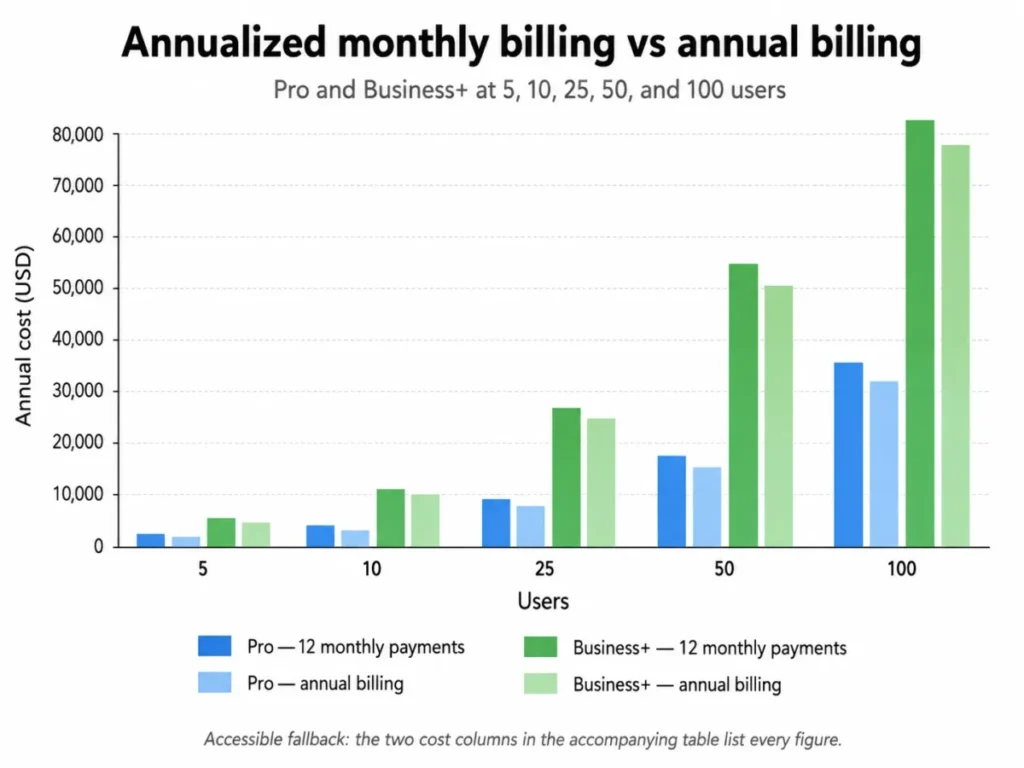
The table below applies Slack’s verified Pro annual rate and Business+ list pricing, checked August 19, 2026.
| Team size | Pro monthly (annualized) | Pro annual | Business+ monthly (annualized) | Business+ annual |
|---|---|---|---|---|
| 5 | $525 | $435 | $1,080 | $900 |
| 10 | $1,050 | $870 | $2,160 | $1,800 |
| 25 | $2,625 | $2,175 | $5,400 | $4,500 |
| 50 | $5,250 | $4,350 | $10,800 | $9,000 |
| 100 | $10,500 | $8,700 | $21,600 | $18,000 |
Source: Slack official pricing page, checked August 19, 2026. Figures exclude taxes, paid marketplace apps, implementation labor, negotiated enterprise discounts, and the promotional months.
Fair billing: how active-user pricing actually works
Slack does not bill a fixed seat count. Under its Fair Billing Policy, a member who takes an action within a 28-day window counts as active and billable, a new member is charged a prorated amount for the rest of the cycle, and a member who goes inactive past 28 days or is deactivated generates a prorated account credit.
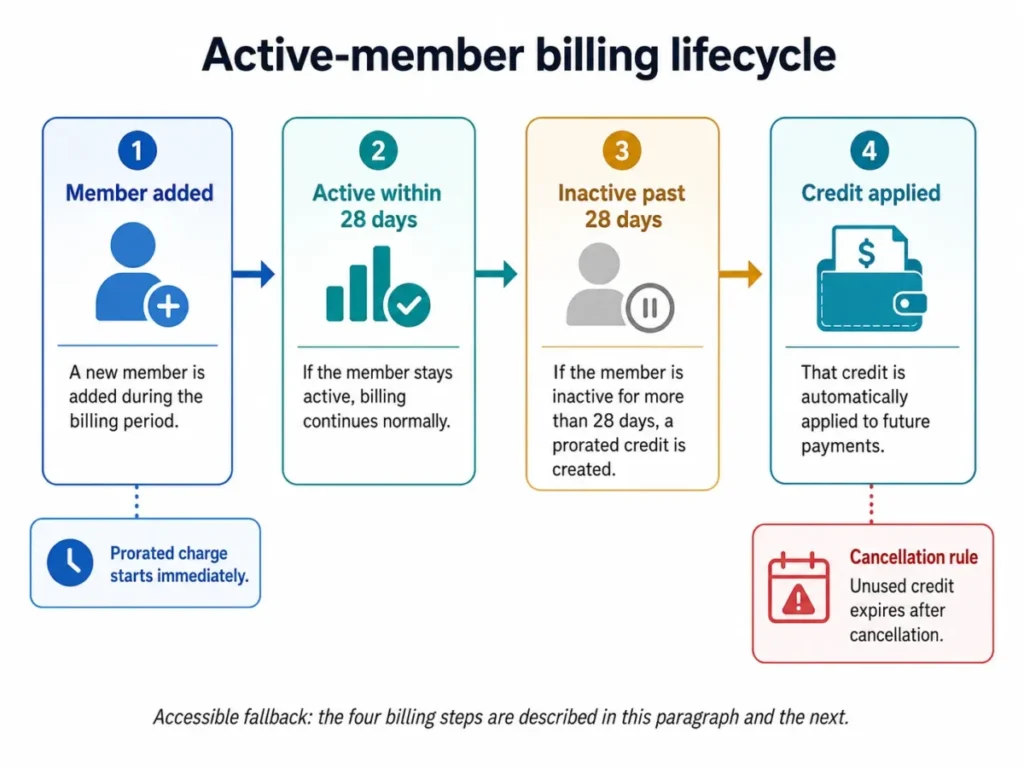
Two details catch buyers. Those credits are nonrefundable and nontransferable, and a paid upgrade applies to the whole workspace, so you cannot license only your power users or moderators.
For a fluctuating team, this is friendlier than fixed seats. For a large roster of light participants, it still bills almost everyone.
Guest and external-collaboration costs
External identity is where agencies and B2B service teams either save money or quietly multiply it. Guests require a paid plan, and the guest-role rules split sharply: a multi-channel guest is billed like a full member, while up to five single-channel guests are free per paid active member.
The buying pattern follows from that ratio. Restricted contractors and clients who only need one channel belong in the free single-channel tier, and only cross-project collaborators justify a billed multi-channel guest.
Slack Connect is the alternative when the partner has its own workspace.
Feature Gates: What You Get on Each Plan
The plan you need is decided by the first gate you hit, not by team size. This is the map I would use.
| Capability | Free | Pro | Business+ | Enterprise+ |
|---|---|---|---|---|
| Message history | 90 days | Full | Full | Full |
| App integrations | 10 | Unlimited | Unlimited | Unlimited |
| Huddles | 1:1 | Group (up to 50) | Group | Group |
| Slack Connect | 1:1 only | Group channels | Group channels | Group channels |
| Workflow Builder | No | Yes | Yes, with branching | Yes, with branching |
| AI | Basic (rolling out) | Basic summaries | Advanced AI | Enterprise-grade AI |
| SSO | Google OAuth | Google OAuth | SAML-based | Multi-SAML |
| Data residency | No | No | Yes | Yes |
| All-message export | No | No | Apply to enable | Included, plus per-user |
| Audit logs, DLP, legal holds | No | No | No | Yes |
| Support | None listed | 24/7 | 24/7, 4-hr first response | 24/7 priority, 4-hr first response |
Two gates do most of the upgrade work. History and apps push Free teams to Pro.
Identity, compliance export, and conditional automation push Pro teams to Business+.
Where Slack’s Free plan stops working
Free is not a smaller paid plan. It is a two-stage data-loss event, and that is the fact most competing reviews compress into a single “90 days” line.
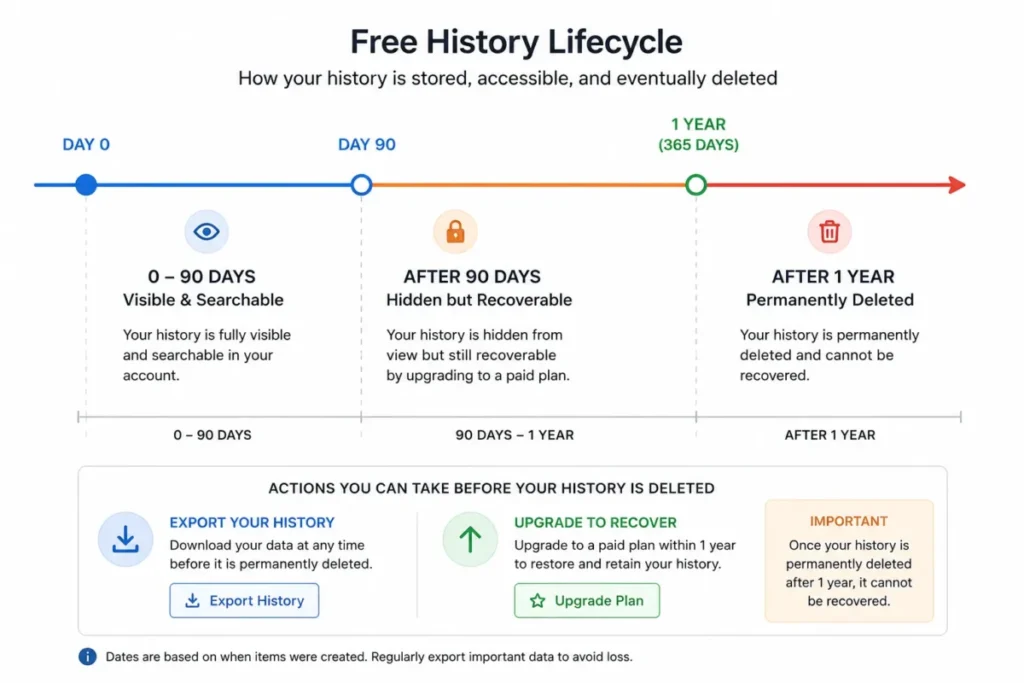
On Free, only the most recent 90 days of messages and files stay visible, and content older than one year is deleted on a rolling basis. Upgrading reveals the previous twelve months of hidden history, but only if you upgrade before the one-year deletion removes it for good.
After deletion, that history is not recoverable from Slack.
Free also caps third-party or custom apps at 10, limits huddles to one-to-one, and restricts external collaboration to one-to-one direct messages. None of that is fatal for a hobby workspace.
It is fatal the moment Slack becomes your institutional memory.
Downgrading is worse than starting on Free. Returning a paid workspace to Free hides older history, deactivates paid guests, disconnects Slack Connect channels, and makes several objects read-only, and some of those effects hit other members and external partners, not just the owner. Before any downgrade, I would measure history older than 90 days and one year, export everything the plan allows, and inventory apps, guests, Connect channels, canvases, and user groups first. Freeze the change until that export is validated.
Key Features with Plan Gates
Slack’s strength is the channel model plus its ecosystem, but each headline feature carries a plan line.
Channels, history, and search. Channels organize work by project or team, and search only pays off when history is complete, which is a Pro-and-above reality. On Free, search stops at 90 days, so onboarding a new hire into past decisions breaks immediately.
Huddles. Group audio and video huddles start on Pro and support up to 50 teammates with screen sharing. Slack does not document overflow behavior beyond that number, so I would not treat huddles as a replacement for webinar or large all-hands software.
Slack Connect. Paid plans support group external messages and dedicated shared channels with up to 250 organizations, while Free is limited to one-to-one external direct messages. For client-facing teams, this is often the real reason to leave Free.
Canvases, lists, and sections. Canvases for docs, lists for task tracking, and custom sidebar sections all begin on Pro and are absent on Free. They are useful for keeping context beside a conversation, but they are organizing surfaces, not a substitute for a dedicated task system.
Workflow Builder. No-code automation starts on Pro, but native conditional branching starts on Business+. A routed intake that behaves differently based on a form answer is the exact workflow that breaks on Pro and forces either an external automation tool or the Business+ upgrade.
Integrations. Slack advertises more than 2,600 apps, unlimited on paid plans and capped at 10 on Free. That breadth is the core reason teams tolerate the per-user cost.
AI features and where the data goes
Slack bundled basic AI into paid plans and reserved advanced AI, including AI search, daily recaps, and file summaries, for Business+ and above. The buyer question is not what the AI does.
It is where its output lives.
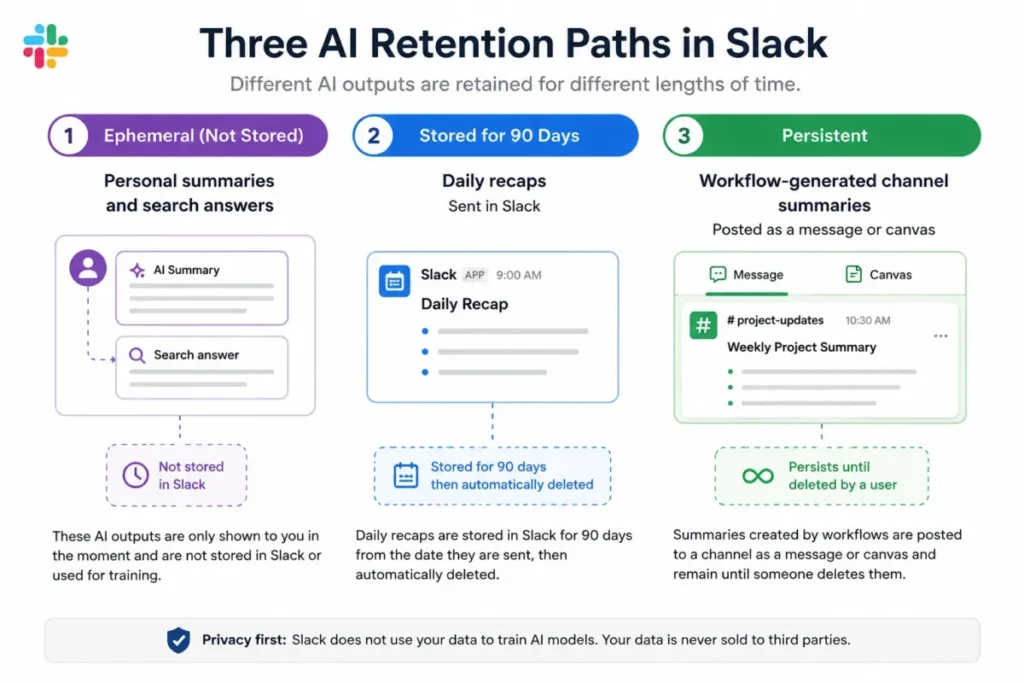
Per Slack’s AI security documentation, personal summaries and search answers are ephemeral, recap data is retained for about 90 days, and workflow-generated channel summaries can persist as an ordinary Slack message or canvas. For records management, that third path matters: those summaries should be governed like any other Slack content, not treated as disposable AI output.
Slackbot, Slack’s personal AI agent, is a moving target worth watching. Ongoing access is a Business+ and Enterprise+ feature, with a limited trial opening to Free and Pro, and Slack notes that plan limits apply, so I would not build a workflow around it before confirming your plan’s current quota.
One dated caveat for existing customers: Slack’s Channel Expert agent stopped accepting new installations on May 4, 2026, and a removed installation cannot be reinstalled. If you rely on it, do not remove it during cleanup expecting to add it back.
Ease of Use and Setup
Getting a team into Slack is genuinely fast. A small team can create a workspace, build a few channels, and invite members inside an afternoon, which is why adoption rarely fails at the setup stage.
The difficulty appears later, and it is organizational rather than technical. Channel sprawl, notification load, and inconsistent naming are the recurring complaints across G2, Capterra, and TrustRadius, alongside search that gets harder as the workspace grows.
I would judge a Slack rollout on a 30 and 90-day test, not on launch day. By day 30, channels should follow a naming rule and threads should hold replies rather than scattering them across the sidebar.
By day 90, decisions should route to a system of record and notification defaults should be set by role, or the workspace becomes noise that people mute.
Mobile and device requirements
Slack ships iOS and Android apps alongside desktop and browser clients, but the version floor is a real procurement dependency for managed or field devices. On the date checked, Slack lists iOS 17 or above and Android 11 or above with a recent app version, and Android devices are expected to include Google Play Services.
IT teams running older fleet devices should confirm those requirements before rollout, since they change over time.
Integrations, API, and Automation limits
Integration breadth is Slack’s most durable advantage, and the API is where teams overreach. The important constraint is that Slack’s Web API rate limits are set per method, per workspace, per app, across published tiers of roughly 1+, 20+, 50+, and 100+ requests per minute, with special limits such as about one message per second per channel.
Buying a higher plan does not raise those method tiers. A team hitting rate limits needs queuing, backoff, caching, and pagination, not a Business+ upgrade.
I would put that fact in front of any developer who assumes the fix is a plan change.
Before committing, map what Slack must connect to: the CRM, the ticketing system, the calendar, the code host, and the reporting stack. Slack earns its cost as connective tissue between those systems, and a team with nothing to integrate is paying channel prices for a chat app.
Security, Support, and Admin Controls
Slack publishes a mature compliance program, including SOC 2 Type II and related assurances, and encrypts data at rest and in transit by default. FedRAMP Moderate support requires an Enterprise-tier subscription and correct configuration, so certification alone does not make a workspace compliant.
Support scales by tier. Free lists no customer support, Pro provides 24/7 support, Business+ adds a four-hour first-response target, and Enterprise+ adds 24/7 priority support with the same four-hour target.
Slack does not publish a Pro response-time target, so I would not rely on unofficial estimates.
Identity has one nuance worth stating precisely. Normal SAML-based single sign-on starts at Business+, while Free and Pro are limited to Google OAuth and a documented Salesforce-connected exception, so a blanket “Pro has SSO” claim is misleading for most IT buyers.
Slack security, exports, and migration risk
Export and migration are where Slack’s real switching cost hides, and where a tier purchase does the least.
Export scope is gated and sometimes gated twice. All plans export public-channel messages and file links, Business+ can apply to enable export of all conversations including private channels and DMs, and Enterprise adds custom and single-user export scopes. Buying Business+ does not automatically open private-message export: an application and approval step can still stand between you and the data.
| Export scope | Free | Pro | Business+ | Enterprise+ |
|---|---|---|---|---|
| Public channels (JSON) | Yes | Yes | Yes | Yes |
| Private channels and DMs | No | No | Apply to enable | Yes |
| Single-user export | No | No | No | Yes |
| Scheduled recurring export | No | No | Apply to enable | Yes |
Migration is mostly manual reconstruction. A Slack-to-Slack import maps members and channels but cannot merge into existing private or shared channels, warns against changing users or channels mid-run, and can reverse imported channels and messages but not members. CSV or text imports support only channels, messages, and users in a strict four-column format.
Crucially, apps, settings, security configuration, user groups, emoji, and profile fields do not migrate, and direct import into an Enterprise organization is not supported. Exports contain links to files, not the file binaries.
Anyone budgeting a migration should budget the rebuild, not the upload.
Slack limitations and buyer disqualifiers
Beyond the plan gates, four limitations are structural rather than cosmetic.
Cost scales with headcount, not with value received. Because billing is per active member across the workspace, a 500-member community on Pro’s annual rate faces roughly $43,500 per year before any add-on, which is the disqualifier for large, low-engagement groups.
It is a communication layer, not a full project system. Recurring review patterns position Slack as weaker for long-form discussion and detailed execution, so timelines, dependencies, and durable task records usually belong in dedicated project management software that Slack connects to.
History is not a compliance archive by default. Free deletes data after a year, export scope is plan- and approval-dependent, and migration coverage is partial, so Slack is a weak sole system of record.
Notification and search friction grow with the workspace. Without governance, more channels means more noise and harder retrieval, which is the most consistent complaint across review platforms.
Pros and Cons
| Pros | Cons |
|---|---|
| Channel model plus 2,600+ integrations that few rivals match | Per-active-user pricing gets expensive for large or low-engagement groups |
| Full searchable history and group huddles from Pro | Free hides history at 90 days and deletes it after one year |
| Slack Connect scales external collaboration to 250 organizations | SAML SSO, data residency, and broad export require Business+ or higher |
| Fair Billing credits inactive members instead of charging fixed seats | Private-channel and DM export can require an application even after upgrading |
| Workflow Builder automates intake without code | Notification overload and search friction grow with workspace size |
| Documented, plan-clear security and compliance program | Migration excludes apps, settings, and file binaries, so switching is manual |
Who Should Use Slack?
A 10-to-50-person software, agency, product, or operations team using several connected tools is the core fit, because durable history plus deep integrations is exactly what Pro delivers.
A B2B service team that collaborates with a manageable number of client organizations fits well, provided it governs Slack Connect and single-channel guests deliberately.
An IT-managed company that needs SAML SSO, data residency, advanced AI, conditional workflows, or broader compliance export should move to Business+, where those gates open.
A regulated, multi-workspace enterprise that needs audit logs, DLP, legal holds, the Discovery API, multi-SAML, or customer-managed keys is the Enterprise+ case, and only that case.
Who Should Avoid Slack?
A 500-plus-member public, volunteer, or professional community with many occasional members should avoid paid Slack unless it qualifies for the nonprofit discount, because active-user billing scales past the value light members generate.
A team hoping to replace project management, long-form documentation, and webinars with one license will be disappointed, because Slack is deliberately a communication layer.
An organization that needs a low-cost, immutable, easily exportable long-term archive should look elsewhere, given the one-year Free deletion and plan-gated export.
A developer expecting a higher plan to solve API rate-limit architecture is buying the wrong remedy, since the method tiers are identical across plans.
One escape hatch worth naming: eligible nonprofits can receive Pro free for up to 250 members, or 85% off Pro or Business+, which changes the community math entirely.
Slack Alternatives
Slack is rarely a category of one. The right alternative depends on which constraint dominates.
| Alternative | Choose it when | Cost model |
|---|---|---|
| Microsoft Teams | Microsoft 365 economics, formal meetings, and Office file collaboration dominate | Bundled with Microsoft 365 |
| Google Chat | The team already standardizes on Google Workspace and wants bundle simplicity | Bundled with Google Workspace |
| Discord | A large informal community needs voice-first interaction and low per-member cost | Free, optional paid tier |
| Mattermost | Self-hosting and infrastructure control outweigh a managed ecosystem | Free self-hosted, paid tiers vary |
For Microsoft 365 shops specifically, my Slack vs Microsoft Teams comparison and the standalone Microsoft Teams review walk through the trade-off in detail. Comparative pricing for Google Chat, Discord, and Mattermost was outside this package’s verified scope, so I would confirm current numbers before switching.
Final Verdict: Is Slack Worth It in 2026?
Slack is worth it for the team it was built for: a communication-heavy, integration-rich group that keeps its real execution records in connected systems and is willing to govern channels. For that buyer, Pro on annual billing is the plan I would start with, and I would only promote on a verified gate.
Upgrade from Pro to Business+ when SAML SSO, advanced AI, conditional workflow branching, data residency, message analytics, broader compliance export, or the four-hour first-response target becomes decision-critical. That step up from Pro is defensible only when one of those gates is real.
Move to Enterprise+ only for multi-workspace governance, audit logs, DLP, legal holds, the Discovery API, multi-SAML, per-user export, or optional Enterprise Key Management, and require a written control-to-license map in the quote.
I would avoid Slack for a large, low-engagement community without nonprofit eligibility, and I would never treat it as a complete project system or a compliance-grade archive on its own.
Buy Slack as the connective layer. Keep the system of record somewhere Slack links to, not inside Slack alone.
FAQ
How much does Slack cost per user in 2026?
Pro is $8.75 per user/month billed monthly or $7.25 billed annually, and Business+ is $18 monthly or $15 annually, per Slack’s Business+ pricing page. Free is $0, and Enterprise+ is custom-priced through sales.
What happens to old messages on Slack’s Free plan?
Free shows only the most recent 90 days, and data older than one year is deleted on a rolling basis. Upgrading restores the previous twelve months of hidden history, but only before the one-year deletion removes it permanently.
Which Slack plan includes SSO?
Normal SAML-based single sign-on starts on Business+. Free and Pro are limited to Google OAuth and a documented Salesforce-connected exception, and Enterprise+ adds multi-SAML.
Can Slack export private channels and direct messages?
Not on Free or Pro, which export public channels only. Business+ can apply to enable export of all conversations including private channels and DMs, and Enterprise+ includes that plus single-user export.
What is the difference between Slack Pro and Business+?
Pro delivers full history, unlimited apps, group huddles, Slack Connect channels, and basic automation. Business+ adds SAML SSO, advanced AI, conditional workflow branching, data residency, message analytics, broader export, and a four-hour first-response target.
Does Slack charge for inactive members?
No. A member is billable only after taking an action within a 28-day window, and Slack issues a prorated, nonrefundable account credit when a paid member becomes inactive or is deactivated.
Is Slack good for project management?
Slack is a communication layer, not a full project system. Detailed timelines, dependencies, and durable task records usually stay in connected project management tools that Slack integrates with.
Will a higher Slack plan fix API rate limits?
No. Web API rate limits are set per method, per workspace, per app, and are identical across plans.
The fix is queuing, backoff, caching, and pagination, not an upgrade.