
Google Password Manager is a password manager built into Chrome and Android, with autofill, sync and a Password Checkup feature, and it is safe for your own logins when your Google Account is well protected. By default, Google holds the encryption key in that account. On-device encryption moves the key to your Google password or screen lock, but it is optional and can’t be removed once set up.
A Google Workspace account can’t share a saved password at all, because sharing is limited to a family group and work accounts can’t join one. So is Google Password Manager safe for a team? Only when every login is personal.
Key facts for teams
Shared vendor, social or admin logins rule it out: a work account has no one to share with.
Admins can allow or block password saving in Chrome, but Google’s policy list includes no shared vault.
When a Workspace account is deleted, admins can transfer Drive and Calendar data. Saved passwords aren’t on the transfer list. Checked November 2026.
In This Article (7 sections)
Is Google Password Manager Safe? How It Protects Your Passwords
Google Password Manager encrypts saved passwords while they’re sent over any network and when they’re saved to Google, and by default it stores the encryption key in your Google Account. Google uses that key to decrypt your passwords when you open them and when Password Checkup checks them for security issues, the same vault-and-key idea behind what a password manager is.
A second, optional mode takes the key off Google’s side:
| Mode | Who holds the key | What unlocks your passwords | What to know |
|---|---|---|---|
| Standard encryption (the default) | Google, in your Google Account | Signing in to your Google Account | Google decrypts passwords for viewing and for Password Checkup |
| On-device encryption (optional) | Only you | Your Google password or an eligible device’s screen lock | Can’t be removed once set up; lose the key and you could lose the passwords |
Sources: Google Account Help on on-device encryption, checked Nov 2026.
Dedicated password managers call the second model zero-knowledge encryption: under it, Bitwarden says, the company has no access to your vault’s decryption keys. On-device encryption is Google’s closest equivalent, and it isn’t the default yet: Google says it will be set up for everyone “over time”.
Password Checkup flags saved passwords that are exposed, weak or used in multiple accounts, and Chrome can suggest a strong password when you sign up for a new account.
Passkeys are stored and encrypted alongside passwords. Whether a team should switch to them is a separate decision, which my comparison of passkeys and passwords for a team works through.
Where it works
Google Password Manager is built in to Chrome on all platforms and to every Android app, so there is nothing to install. On an iPhone or iPad it works once you choose Chrome as the AutoFill Passwords service. In any other browser, you manage saved passwords at passwords.google.com.
Google Password Manager homepage, first screen, passwords.google, captured Nov 2026
On a team with mixed laptops and phones, each person reaches their own saved passwords on every device only after signing in to Chrome and turning on sync.
No paid tier is involved: the product is built in to Chrome and Android, and Google’s page for it lists no plans or prices.
Why Avoid Google Password Manager? Where the Real Risks Are
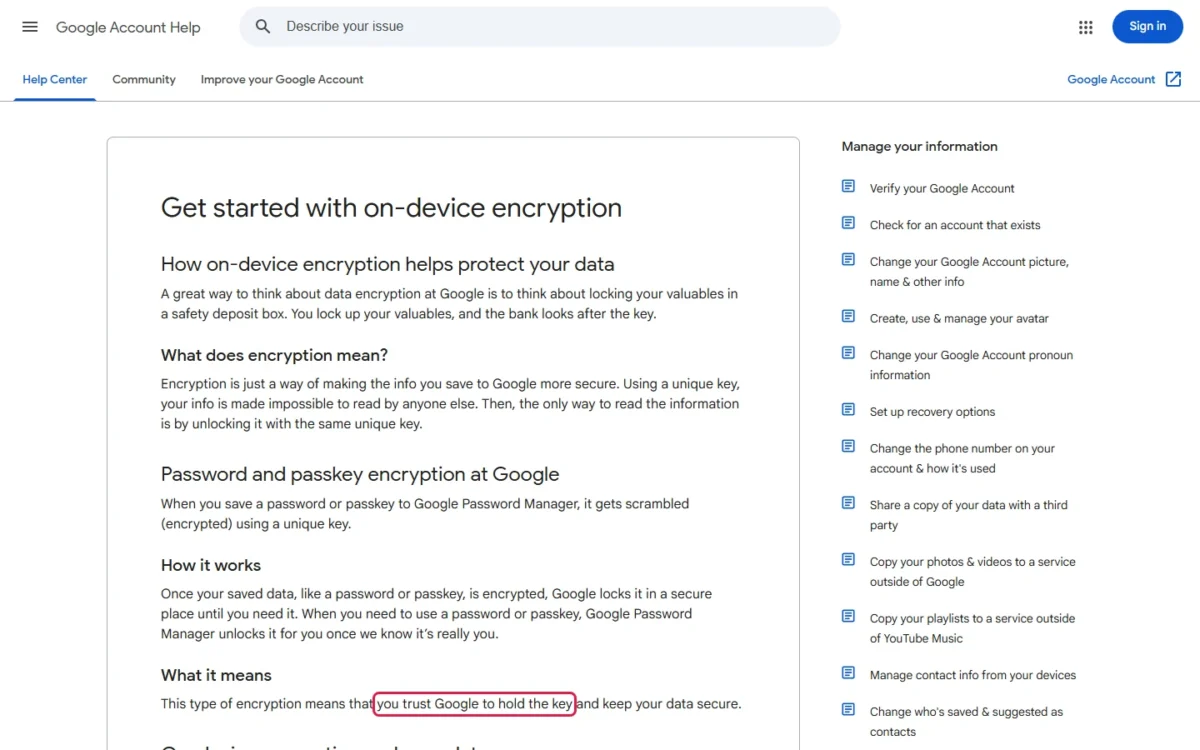
The reason to avoid it is the Google Account, not the encryption: whoever gets into the account, or into an unlocked device that’s signed in to it, reaches every saved password. Google’s own help page puts the default arrangement in one line: “you trust Google to hold the key.”
Four risks follow, each with its trigger:
- A stolen Google password. With standard encryption the key is stored in the account, so an account protected by a password alone is the weakest setup.
- An unlocked, signed-in computer. Biometric authentication for filling passwords is off by default, so Chrome fills saved logins without a fingerprint check until you turn it on.
- A permanent lockout. Under on-device encryption, Google lists two ways to lose all your passwords: losing all your recovery options, such as your Google password and an eligible device’s screen lock, and losing access to every signed-in device that stores them.
- Passwords stranded on one device. When you’re not signed in to Chrome, it stores passwords locally, so a lost or wiped laptop takes them with it.
My take
None of the four is a flaw in the encryption; each is a default left alone or a recovery detail left out of date. Google Password Manager is worth using if you treat the Google Account as the vault door and lock it properly. Skip it if you won’t open its settings page.
How to Make Google Password Manager More Secure
Five settings close the first three gaps, in this order:
- Turn on 2-Step Verification. In your Google Account, open Security & sign-in and select Turn on 2-Step Verification. Google recommends Google prompts as the second step and says passkeys and hardware security keys protect the account from phishing attacks. On a work or school account these steps might not work, and Google points you to your administrator.
- Update your recovery phone number and email. Google says current recovery details can help you regain access if you lose your password. Do this before step 3.
- Set up on-device encryption. At passwords.google.com, click Settings, then Set up under “On-Device Encryption.”
- Require a fingerprint or screen lock to fill passwords. In Google Password Manager’s Settings, a PC shows “Use Windows Hello when filling passwords” and a Mac shows “Use your screen lock when filling passwords”; switch it on.
- Run Password Checkup. Select Checkup in Google Password Manager and change compromised passwords first.
The fourth gap closes when you sign in to Chrome: your passwords then save to your Google Account and you can use them across your devices, not on one laptop.
The same Settings page holds two more switches: “Offer to save passwords and passkeys”, on by default, and “Sign in automatically”, which you can turn off so Google Password Manager asks for confirmation before signing you in.
My take
Start with 2-Step Verification and a passkey or security key, because the account is the lock on everything else. On-device encryption is worth it if you keep a second signed-in device and current recovery details; skip it if you don’t, since it can’t be undone.
Those settings protect one person. A team’s problem is the logins that belong to the company.
Can a Team or Small Business Use Google Password Manager?
For each person’s own logins, yes; for shared company logins, no. Chrome’s password help page allows sharing only with a member of your family group. Google’s family-group rules shut out accounts issued by an employer, school or other organization. A Google Workspace user therefore has no one to share a saved password with.
Even between personal accounts it is sized for a household: a family group tops out at 5 family members plus the family manager, and the receiver gets a copy in their own Google Account.
My take
A dedicated manager is worth paying for if your team has even one shared login, such as a social media account, a vendor portal or a domain registrar. Skip it if every login is personal. I wouldn’t patch the gap with personal accounts and a family group: every shared password becomes a copy in an account the company doesn’t manage.
None of this is a reason to leave Workspace, and my Google Workspace review weighs the suite on its own terms.
What a Workspace or Chrome admin can control
A Workspace or Chrome admin controls whether Chrome’s password manager runs, not what is in it. Google’s Chrome policy list has these password settings:
| Setting | What the admin decides | Detail that matters |
|---|---|---|
| Password manager | Always allow, never allow, or let the user decide | “Never allow” blocks new saves; previously saved passwords still work |
| Passkeys | Whether users can save passkeys to the built-in Password Manager | On by default; when off, previously saved passkeys still work |
| Enable leak detection for entered credentials | Whether Chrome checks for leaked usernames and passwords | No effect if Safe Browsing is not turned on |
| Delete undecryptable passwords | Whether the built-in manager can delete passwords it can’t decrypt | Enabled by default; affected users permanently lose those passwords |
| Third-party password managers allowed | Whether Android devices can switch to a third-party password manager | When off, Android devices always use the built-in one |
Sources: Set Chrome policies for users or browsers, Chrome Enterprise and Education Help, checked Nov 2026.
Every row is an on/off switch. The page never mentions a shared vault and lists no setting that shows an admin what an employee saved, so an IT lead decides whether Chrome saves passwords, not what happens to them.
What happens to saved passwords when someone leaves
When you delete a leaver’s Workspace account, saved passwords aren’t among the data you can transfer. Google’s user-deletion guide lists Drive and Docs files, Google Sites pages, Data Studio assets, Classroom classes and calendars as transferable, and says data owned solely by the user that isn’t transferred is permanently deleted.
A deleted account can be restored for up to 20 days, and the user can export personal data before deletion. But the company never holds a copy of a login an employee saved in Chrome: either the employee hands it over first, or you reset it.
1Password’s offboarding guide has the leaver move work items from their Employee vault to a shared company vault before an admin suspends the account, changes shared passwords and deletes it. The order matters: deleting an account permanently removes any items left in an Employee vault.
Bitwarden’s Centralize organization ownership policy shifts ownership of a member’s items from the user to the organization, and Keeper lists Vault transfer for an employee who leaves.
Whichever tool holds the logins, an employee onboarding checklist run in reverse is a workable offboarding list.
Google Password Manager vs a Dedicated Business Password Manager
The difference is control, not encryption.
| Product | Team sharing | Admin policies | Offboarding | SSO or SCIM | Encryption and key |
|---|---|---|---|---|---|
| Google Password Manager | Family group only | Allow or block saving, passkeys and leak detection | Not on the Workspace transfer list | Uses the Google Account sign-in | Google by default; you with on-device encryption |
| 1Password | Role-based vault sharing and permissions | Custom policies | Move items to a shared vault, suspend, then delete | Business: integrates with Okta, Entra ID, OneLogin and Duo | Account password plus a Secret Key created on your device |
| Bitwarden | Teams: share credentials securely | Enterprise: enterprise policies | Organization-owned items by policy; revoke or remove members | Teams: directory sync and SCIM; Enterprise: passwordless SSO | Zero-knowledge encryption |
| NordPass | Teams: safe password sharing; Business: sharing by group and folder | Teams: security settings applied to all users | Item Transfer | Teams: SSO login with Google Workspace | xChaCha20-encrypted vault |
| Keeper | Shared team folders | Policy engine by user, role or team | Vault transfer when an employee leaves | Enterprise: SCIM and SSO/ | Zero-knowledge encryption |
| Dashlane | Securely share workforce passwords | Manage password policies | Not listed on the pricing page | SSO and SCIM integrations | Not listed on the pricing page |
Sources: the business pricing pages of 1Password, Bitwarden, NordPass, Keeper and Dashlane, 1Password’s Secret Key page and Bitwarden’s user management page, checked Nov 2026.
Sharing and offboarding decide it for a team (my guide on how to share passwords with your team covers both): Google’s row has nothing there an admin can use. The key column is closer than it looks, since a Google user with on-device encryption holds the key too.
Account recovery is the other control to check on a business plan. 1Password lets team administrators and owners recover a member’s account, and Bitwarden’s Account recovery administration policy lets owners and admins reset a member’s master password.
Which of the five to look at first depends on the gap you need closed:
- Offboarding: the 1Password review covers the product whose guide runs from vault handover to account deletion.
- Company-owned items: Bitwarden’s ownership policy does this, and the Bitwarden review weighs the rest.
- Google Workspace sign-in: NordPass Teams lists it, which the NordPass review puts in context.
- Rules by role: Keeper’s policy engine works by user, role or team, as the Keeper review explains.
- SSO and SCIM together: Dashlane’s Omnix Password Management lists both, and the Dashlane review says who it suits.
- A choice between the first two: Bitwarden vs 1Password sets them side by side.
When Google Password Manager Is Enough, and When to Move
Stay on Google Password Manager when every login belongs to one person and each account has 2-Step Verification on. Move when any login is shared or when you need a leaver’s logins back. If you don’t want Google holding the key, turn on on-device encryption or move.
| Your situation | Is it enough? | Reason | Next step |
|---|---|---|---|
| Solo owner or freelancer | Yes | Every login is yours | Turn on 2-Step Verification and biometric fill |
| Team where everyone has their own login to every tool | Yes, with a policy | Nothing needs sharing | Set the Password manager policy to Always allow; have everyone turn on 2-Step Verification |
| Team with shared vendor, social or admin logins | No | A work account can’t share a saved password | Put shared logins in a dedicated manager |
| Team that must keep a leaver’s logins | No | Saved passwords aren’t on Workspace’s transfer list | Choose vault transfer or organization-owned items |
| You want no vendor holding the key | Only with on-device encryption | The default stores the key in your Google Account | Turn it on, or pick zero-knowledge encryption |
For a 10-person team, moving costs a few hundred dollars a year. 1Password’s Teams Starter Pack includes 10 members for $24.95 per month, billed annually: $299.40 for the year. Bitwarden Teams is $4 per user per month billed annually: $4 x 10 users x 12 months = $480 a year.
The Starter Pack takes up to 10 additional seats at per-member pricing, for 20 members total, so a team that expects to outgrow it should check 1Password pricing past the Starter Pack first.
My take
My rule for a small team: the day a second person needs the same login, move. I’d pay either bill before I’d leave a shared admin login in one employee’s Chrome profile, where the company can’t transfer it. Stay only if no login is shared and everyone turns on 2-Step Verification. On Workspace, that may take your administrator: Google says the steps might not work on a work account.
What is the safest password manager for a team? The one whose controls match the job: shared vaults, offboarding, SSO or price. My ranking of password managers for business, picked by team job is built around those jobs.
Moving passwords out
Getting passwords out of Google Password Manager takes three steps:
- Export them: at passwords.google.com, select Settings, then Export passwords.
- Import the file into the new manager, following that vendor’s import guide.
- Delete the export file. Google’s own import instructions say to delete a downloaded CSV password file so it can’t be compromised.
The “Never allow” policy stops new saves but leaves earlier passwords usable, so have each person clear them with “Delete all Google Password Manager data” once the new manager works.
If the destination is still open, my NordPass and Bitwarden comparison covers two Teams plans that list the sharing Google’s lacks.
FAQ
Can Google Password Manager be breached?
The exposure Google’s own pages describe is your account, not a break-in at Google. With standard encryption the key sits in your Google Account, so someone who signs in as you can read your passwords. 2-Step Verification adds a layer in case your password is stolen. Google also says Chrome’s built-in security protects you from harmful sites and malware; that guards the browser, not an account someone already signed in to.
Is Google Password Manager safe for banking logins?
It is as safe as the Google Account in front of it. A bank login is encrypted like any other saved password, so what matters is whether someone else can sign in as you or use your unlocked device. With 2-Step Verification and biometric fill on, I’d keep a bank login in it; without them, I wouldn’t.
Is Google Password Manager free?
Google’s page for it lists no price and no paid plan; you use it by signing in with a Google Account, and my free password manager comparison sets it beside other options.