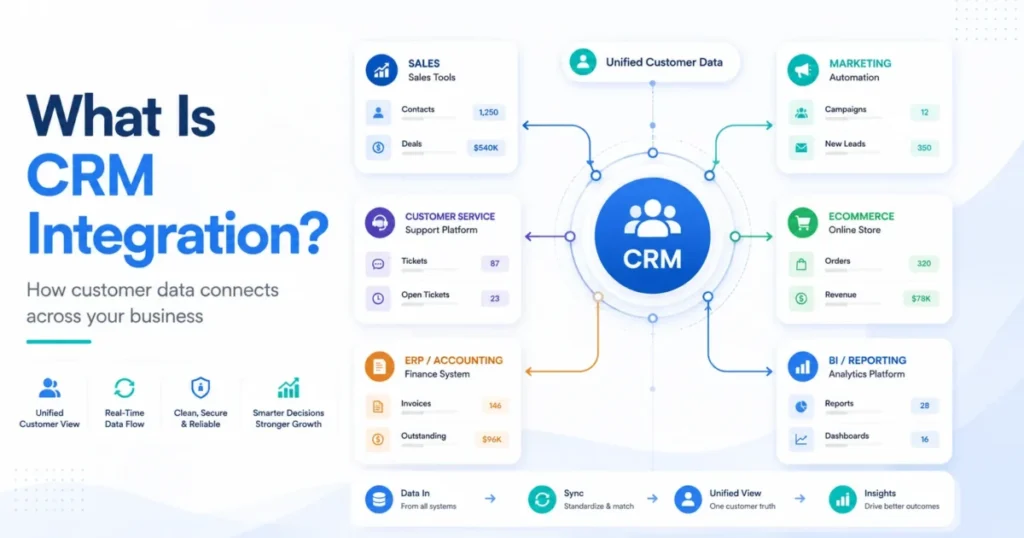
Most teams do not have a CRM integration problem. They have a “which system wins when two apps disagree” problem, and they usually discover it after the data is already wrong.
CRM integration is the fix that vendors sell and few teams scope correctly. Connect the apps, the pitch goes, and the customer data takes care of itself.
The reality is narrower. A connector moves records between systems only as well as you defined the rules before you switched it on.
This guide explains what CRM integration is, how it works at the level that decides success, and where it quietly breaks. It is written from official documentation and public CRM integration guides from Salesforce, HubSpot, IBM, MuleSoft, Zapier, and Zoho, plus a July 7, 2026 review of the leading US search results.
I wrote it for founders, sales operators, and revenue operations teams who have to defend the decision later, not just turn it on. If you are also shortlisting platforms, treat our guide to the best CRM software as the companion to this explainer.
Quick answer: CRM integration is the process of connecting a customer relationship management system with other business apps and data sources so customer records, activities, and workflow triggers move and update across systems automatically. Done well, it defines which system owns each field, how data maps, whether sync runs one way or two ways, and who fixes a record when it fails.
In This Article (15 sections)
The 60-Second Version of CRM Integration
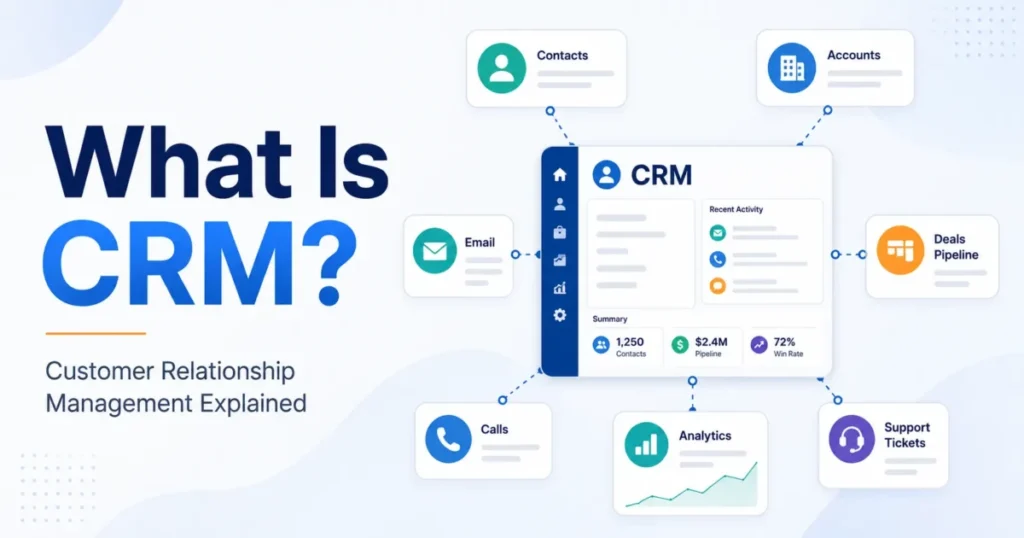
CRM integration means connecting the tool that stores every customer record to the other apps that touch customers so data does not live in separate, disconnected copies.
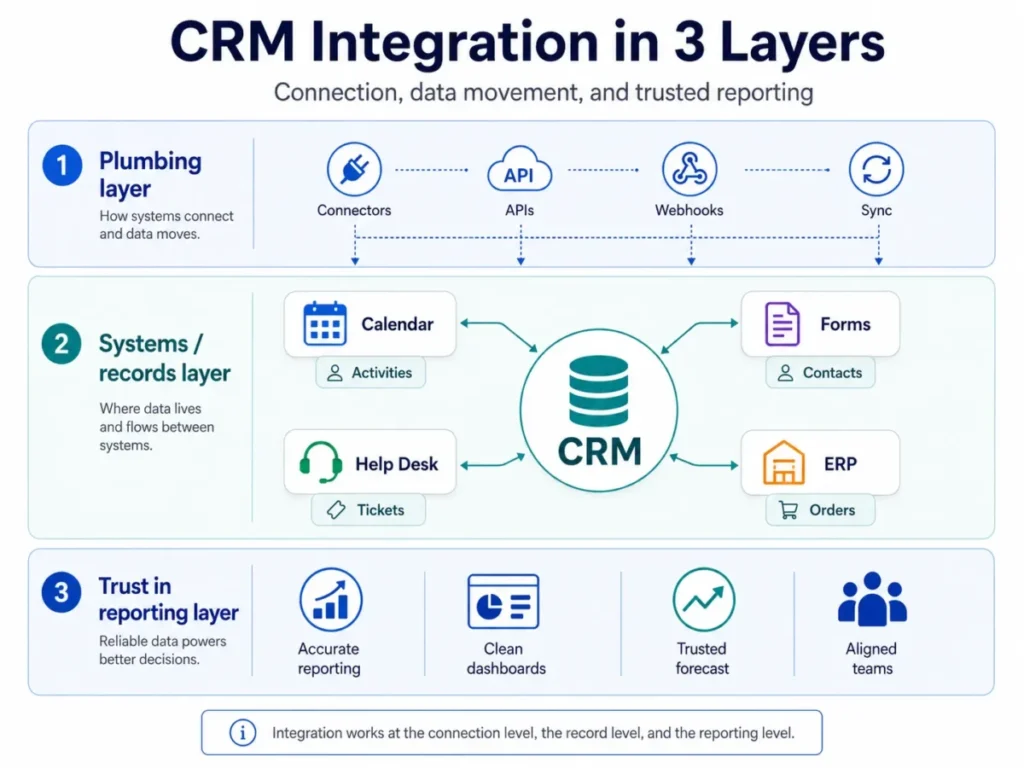
At the simple level, it is plumbing. A meeting booked in your calendar shows up as a CRM activity, and a web form creates a contact without anyone retyping it.
At the technical level, it is more specific. Systems exchange records such as contacts, companies, deals, and tickets through APIs, webhooks, connectors, or an integration platform, following field-level rules you set.
At the business level, it is about trust in your numbers. When Salesforce calls integration a way to break down data silos and align teams around the same data, the payoff is a pipeline forecast the finance team believes.
The distinction that matters: connecting apps is easy, but deciding what each app is allowed to change is the actual work. Skip that decision and you have connected systems, not integrated ones.
How CRM Integration Actually Works
CRM integration works by moving specific records and fields between a source system and a destination system whenever a defined event happens.
The word “sync” hides most of the detail. To see what a connector really does, break one integration into its parts.
| Part of the integration | What it does | Concrete example |
|---|---|---|
| Source app and event | Where the change starts and what triggers it | A new lead submits a website form |
| CRM object | The record type being created or updated | Contact, company, deal, ticket, or activity |
| Field mapping | Which field in one app equals which in the other | Form “Company” maps to CRM “Account name” |
| Sync direction | Which way the update is allowed to flow | One way into the CRM, or two way |
| Transformation | Any cleanup applied before the write | Normalizing “USA” and “United States” |
| Destination and write | Where the record lands | The contact is created and routed to an owner |
| Error handling | What happens when the write fails | The failed record is logged with a reason |
The step most beginner guides skip is the last one. HubSpot’s Salesforce integration documentation shows sync errors as a normal, expected part of running an integration, not a rare event.
Sync Is Not One Thing
“Sync” covers at least five different behaviors, and choosing the wrong one is how records get overwritten.
| Sync type | How it moves | Best for | Main risk |
|---|---|---|---|
| One-way | Source updates destination only | Feeding leads into the CRM | Stale data in the source |
| Two-way | Both systems update each other | Shared contacts and deals | Overwrites when both edit a field |
| Real-time / event | A webhook fires on each change | Fast lead routing and alerts | Subscription and rate limits |
| Scheduled batch | Records move on a timer | Large, non-urgent data loads | Delay between systems |
| Manual import | A one-time file or resync | Backfilling history | Not an ongoing connection |
Two-way sync is the one that bites teams. I would not enable it on any field until you have decided which system wins a conflict, a decision that sits at the heart of any HubSpot vs Salesforce comparison, because HubSpot’s field mapping docs let you choose rules such as “prefer Salesforce unless blank” or “don’t sync” for exactly this reason.
CRM Integration vs the Terms People Confuse It With
CRM integration gets blended with four adjacent ideas, and the confusion changes how much work a project really is.
| Term | What it means | Who usually owns it | Typical tools |
|---|---|---|---|
| CRM integration | Connecting the CRM to other systems so data and workflows sync over time | RevOps or CRM admin | Native connectors, iPaaS, APIs |
| CRM implementation | Setting up the CRM itself: users, pipelines, fields, adoption | CRM admin and leadership | The CRM platform |
| Data migration / import | Moving data in once, not keeping it in sync | CRM admin or a consultant | Import tools, CSV, one-time API loads |
| API integration | A connection built using APIs so systems share data and run workflows | Developers or a platform | REST APIs, middleware |
| Application integration | The broad practice of connecting any apps, of which CRM integration is a subset | IT or platform team | iPaaS, webhooks, connectors |
The one that costs teams the most is treating integration as a checkbox inside implementation. MuleSoft draws the line cleanly, and it starts with what an API is: the API is the rules for how systems talk, while an API integration is the built connection that uses those APIs, so a CRM that “has an API” is not the same as a CRM that is integrated.
A one-time import is also not integration. HubSpot documents importing Salesforce records separately from ongoing sync, and the difference is whether the systems keep talking after day one. If they do not need to, you are planning a one-time CRM data migration, not an integration.
The Systems Teams Actually Connect
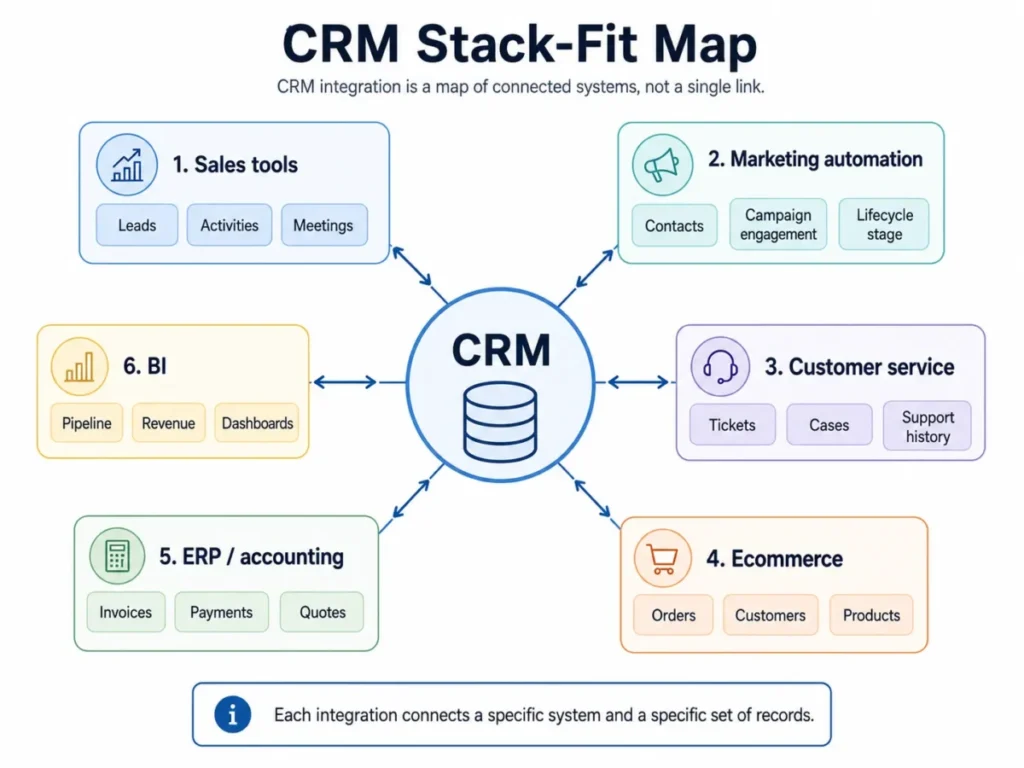
CRM integration is rarely one connection. It is a small map of the tools that touch a customer, and the CRM sits in the middle.
Salesforce, IBM, and Creatio all describe the same common categories, and each connects a different part of the revenue workflow.
- Sales tools: email, calendar, prospecting, calling, and quoting systems feed activity and pipeline data into the CRM.
- Marketing automation: forms, email campaigns, ads, and website data connect so contacts and campaign responses land on the right records.
- Customer service: help desk, ticketing, chat, and telephony connect so agents see purchase history and past issues.
- Ecommerce: orders, products, inventory, and purchase history flow to CRM contacts and accounts.
- ERP and accounting: invoices, quotes, and order-to-cash status connect so sales can see what finance sees.
- Business intelligence: CRM data moves into reporting tools for forecasts and dashboards.
This is a stack-fit question before it is a technical one. I would map which of these six categories you actually run today, because each new connected system adds another place your customer data can drift out of agreement.
Which Integration Method Fits Your Workflow
There are four main ways to build a CRM integration, and the SERP leaders list them without saying when to choose each.
Here is the decision I would make, based on how IBM, MuleSoft, and Zapier describe the methods.
| Method | Choose it when | Watch out for |
|---|---|---|
| Native connector | Both apps support the objects you need and the workflow is standard | Limited to what the vendor built |
| No-code automation | You need lightweight trigger-and-action workflows across many apps | Harder to govern as flows multiply |
| iPaaS / middleware | You connect several systems, need transformations, and want monitoring | More cost and setup overhead |
| Custom API build | You have a proprietary system or complex logic no connector handles | Developer time and ongoing maintenance |
The trap is overbuilding. If a supported native connector already syncs your contacts and deals, an iPaaS adds cost and complexity you do not need yet.
There is a second axis the Zapier automation review angle explains that CRM guides usually skip: architecture. Two apps can connect point-to-point, but once several systems share data, the CRM often becomes a hub, and a large multi-system environment usually needs middleware to stay maintainable.
That is the “what breaks first” moment. Point-to-point connections are fine at three tools and become a maintenance problem when every app connects to every other app.
What CRM Integration Looks Like for Teams Like Yours
The right integration depends on team shape, not company size labels. Six cohorts show how the need changes.
| Team | Typical integration | What breaks first |
|---|---|---|
| Solo consultant | Calendar and email into a lightweight CRM | Nothing, until manual entry creeps back in |
| 5-person SaaS sales team | Web forms plus lead routing into the CRM | Duplicate contacts from forms and imports |
| Ecommerce brand | Orders, products, and inventory to CRM and ERP | Order volume hitting API limits |
| B2B account team | Marketing automation plus a two-way CRM sync | Field-ownership conflicts on shared records |
| Contact center | Telephony and help desk into CRM records | Call logs and tickets cluttering the timeline |
| Enterprise RevOps | ERP, BI, and iPaaS with governance | Sync errors nobody owns after launch |
A solo consultant and an enterprise RevOps team both “integrate the CRM,” but they are solving different problems. The consultant is removing retyping, while the enterprise team is protecting a forecast across a dozen systems.
My recommendation: match the method to the row you are in, not to the vendor demo. A 5-person team does not need the enterprise pattern, and an enterprise does not survive on point-to-point connectors.
Decide the System of Record Before You Sync
The most important CRM integration decision is not a tool. It is choosing which system owns each field before any two-way sync goes live.
Everyone repeats “single source of truth,” but Salesforce and IBM use it as a goal, not a setting. You reach it by naming an owner per field.
| Record or field | Likely system of record | Note |
|---|---|---|
| Contact identity (email) | The CRM or a data platform | Needs a reliable match key |
| Company / account | The CRM | Watch for duplicate accounts |
| Deal or opportunity stage | The CRM | Rarely safe to let another app overwrite |
| Lifecycle stage | Marketing automation or CRM | Pick one, not both |
| Record owner | The CRM | Owner mismatches break routing |
| Consent fields | The consent or marketing system | Compliance-sensitive |
| Invoice status | ERP or accounting | Sales reads, does not edit |
| Product usage | The product database | Feeds scoring, rarely edited in CRM |
Once owners are set, decide what should not sync at all. More sync is not better sync.
| Data | Sync guidance |
|---|---|
| Contact and company core fields | Safe to sync with clear ownership |
| Deal stage and amount | Sync one way from the system of record |
| Record owner | Sync with caution; owner fields need exact matching |
| Consent and privacy fields | Sync only with a compliance review |
| Internal notes and support transcripts | Often better left unsynced to avoid clutter |
| Lifecycle stage | Sync from one owner only, never two-way blindly |
Over-syncing creates clutter, privacy exposure, and conflicting ownership, so I treat “don’t sync” as a valid and common answer. HubSpot’s field mapping options include a “don’t sync” rule precisely because some fields should stay put.
The Limits Nobody Mentions Before You Connect
CRM integration reliability is decided by limits that most buyer-facing guides never mention. This is the buyer risk ledger for connecting systems.
API call limits. HubSpot’s Salesforce integration docs note a single contact sync can use up to four API calls, and the count varies, so high-volume syncs consume quota faster than teams expect.
Records per call. The Zoho CRM review surfaces a limit its API documentation confirms: insert, update, and upsert operations cap at 100 records per API call, with rolling 24-hour credits and edition-based concurrency limits that shape how bulk loads must be batched.
Webhook limits. HubSpot’s 2026 webhooks documentation states an app can create a maximum of 1,000 webhook subscriptions, and its journal and management APIs return 429 responses with a Retry-After header when limits are exceeded.
Permissions. HubSpot’s Salesforce integration requires API access and Salesforce admin permissions to install, so integration is an access-control decision, not just a data one.
These numbers are vendor-specific and change by plan, endpoint, and account, so I would treat them as examples and check the current developer docs for your own CRM. The pattern holds even when the exact figure does not.
Duplicates and Bad Data Travel Faster
The bigger risk is quieter: integration spreads whatever data you already have, good or bad.
IBM lists data duplication, overconfidence in automation, security risk, and user training as core integration challenges. A 2024 duplicate-detection paper adds that CRM records entered over time drift into full, partial, and fuzzy duplicates that undermine a single source of truth.
Practitioner discussions echo it. Public forum threads describe duplicate deal records, the kind covered in a Pipedrive CRM review, plus Mailchimp sync issues and missing entries during CRM-to-ERP sync.
Integration improves accuracy only after you design identity rules. Deterministic match keys such as a unique ID or a verified email prevent the connector from creating a second contact every time a form fires.
The buyer consequence is direct. Duplicates distort routing, marketing segmentation, support history, and the forecast, so a “clean data” project belongs before the integration, not after.
When Not to Integrate Yet
Sometimes the correct answer is to wait. Vendor pages rarely say this, but a few conditions make integration actively harmful.
Do not turn on a live sync yet if any of these are true:
- Your CRM is already full of duplicates with no dedupe plan.
- No one has decided which system owns each field.
- Lifecycle or deal stages are inconsistent across teams.
- You lack admin permissions or a test environment.
- No one is assigned to watch sync errors after launch.
- Consent and privacy handling has not been reviewed.
If two or more of these apply, I would clean the data and assign an owner first. Connecting a messy CRM to more systems does not fix the mess.
It distributes it.
Common Misconceptions About CRM Integration
A few beliefs cause most of the avoidable damage. Correcting them early is cheaper than a rollback.
Misconception: every connected app should sync every field. Reality: good integration defines which fields sync, in which direction, and which stay private or unsynced.
Misconception: integration cleans up dirty data. Reality: it can improve accuracy only after duplicates, ownership, required values, and field types are handled, and it spreads bad data faster otherwise.
Misconception: an API is the same as an integration. Reality: the API is the interface, and the integration is the built connection that uses it.
Misconception: a one-time import is integration. Reality: an import moves data once, while integration keeps systems connected through sync, triggers, or scheduled flows.
Misconception: native connectors always beat iPaaS and custom work. Reality: native connectors are easiest for supported workflows, but multi-system processes, transformations, and monitoring often need middleware or custom APIs.
How Long CRM Integration Takes
Timelines depend on complexity, not on the vendor’s demo. Salesforce sets the honest expectation: simple integrations with prebuilt connectors can take days or weeks, while complex custom API work and data transformation across multiple systems can take months.
| Integration type | Rough effort | Main time sink |
|---|---|---|
| Native connector, standard objects | Days to a few weeks | Field mapping and testing |
| No-code multi-app workflows | Days to weeks | Handling edge cases and errors |
| iPaaS across several systems | Weeks to months | Transformations and monitoring setup |
| Custom API for a proprietary system | Months | Development and maintenance |
The number I care about is not the launch date. It is the cleanup time before launch, because the field mapping, dedupe, and system-of-record decisions are what actually consume the schedule.
Teams routinely underestimate this. One budgets a week for “turning on the connector” and loses a month to duplicate records and mismatched fields nobody planned for.
A Pre-Launch Checklist Before You Turn On Sync
Before a connector goes live, run a short field-mapping and governance pass. This is where most silent failures are prevented.
For each field you plan to sync, confirm:
- Field name and API name in both systems.
- Data type match, since a text field and a picklist do not sync cleanly.
- Required-field status on both sides.
- Picklist values that must align between systems.
- Owner or user field mapping, which needs exact matching.
- Sync rule: one-way, two-way, prefer-one-system, or don’t sync.
- How historical data and deletions are handled.
Then confirm someone owns the integration after launch, because integrations fail over time when no one does.
| Responsibility | Owner |
|---|---|
| Fields, objects, and users | CRM admin |
| Lifecycle and routing logic | RevOps |
| Authentication and security | IT |
| Workflow approval | Department leads |
| Complex custom builds | Vendor or integration partner |
Assigning an owner is what keeps an integration working past month two. Without one, a field rename or an app update silently skips records and nobody notices until the forecast looks wrong.
Questions to Ask Before You Enable an Integration
Whether you buy a connector or build one, ask the vendor or consultant these first:
- Which objects and record types does it support?
- Which fields can and cannot be mapped?
- Does it support one-way and two-way sync?
- How does it resolve conflicts when both systems change a field?
- What are the API call and rate limits?
- Does it support webhooks or event-driven updates?
- Where are sync errors logged, and can I retry failed records?
- What dedupe or match logic does it use?
- What permissions does it require?
- Is there a sandbox or test mode?
- Can I roll back if the first sync goes wrong?
- Who supports it after launch?
After launch, monitoring is not optional. Watch the sync error queue, failed-record reasons, API usage, a duplicate report, and app-update change logs, and give one person a standing review cadence.
Why CRM Integration Matters More in 2026
CRM integration moved from a nice-to-have to a prerequisite because the newest CRM features depend on connected data.
The Salesforce CRM review reflects how the vendor ties integration to getting value from AI investments, and IBM notes CRM platforms advancing with AI while still listing data and security as open challenges.
The practical point for buyers: AI lead scoring, forecasts, service agents, and personalized marketing all read from your CRM data. If that data is stale, duplicated, or unauthorized, the AI amplifies the error at scale.
Integration is how the data gets connected, but governance is what keeps it trustworthy enough to feed AI. I treat the two as one project, not two.
Tools That Make CRM Integration Easier
No single tool is “best” for every integration, and this concept guide does not rank them. The right choice depends on the method your workflow needs.
For standard object sync, the CRM’s own native connectors are usually the fastest path. The HubSpot CRM review covers one example, and Salesforce, Zoho CRM, and Microsoft Dynamics 365 all ship documented connectors and APIs for common systems.
For lightweight, cross-app trigger-and-action workflows, no-code automation platforms such as Zapier and Make connect many tools without code. For multi-system data flows with transformations and monitoring, iPaaS and integration platforms such as MuleSoft handle the heavier patterns.
If you are still choosing the CRM itself, the integration method it supports is a buying criterion, not an afterthought. I would compare CRM platforms by which systems you must connect and whether the CRM supports them natively before you evaluate features.
Frequently Asked Questions
What is CRM integration in simple terms?
It is connecting your CRM to other business apps so customer data updates across systems automatically instead of being retyped. The goal is one consistent view of each customer, with clear rules for which system owns which data.
What is an example of CRM integration?
A common example is linking your calendar to the CRM so booked meetings appear as activities without manual entry. A richer example is HubSpot and Salesforce syncing contacts, companies, deals, and activities between two platforms.
How does CRM integration work?
A change in one system triggers a defined action, mapped fields move to the other system in a chosen direction, and any failure is logged. The details of field mapping, sync direction, and error handling decide whether it helps or corrupts your data.
What are the main types of CRM integration?
By department, the common types are sales, marketing, service, ecommerce, ERP or accounting, and BI integrations. By method, they are native connectors, no-code automation, iPaaS or middleware, and custom API builds.
What is the difference between CRM integration and CRM implementation?
Implementation is setting up the CRM itself: users, pipelines, fields, and adoption. Integration is connecting that CRM to other systems so data and workflows sync over time.
What is the difference between CRM integration and API integration?
API integration is a specific way to build the connection using APIs, while CRM integration is the broader goal of keeping the CRM in sync with other tools. An API is the interface; the integration is the built connection that uses it.
Can CRM integration create duplicate records?
Yes, if identity rules are weak. Without deterministic match keys such as a unique ID or verified email, a connector can create a new contact or deal on every trigger, which distorts routing, segmentation, and forecasts.
When should a business use an iPaaS instead of a native CRM connector?
Use an iPaaS when you connect several systems, need data transformations, or want centralized monitoring and error handling. For a single supported connection between two apps, a native connector is usually enough and cheaper to run.
What should you check before enabling a two-way CRM sync?
Decide which system owns each field, confirm data types and picklists match, and set a conflict rule such as “prefer one system unless blank.” Test with sample records, duplicates, and permission limits before rollout.
Do small businesses need CRM integration?
Small teams benefit most from a few high-value connections, such as email, calendar, and web forms into the CRM. Full multi-system integration is worth delaying until the data is clean and someone can own the sync.