
OpenAI dots are always-on agents inside ChatGPT that take on ongoing work, keep going between conversations and come back to you when a decision needs your judgment.
Access depends on your plan: the help center lists Pro and Business Premium as the plans that include dots, with an admin-enabled beta for Enterprise. If you are on Free, Go or Plus, you need to upgrade or wait.
Evidence basis: official pricing and documentation, checked 2026-10-01.
In This Article (10 sections)
OpenAI Dots at a Glance
| Question | Short answer |
|---|---|
| What it is | An always-on agent in ChatGPT with its own cloud computer and browser, powered by GPT-6 Astra |
| Plans that include a dot | Pro 100, Pro 200, Pro 500 and Business Premium; Enterprise as a beta an admin turns on |
| Plans without dots | Free, Go and Plus |
| Price | Pro 100 $100, Pro 200 $200, Pro 500 $500 per month; Business Premium price not on the dots pages, and no USD price observed on the Business tab |
| Regions | Pro: outside the EEA, UK and Switzerland. Business Premium: all supported ChatGPT regions |
| Where you create it | ChatGPT desktop app (Windows included) or ChatGPT in a desktop browser, not on mobile |
| Where you talk to it | ChatGPT, Slack, Microsoft Teams and voice calls; texting is a limited US beta for some Pro users |
| Usage limits | Chats with the dot do not count toward ChatGPT limits; Work and Codex tasks it starts do |
| Launch limits | Adults only, one connected personal computer, no dot email address, the dot cannot call you |
Sources: OpenAI’s dots overview, plan comparison, pricing page, Pro tiers help article, setup help article and privacy and safety FAQ, checked 2026-10-01.
How a Dot Differs From a Regular ChatGPT Conversation
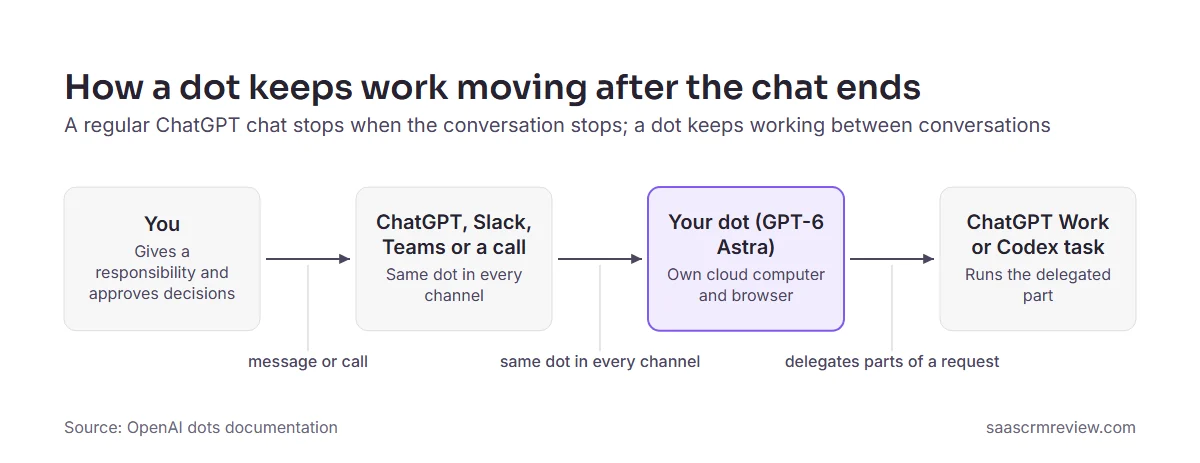
A regular ChatGPT chat answers what you ask and stops when you stop typing. A dot works between conversations: it tracks progress, works out the next step and follows through as things change.
Three mechanics separate the two:
- Its own computer. A dot runs on GPT-6 Astra and has its own computer and browser in the cloud, so it can keep working even when your computer is off.
- One dot across channels. You reach the same dot in ChatGPT, Slack, Teams or a call, and switching channels does not reset its memory.
- Delegation. A dot can delegate parts of a request to ChatGPT Work or Codex, then check the results and send follow-up instructions.
Who Dots Are For
Dots fit anyone with one recurring job they keep checking by hand. OpenAI’s example workflows map onto these SaaS roles:
- Sales or account lead. The dot owns a live proposal and updates the figures as seat count or terms change. You approve anything sent to the customer, because asking it to draft replies doesn’t give it permission to send them.
- Support or engineering lead. The dot investigates new bug reports in a connected Slack channel and prepares fixes. You review each fix before it ships.
- Product launch lead. The dot flags product changes that affect the campaign and prepares revised copy, slides and speaker notes. You sign off on the revisions.
- Developer. The dot follows up on software feedback and prepares a fix for code review. You approve it before merging.
Whatever the role, review the first result and correct missing details before expanding the responsibility.
| Concept | When to use | Key difference |
|---|---|---|
| Regular ChatGPT chat | One-off questions, drafts and analysis you supervise live | Stops when the conversation stops |
| ChatGPT Work or Codex task | A defined job such as a document or a code change | Runs as a task; a dot can start these for you |
| Your dot | An ongoing responsibility you want tracked between check-ins | Persists, keeps notes and asks you for decisions |
| Specialist dot | A dedicated role inside an organization | Starts with enterprise pilots set up with OpenAI |
Who Can Use Dots: Plans, Regions and Rollout Status
Released: Pro and Business Premium
OpenAI’s plan comparison marks Dots as Yes on Pro and No on Free, Go and Plus.
On Pro 100, Pro 200 and Pro 500, dots are for users over 18 outside the European Economic Area, United Kingdom and Switzerland. Business Premium has no such regional carve-out: dots are available to Business Premium users across all supported ChatGPT regions.
A team in the EEA, UK or Switzerland cannot get a dot through Pro, so Business Premium, or an Enterprise workspace whose admin turns on the beta, is the documented route there.
For those teams the decision is simple: if you already run an Enterprise workspace, ask your admin to turn on the beta. If not, use ChatGPT’s Business pricing tab, whose feature comparison lists Dots as “Business Premium” (see the price note below), and confirm the seat and price with OpenAI before you buy.
Rolling Out Gradually
Dots are rolling out gradually, and an eligible plan may not see them immediately.
Enterprise users, including Edu and Healthcare, can try a beta once a workspace admin enables it, because it starts turned off.
Specialist dots, which take on dedicated responsibilities inside an organization, start with focused enterprise pilots, in which OpenAI’s engineering teams will work directly with each organization to define the dot’s responsibilities. OpenAI says it is building on early internal testing across procurement, invoice processing, email marketing, customer support and commercial contracting, and OpenAI invites organizations with work for a specialist dot to contact it.
Your company sets up each specialist dot with its own identity, credentials and access to the systems it needs. OpenAI also says it is working with Microsoft to integrate specialist dots with the governance and security controls in Agent 365, so treat that integration as in progress rather than available.
Not Announced or Not Available
- Users under 18. Dots are not yet available to users under 18.
- A full country list. Beyond the Pro exclusion and Business Premium’s “all supported regions”, the dots pages checked publish no complete country list.
- Business Premium price. The dots pages give none. The Business tab of ChatGPT’s pricing page lists Standard and Premium seats for teams of 2–200; the Premium seat has 5x more usage than Standard and no 5-hour limit, and workspaces can mix and match seat types. Its feature comparison lists Dots as “Business Premium”. Prices there appeared in a local currency at capture and no USD price was observed, so US readers should check the Business tab from the US or ask OpenAI’s sales team for the dollar figure.
What Dots Cost: Plan Price vs Included Dot vs Work Allowance
“Dots pricing” mixes three different things.
The Plan Price
OpenAI’s Pro tiers help article lists Pro 100 at $100, Pro 200 at $200 and Pro 500 at $500 per month. The pricing page shows Plus at $20 per month.
Each Pro tier includes your first dot at no extra cost. These are USD list prices checked on 2026-10-01; confirm the amount for your country at checkout.
| Plan | Monthly list price | Dot included |
|---|---|---|
| Plus | $20 | No |
| Pro 100 | $100 | Yes, first dot at no extra cost |
| Pro 200 | $200 | Yes, first dot at no extra cost |
| Pro 500 | $500 | Yes, first dot at no extra cost |
| Business Premium | Not on the dots pages; no USD price observed on the Business pricing tab, which lists Dots as Business Premium | Yes, first dot at no extra cost |
Source: OpenAI pricing page, Pro tiers help article, plan comparison, Business pricing tab and setup help article.
Moving from Plus to Pro 100 to get a dot adds $80 per month ($100 minus $20), or $960 over twelve months.
For every other ChatGPT tier, see the full ChatGPT pricing breakdown.
The Included Dot
Your first dot is included at no extra cost in your Pro or Business Premium plan. OpenAI says you will be able to add more dots and scale each one’s output in the future, with no price or date published.
The Work Allowance and Usage Limits
- Conversations with your dot don’t count toward your ChatGPT usage limits.
- Tasks your dot starts or manages in Work or Codex count toward those products’ usage limits as usual.
- Your plan includes an allowance for deeper work, with extended limits for the first month after launch. Its size is not published.
- On the same pricing page, for now, Pro plans have no five-hour limit for Work and Codex usage, though weekly limits may also apply, and Plus and Pro users who reach a usage limit can buy additional credits instead of upgrading.
How to Create a Dot and Assign Its First Task
Step 1: Create Your Dot on Desktop
Open dots in ChatGPT and follow the introduction. You can create your dot in the desktop app or a desktop browser, and the help center notes the desktop app is also available on Windows.
You cannot create a dot on mobile, and mobile web is not supported.
Step 2: Connect Apps, Channels and (Optionally) Your Computer
During setup you can connect apps such as email, calendar and files, or skip this step and add them later. Afterwards, manage them in ChatGPT’s Plugins tab or, in the mobile app, under your dot’s profile → Customize → Plugins.
App permissions are granular: you can allow a dot to read email without allowing it to send email.
Access to your local computer is optional and starts turned off; in the desktop app, setup also asks whether to connect your computer.
To grant it later, open your dot’s profile in the ChatGPT app on that computer, find Your computer under Computers and select Allow access; select Revoke access to remove it. Once connected, its local files, code and apps become available: the dot can create local Work or Codex tasks, continue existing local Codex tasks and use local skills, which require a connected computer.
The dots overview adds that you can connect only one personal computer at a time.
Messaging channels such as Slack or texting are connected from desktop. Connecting a messaging channel such as Slack does not automatically grant access to an inbox, other apps or your computer.
If you want the dot to appear in Slack under its own name, you can set up a separate Slack account for it, giving it its own identity and access.
OpenAI says dots can connect to over 4,000 apps through its plugin ecosystem, but the dots pages checked do not name specific CRM plugins.
Step 3: Set Custom Rules Before Real Work
After setup, open Settings > Personalization and select Custom rules under Permissions.
Step 4: Give It a First Responsibility
Describe one responsibility, share the source material and say what the dot must not do. OpenAI advises you to review the first result and correct any missing details before expanding the responsibility.
Keep the Acme renewal proposal current. Use the proposal and the customer
requirements I shared. When the seat count or terms change, update the figures
and list open security and technical reviews. Draft any customer email for my
review, but don't send it. Message me in ChatGPT when you need a decision.
Step 5: Track Progress in Activity
In the desktop app, open your dot’s profile and select Activity to review a task’s progress, files and results, including background work.
Quick checklist before you hand over real work:
- Confirm your plan, region and age qualify.
- Create the dot on desktop; connect only what the first job needs.
- Set rules for sending, deleting and record changes.
- Give one responsibility, its sources and a “draft, don’t send” line.
- Review the first result in Activity before widening the brief.
Three SaaS and CRM Use Cases
Each workflow below is built from behaviour OpenAI documents, with a suggested approval boundary for day one.
Keep a Sales Proposal Current
OpenAI’s own example is to keep a sales proposal current by sharing the proposal and customer requirements.
In OpenAI’s sales-lead example, the dot checks customer requirements and account history against product docs and finds what still needs testing. It then builds a proof of concept for a key integration and suggests a solutions engineer who has handled a similar deal. As requirements and test results change, it updates the proposal and test plan and flags open concerns.
Boundary: drafts to the customer stay drafts. Sending goes through “Ask before taking action”.
Triage Bug Reports From a Support Slack Channel
When a connected service supports event monitoring, OpenAI documents asking a dot to investigate new bug reports in a connected Slack channel and prepare fixes for your review.
Adding the dot to a channel alone doesn’t start monitoring, so tell it which channels and events to watch.
Prepare a Weekly Pipeline Brief From Email and Calendar
Connect email and calendar with read access only, then ask for a scheduled summary of deals with meetings that week. For a timed update, OpenAI suggests you include a time zone and a duration or end date, then ask the dot to confirm the schedule.
If you need AI inside the CRM itself rather than an outside agent, compare AI CRM software first.
Data Access, Action Approvals and Limitations
What a Dot Can See
Plugin permissions are shared across dots, ChatGPT, ChatGPT Work and Codex, so a dot can use connections you already granted.
Alongside assigned work, the dot can run proactive research on information it has permission to read and keep private notes about useful findings. That research is limited: it doesn’t send messages, change connected apps, or control a browser or computer.
Which CRM Actions Need Approval
OpenAI’s controls guide lists four custom rule behaviours. The first takes the specified action without asking for approval.
The second, “Take action when you say so”, proceeds when you explicitly request the action and otherwise asks immediately before acting. The help center calls it “Take action if pre-approved”, where pre-approved means you explicitly requested the action in your prompt.
The third asks for approval first, and the fourth asks you to take the action instead.
OpenAI’s own examples are “Ask before taking action” for sending messages to customers and “Hand off to you” for deleting shared project files. Asking your dot to draft replies doesn’t give it permission to send them.
| CRM action | Rule to start with | Reason |
|---|---|---|
| Read emails, notes and meeting history | Take action without asking | Reading changes nothing; app permissions still limit access |
| Draft follow-up emails | Take action without asking | A draft request does not include permission to send |
| Send an email to a customer | Ask before taking action | Matches OpenAI’s own example for customer messages |
| Send a recurring internal update | Take action when you say so | Advance approval can cover recurring messages |
| Change a deal stage or amount | Ask before taking action | Edits shared pipeline records |
| Delete contacts, deals or shared files | Hand off to you | Matches OpenAI’s example for deleting shared files |
| Change a password or move money | Hand off to you | OpenAI requires you to take over these steps |
Sources: OpenAI’s controls guide and privacy and safety FAQ, checked 2026-10-01.
The privacy FAQ sets the floor: the most sensitive actions, like changing a password or transferring money, require you to take over, and permanently deleting data or installing software may need approval each time.
Purchases with a card saved on a merchant’s website need your approval, which may be given in advance when it specifically covers that purchase. Approving one message does not give the dot ongoing permission to contact people on your behalf.
The controls guide adds that custom rules don’t grant access to an app or computer, override built-in safety requirements or remove required confirmations.
OpenAI lists five layers of protection behind those rules:
- Model safeguards in GPT-6 Astra
- Plugin permissions that limit access
- Custom Rules for supported actions
- Auto-review, which checks certain planned actions before they run
- Safety monitoring while the dot works
These protections reduce the risk of malicious instructions but do not eliminate it.
How Your Data Is Used
Your dot receives memories from ChatGPT and can create its own memories, including from connected apps.
Turning off Memory in ChatGPT stops that sharing, but it does not delete what your dot has already received. For now, you cannot view, delete or edit individual dot memories; deleting the dot clears them.
OpenAI encrypts dot content at rest and in transit between you, OpenAI and its service providers, and your dot’s context does not retain credentials, images or screenshots.
For ChatGPT Business, Enterprise and Edu workspaces, OpenAI doesn’t use your data to train its models by default. On personal plans, the “Improve the model for everyone” setting controls whether your dots’ conversations and work may be used to improve models; to opt out, turn that setting off in ChatGPT settings.
With that setting on, training may include actions dots take, work they delegate to other agents, automations you set up and data from connected apps used to inform your conversations. OpenAI says it takes steps to remove personal identifiers where possible before using eligible data.
OpenAI doesn’t train models directly on proactive research or its private notes, and your ChatGPT data controls also apply to eligible conversations with your dot and the work it carries out. A sales lead on a personal Pro plan should check that training setting before connecting a customer inbox.
Two caveats: information from proactive research may be used for training once the dot brings it into an eligible conversation, depending on your settings. Human review may also occur in limited circumstances, including safety-related cases, even when model improvement is turned off.
To request access to, correction of or deletion of your personal information, use OpenAI’s Privacy Portal or email dsar@openai.com, even if you don’t have an OpenAI account.
Pausing, Stopping and Deleting
To pause, open the ••• menu in your dot’s profile and select Pause; to start it again, select Paused • Tap to resume.
Pause stops your dot’s current main task, but it doesn’t stop every delegated task or cancel future scheduled runs. Open a delegated task in Activity to stop it, and open Scheduled to disable or delete a recurring task. Stopping work doesn’t undo completed actions.
If something went wrong, ask the dot to fix it: it may be able to undo actions, for example by reversing unintended edits to a document or recalling an e-mail.
To reset, open your dot’s profile, select the ••• menu, select Reset, review what will be deleted, then select Reset to confirm. Reset deletes your dot, including its conversations, saved memories and scheduled tasks.
Files, Codex threads and ChatGPT conversations the dot created are stored separately and survive deletion. Deleting your dot doesn’t undo changes already made in connected apps or recall messages already delivered to other people.
What Dots Cannot Do at Launch
These gaps apply at launch:
- No standalone email address for the dot, per the help center setup guide.
- No calls initiated by the dot.
- Texting is a beta limited to Pro users in the US and is not available in Business or Enterprise workspaces; access may not reach every Pro user, and the messaging docs still list texting as coming soon.
- Only one connected personal computer at a time, and no dot creation on mobile.
- Disconnecting an app does not delete information the dot already obtained from it.
Methodology: How This Guide Was Built
This guide is based on OpenAI’s official dots documentation, help-center articles, the launch announcement and the ChatGPT pricing pages, checked on 2026-10-01.
Figures not found on the pages checked, including a USD Business Premium price (the Business tab showed a local currency at capture), the size of the deeper-work allowance and a full country list, are marked as unpublished or unobserved rather than estimated.
FAQ
What is a dot in ChatGPT?
A dot is an always-on agent in ChatGPT that takes on ongoing responsibilities, keeps working between conversations and asks you when a decision needs your judgment.
How do OpenAI dots work?
You give a dot a responsibility and the sources it needs, and it tracks progress, delegates parts of the work to ChatGPT Work or Codex, and reports back.
How do I create and use a dot?
Open dots on desktop, connect the apps the first job needs, set custom rules, then give one responsibility and review the first result in Activity.
How much do OpenAI dots cost?
Pro 100, Pro 200 and Pro 500 cost $100, $200 and $500 per month, and each includes your first dot at no extra cost. The dots pages do not list a Business Premium price, so confirm it with OpenAI.
Are OpenAI dots free?
No. OpenAI’s plan comparison shows Free, Go and Plus without dots, and the lowest documented entry point is the $100-per-month Pro plan.
Which ChatGPT plans include dots?
Pro 100, Pro 200, Pro 500 and Business Premium include a dot. Enterprise workspaces, including Edu and Healthcare, get a beta that a workspace admin must turn on.
Which countries support OpenAI dots?
On Pro, dots are for users outside the European Economic Area, the United Kingdom and Switzerland. Business Premium covers all supported ChatGPT regions, and no full country list is published on the dots pages.
What is the difference between OpenAI dots and ChatGPT?
A ChatGPT conversation answers and stops; a dot is an agent inside ChatGPT that keeps working on a responsibility between conversations.
Bottom Line: Use Dots Now or Wait?
Use a dot now if all of these hold:
- You are over 18 and on Pro outside the EEA, UK and Switzerland, or on Business Premium.
- You set things up on desktop.
- You have one recurring responsibility with clear sources, such as a live proposal or a support channel.
- You will set custom rules before connecting customer-facing apps.
Wait if any of these apply:
- You are on Plus and no recurring workflow justifies the upgrade cost worked out above.
- You are an individual in the EEA, UK or Switzerland, where Pro does not include dots.
- You need mobile-only setup, a dedicated dot email address or texting outside the US beta.
- Your CRM has no supported plugin, or your team needs governance documentation you have not yet reviewed.
Your next step: check that your plan and region qualify.
If they do, create your dot on desktop and give it one responsibility, such as a renewal proposal, with sending set to “Ask before taking action”. If not, recheck later, since access is rolling out gradually.
If you are still choosing between assistants rather than agents, start with the best AI chatbots comparison.