
A passkey is a sign-in credential, a cryptographic key pair kept on your phone, computer or hardware security key and unlocked with your face, fingerprint or device PIN, that replaces the password you type.
One difference decides the passkey vs password question: the site keeps only a public key, which is no secret, and a passkey works only on the site it was created for, so a lookalike page or a breached database yields nothing to reuse.
So use a passkey wherever a site or app offers one and the device is your own. On a work account, the Google Workspace or Microsoft Entra ID admin sets what staff may use.
Passkey vs password in brief
A password is a secret you and the site both hold, which is why it can be phished or leaked. A passkey leaves the site a public key only.
There is nothing to remember beyond your screen lock, so keep passkeys off shared computers. After a lost phone, synced passkeys return through the passkey provider.
In This Article (9 sections)
Passkey vs Password: The Key Differences
A password is a shared secret: you remember and type it, and the site keeps its own stored form of it to check against.
A passkey is a key pair: only the public half goes to the site, and a local check such as Face ID, Touch ID or a Windows Hello PIN approves each sign-in.
| Attribute | Password | Passkey |
|---|---|---|
| What you create or remember | A secret you choose, remember and type | Nothing to remember: the device generates a unique key pair for every account |
| What the site stores | The password, salted and hashed under NIST rules | Only the public key, which is not a secret |
| Lookalike (phishing) site | Not phishing-resistant, per NIST | Works only on the website or app it was registered with |
| Reuse across accounts | Possible, and a cause of credential stuffing attacks | The same passkey is never used with more than one site |
| Data breaches at the site | Password databases are a target for attackers | The stored public key alone is useless to an attacker |
| Multi-factor on its own | No: a single factor | Yes: the device you have plus a biometric or PIN |
| Where it works | From any device | Only on sites and apps that support passkeys |
| Recovery | Reset through each site’s account recovery | Synced passkeys return on a new device set up with the same provider; device-bound ones do not |
Sources: FIDO Alliance’s passkeys page, Apple’s passkey security overview, Google’s passkey developer guide and NIST SP 800-63B, checked Nov 2026.
The passkey leads on every security row. The password keeps two points. One is reach: it works from any device, while a passkey signs in only where the website or app supports passkeys and the device meets the version table below. The other is recovery against a device-bound passkey: lose that device and you lose the passkey unless you have another recovery method.
How a Passkey Works (and Where the Password Fits)
A passkey sign-in is a challenge your device signs with a private key, where a password sign-in is a secret you send to the site. The sequence, built on public key cryptography:
- Registration. Your device generates a key pair for that one account and registers the public key with the website or app.
- Challenge. At sign-in, the site sends your device a challenge.
- Unlock. You unlock the private key with your face, fingerprint or PIN.
- Signature. The device signs the challenge with the private key and returns the signature.
- Verification. The site verifies the signature with the public key and grants access.
Apple’s description is that no shared secret is transmitted and the server never learns the private key.
The standards come from the FIDO (Fast Identity Online) Alliance. Passkeys are built on FIDO2, which pairs WebAuthn, the browser API that manages passkeys, with CTAP, the protocol for communication with the authenticator.
Biometric data stays local: FIDO Alliance states it is never sent to a remote server, which sees only an assurance that the check succeeded.
Synced vs device-bound passkeys
A synced passkey is saved in a credential manager and available on every device signed in to it; a device-bound passkey is stored only on the device where it was created.
Synced passkeys live in iCloud Keychain, Google Password Manager, Microsoft Password Manager or a third-party provider such as 1Password, and the syncing is end-to-end encrypted.
Device-bound passkeys sit on one piece of hardware: Microsoft’s examples are the Microsoft Authenticator app and FIDO2 security keys. Lose that device and you lose the passkey unless you have another recovery method.
Convenience and assurance pull apart here. NIST’s SP 800-63B bars syncable authenticators at AAL3, its assurance level for very high confidence, because syncing requires an exportable private key. Most office roles never meet that bar, so synced is the sensible default.
Signing in on a computer that is not yours
A passkey on your phone can sign you in on another computer without being saved there. On the sign-in screen, choose the option for a passkey from a nearby device and scan the QR code with the phone’s camera.
FIDO Alliance calls this cross-device authentication. Bluetooth Low Energy verifies that the phone is physically close, so a remote attacker cannot use the QR code from far away.
Which Is More Secure? Phishing, Breaches and Stolen Devices
A passkey is more secure than a password against remote attacks, and that includes a strong password backed by a one-time code. The reason is domain binding: in Microsoft’s example, a passkey created for netflix.com can only be used with netflix.com, and the device won’t present it to a similar-looking website.
NIST draws the same line. SP 800-63B states that passwords, one-time passwords (OTP) and out-of-band authentication are not phishing-resistant; a manually entered code can be relayed by an impostor site. It names WebAuthn as an example of a standard that provides phishing resistance.
FIDO Alliance’s position is that a passkey standing alone is more secure than a password plus an OTP or a password plus a phone approval.
Breaches lose their payoff too: for a passkey, the site stores only the public key, which alone is useless to an attacker, and the same passkey is never used with more than one site, so credential stuffing attacks have nothing to replay.
That also settles passkey vs password vs 2FA. A passkey counts as multi-factor authentication (MFA) by itself: the device is something you have, and the biometric or PIN is something you are or know. On a Google Account with 2-Step Verification, the passkey bypasses the second step.
My take
I would switch for the remote threats, phishing first, because that is where a password fails however long it is. A passkey does nothing for a phone anyone can open or a provider account with a weak sign-in, so guard those two.
Where a passkey is still at risk: the downsides
Passkeys have three downsides a team should plan for:
- The unlocked device. Google’s warning is blunt: anyone who can unlock the device a passkey is saved on can access the account, even after you sign out. On a non-Android device, the passkey signs in again at any time after sign-out; on an Android device, for up to 6 hours.
- The provider account. Synced passkeys are restored through the passkey provider, so the vulnerability moves to that account. Apple requires two-factor authentication on any Apple Account using iCloud Keychain.
- Coverage. A site with no passkey option still needs a password.
Regulated teams have a fourth. FIDO Alliance notes that some regulatory regimes still have to recognize passkeys as an officially listed form of multi-factor authentication, so read the wording of any audit questionnaire before you retire a second factor.
Day-to-Day User Experience: Sign-In Speed, Devices and Support
Passkeys are faster in Microsoft’s published numbers. Across consumer Microsoft accounts, Microsoft’s Entra ID documentation reports a synced-passkey sign-in at 3 seconds against 69 seconds for a password plus traditional MFA. It also reports that users succeed 95% of the time against 30% with legacy authentication methods (page last updated Nov 17, 2026).
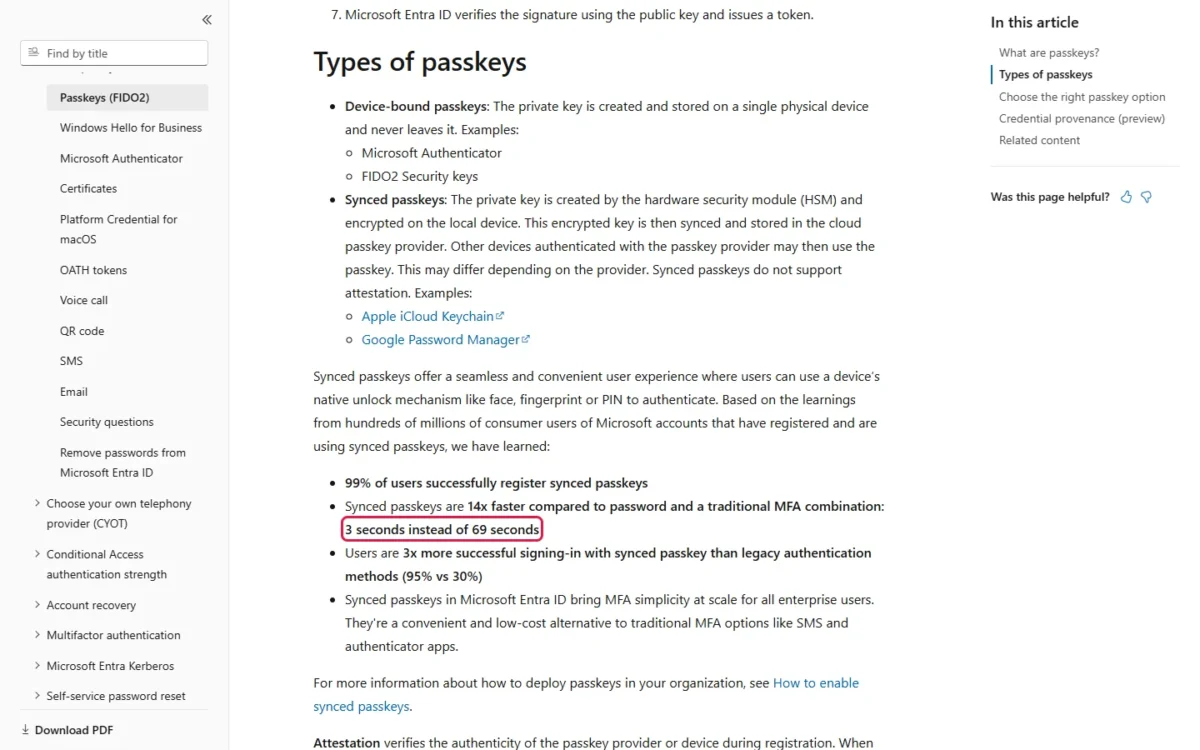
Those are Microsoft’s figures for its own accounts, not a promise for every app your team uses.
Compatibility has version floors, so check older laptops and Android devices before a rollout.
| Platform or browser | Minimum for passkeys | Note |
|---|---|---|
| Windows | Windows 10 | The latest passkey features need Windows 11 |
| macOS | macOS Ventura | Google asks for iCloud Keychain to be on |
| ChromeOS | ChromeOS 109 | Passkeys go to Google Password Manager |
| Android | Android 9 | Another password manager as passkey provider needs Android 14 |
| iPhone and iPad | iOS 16 | Passkeys in Microsoft Authenticator need iOS 17 |
| Hardware security key | FIDO2 support | Holds device-bound passkeys |
| Browsers | Chrome 109, Safari 16, Edge 109, Firefox 122 | Incognito mode may block passkeys |
Sources: Google Account Help on passkeys, Microsoft’s passkey support page and Google’s passkey support on Android and Chrome, checked Nov 2026.
On managed hardware, policy can override the table: Microsoft notes that some passkey options are unavailable on a Windows device registered or managed by an organization. A passkey prompt that fails on a company laptop is more likely policy than a fault.
What Happens If You Lose Your Phone? Recovery for Each
A lost phone does not take a synced passkey with it: set up the same passkey provider on the new device and the passkeys are available there. A device-bound passkey is gone with the device unless you kept a backup passkey or another recovery method. A forgotten password is reset site by site.
Apple covers the worst case, every device lost, with iCloud Keychain escrow. Recovering the keychain takes the iCloud account password, a reply to an SMS sent to the registered phone number and the device passcode. After the tenth failed attempt the escrow record is destroyed, which protects it against brute-force attacks. An account recovery contact is optional.
The lost-phone steps, in order:
- From a device you can still access, sign in to the account and remove the passkey on the lost phone. On a Google Account, a passkey you created is under Security & sign-in, then Passkeys and security keys; one your Android phone created automatically goes when you sign that phone out under Manage all devices.
- Set up your passkey provider on the replacement phone, so the synced passkeys still on your accounts are available there.
- For any account whose passkey you removed in step 1, and for a device-bound passkey, sign in with another method or your backup and create a new passkey on the new device.
The backup in step 3 has to exist before the loss. Microsoft’s advice is to create passkeys on your other devices as a digital spare key, and FIDO Alliance describes a security key as a recovery credential when every synced device is gone.
Passkeys for a Small Team: Employee Sign-In, Shared Devices and Offboarding
For staff accounts, the admin platform decides before the employee does: Google Workspace and Microsoft Entra ID each let an admin limit how passkeys are used.
Employee accounts on Google Workspace and Microsoft Entra ID
On Google Workspace, an employee can sign in with just a passkey only if the admin allows it. Without that, a passkey still works as a second factor in 2-Step Verification, as an account recovery option and for some sensitive actions. Each user can see what the admin allows on the “Skip password when possible” page of the account settings.
Decide who holds that admin role before you standardize on the suite; my Google Workspace review covers whether the suite fits a small team in the first place.
In Microsoft Entra ID, Microsoft’s guidance splits users in two. Synced passkeys are its low-cost alternative to traditional MFA for most users. FIDO2 security keys are recommended for highly regulated industries and users with elevated privileges, and they can increase costs for equipment, training and helpdesk support.
Attestation is enforced at the passkey profile level, and on a profile with attestation enabled, only device-bound passkeys are allowed and synced passkeys are excluded. That per-profile setting is what makes the split below workable: attestation off for most staff, on for the admins.
My take
For a small office I would follow Microsoft’s split: synced passkeys for everyone, FIDO2 security keys only for the people who administer the identity platform, payroll or banking. Skip synced passkeys only where a regulator or a contract demands device-bound keys.
Shared and kiosk devices
A front-desk PC, warehouse terminal or shared laptop should never hold anyone’s personal passkey: Google’s instruction is to create passkeys only on devices you personally own and use.
Two sign-ins fit a shared computer. The first is the QR code from the employee’s own phone. The second is a personal FIDO2 security key: FIDO Alliance describes security keys for users who need a credential that works across shared, restricted or unusual environments, and a USB key with a PIN requires no app install, Bluetooth pairing or cloud sync account.
If a passkey lands on a shared device by mistake, remove it from the account; signing out alone leaves the sign-in window described above open.
Onboarding and offboarding
Issuing a passkey is the employee’s job; revoking one has to happen in every account that holds one.
A new hire signs in with the method the account already has, then creates a passkey in their passkey provider. Other devices authenticated with that provider may then use it, so a further passkey is needed only on a device outside that provider. Google adds a wait: a newly created passkey may need 7 days before it is available at sign-in, so the password has to carry the first week. That makes passkey setup a first-day task in an employee onboarding checklist.
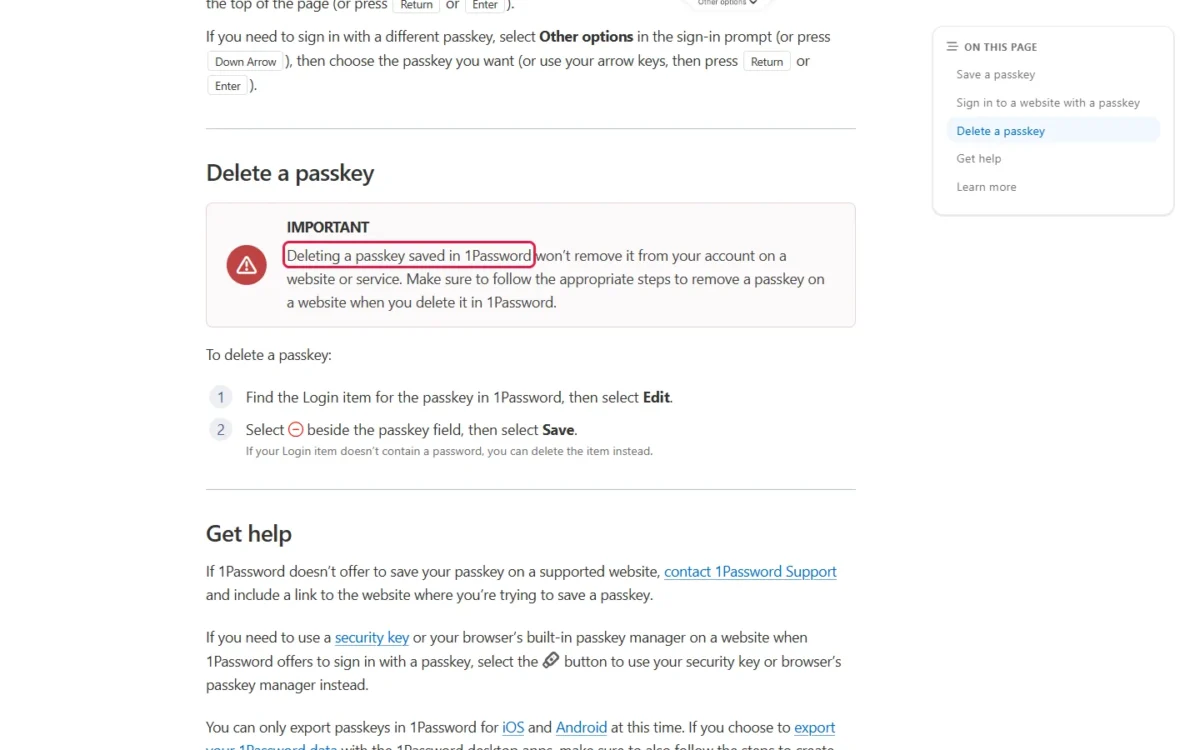
At departure, removing the person from the password manager is not enough. 1Password states that deleting a passkey saved in 1Password won’t remove it from the account on the website or service, so revocation has to happen in each account.
Each step below runs from inside the account or vault with its own sign-in, so I would schedule it with the person before their last day.
Offboarding checklist for passkeys
- Remove the person’s passkeys in each account’s own security settings, not only in the password manager.
- Sign the person’s devices out of each account; on Google, under Manage all devices.
- Take the person out of every shared vault or group that holds a shared passkey.
- If a removed passkey still prompts at sign-in, remove it from the third-party credential manager too.
Password Managers That Store and Share Passkeys
All eight password managers and platforms below state on their own pages that they store passkeys; they differ on sharing, export and admin control. “Not stated” means the page I read in November 2026 does not say either way.
| Manager | Stores passkeys | Shares passkeys | Export or move | Admin control |
|---|---|---|---|---|
| 1Password | Yes: in the browser | Yes: share like other items | Export only in 1Password for iOS and Android | 1Password Business admins control whether members save or sign in with passkeys |
| Bitwarden | Yes: browser extension, desktop apps, iOS 17.0+, Android 14.0+ | Not stated | JSON exports; CXP on iOS 26+ and Android 14+ | Not stated |
| NordPass | Yes: across all your devices | Yes | Not stated | Not stated |
| Dashlane | Yes: view, edit and delete in the vault | Not stated | Not stated | Not stated |
| Keeper | Yes: mobile on Android 14+ and iOS 17+ | Yes: like any other record | Not stated | Not stated |
| Apple Passwords (iCloud Keychain) | Yes: synced across Apple devices | Yes: groups share passwords and passkeys | Import and export between password managers | Managed Apple Accounts with access controls on sharing and syncing |
| Google Password Manager | Yes: synced on Android and Chrome | Not stated | Not stated | Not stated |
| Microsoft Password Manager | Yes: rolling out in Edge v142 and newer, personal profile | Not stated | Not stated | Not stated |
Sources: the passkey pages of 1Password, Bitwarden, NordPass, Dashlane and Keeper, plus the Apple, Google and Microsoft pages linked above, checked Nov 2026.
Sharing is what lets a shared team login move off a password, so where the table says “Not stated”, confirm with the vendor before you plan a shared account around that manager. For the rest of the choice, my business password manager picks sort these vendors by team job.
One edge case comes from the same pages: 1Password’s page, published September 11, 2026, says an export from its desktop apps leaves passkeys behind, so you create new passkeys on each website instead.
Moving between managers is getting a standard. FIDO Alliance’s Credential Exchange specifications define a standard format for transferring the credentials in a credential manager, passwords and passkeys included, and Bitwarden supports it on mobile when both apps do. Until your manager does, treat a passkey as something you recreate, not something you migrate.
When to Use a Passkey and When You Still Need a Password
Use a passkey wherever the service offers one and the person owns the device; keep a password, long, unique and stored in a password manager, for everything else.
| Situation | Use | Why | Source |
|---|---|---|---|
| Employee on their own phone or laptop | Synced passkey | Phishing-resistant and available on all the person’s devices | FIDO Alliance |
| Shared or kiosk computer | QR sign-in from the phone, or a personal FIDO2 security key | Anyone who can unlock a device can use its passkey | |
| Admin or regulated role | Device-bound passkey on a FIDO2 security key | Recommended for regulated industries and elevated privileges; NIST bars syncable authenticators at AAL3 | Microsoft, NIST |
| Service with no passkey option | Password in a password manager | The site does not support passkeys | Apple |
| Shared team login | Passkey in a manager that shares passkeys, else a shared password | Sharing depends on the manager | 1Password, NordPass, Keeper, Apple |
| New hire’s first week | Existing sign-in, then a passkey in the person’s provider | A new Google passkey may need 7 days | |
| Departure | Remove passkeys in each account | Deleting a passkey in 1Password leaves it on the website | 1Password |
| Lost phone | Provider sign-in on the new device | Synced passkeys return; device-bound ones need a backup | FIDO Alliance, Microsoft |
Sources: Apple’s iPhone User Guide on passkeys and the Google, Microsoft, NIST, FIDO Alliance and vendor pages linked above, checked Nov 2026.
The departure row means a pass through each SaaS app the person used: a passkey can only be used with the website or app that created it, and deleting it in 1Password won’t remove it from the account on that service.
Two passwords survive even in a passkey-first team. The provider account keeps its own: the first sign-in on a new Apple device takes the Apple Account password and a six-digit verification code. And on a Google Account, adding a passkey doesn’t change or remove any existing authentication or recovery factor.
For the passwords that remain, NIST’s SP 800-63B rules for services are the yardstick for your own policy:
- at least 15 characters where the password is the only factor, at least eight where it is part of multi-factor authentication
- no composition rules and no periodic changes; a change is forced only on evidence of compromise
- a check against a blocklist of commonly used, expected or compromised passwords
- password managers, autofill and paste allowed
My take
For a small team, my advice is passkeys first on every account that offers them, a password manager for the rest, security keys for admins and no personal passkeys on shared machines. Skip a passkey-only rule until every app the team depends on supports passkeys and your admin console allows it.
How to switch an account from a password to a passkey
Adding a passkey takes four steps, and the password stays on the account afterward. That password keeps the risks in the Password column of the first table, so a lookalike page can still collect it; on a Google Account you still have the option to sign in with it.
- Sign in with your account name and password.
- Open the account settings or management screen. On a Google Account, go to myaccount.google.com/signinoptions/passkeys.
- Choose the option to create or save a passkey.
- Confirm with your device’s screen lock.
If no passkey option appears, the website or app does not support passkeys yet.
FAQ
Is it better to have a passkey than a password?
Yes, wherever the site or app offers one and the device is yours; on a work account, your admin decides what you may use. The decision table above covers the exceptions, such as shared computers and services without passkeys.
Can I use the same passkey on an iPhone and an Android phone?
Yes, with a cross-platform credential manager: configuring the provider on the new phone makes its passkeys available there. Without one, it is not the same passkey: you use the passkey on the old phone to sign in on the new one, then create another passkey in the new phone’s provider.
Is a passkey the same as a PIN?
No. The PIN, like a fingerprint or face scan, unlocks the device and its private key locally. The passkey is the key pair itself, unique to one account, and it is what the website verifies.